
Quotations
Send the customer prices and quantities before the sale. A quotation does not affect stock or accounts.
Overview
Where to find itSalesOperationsQuotations
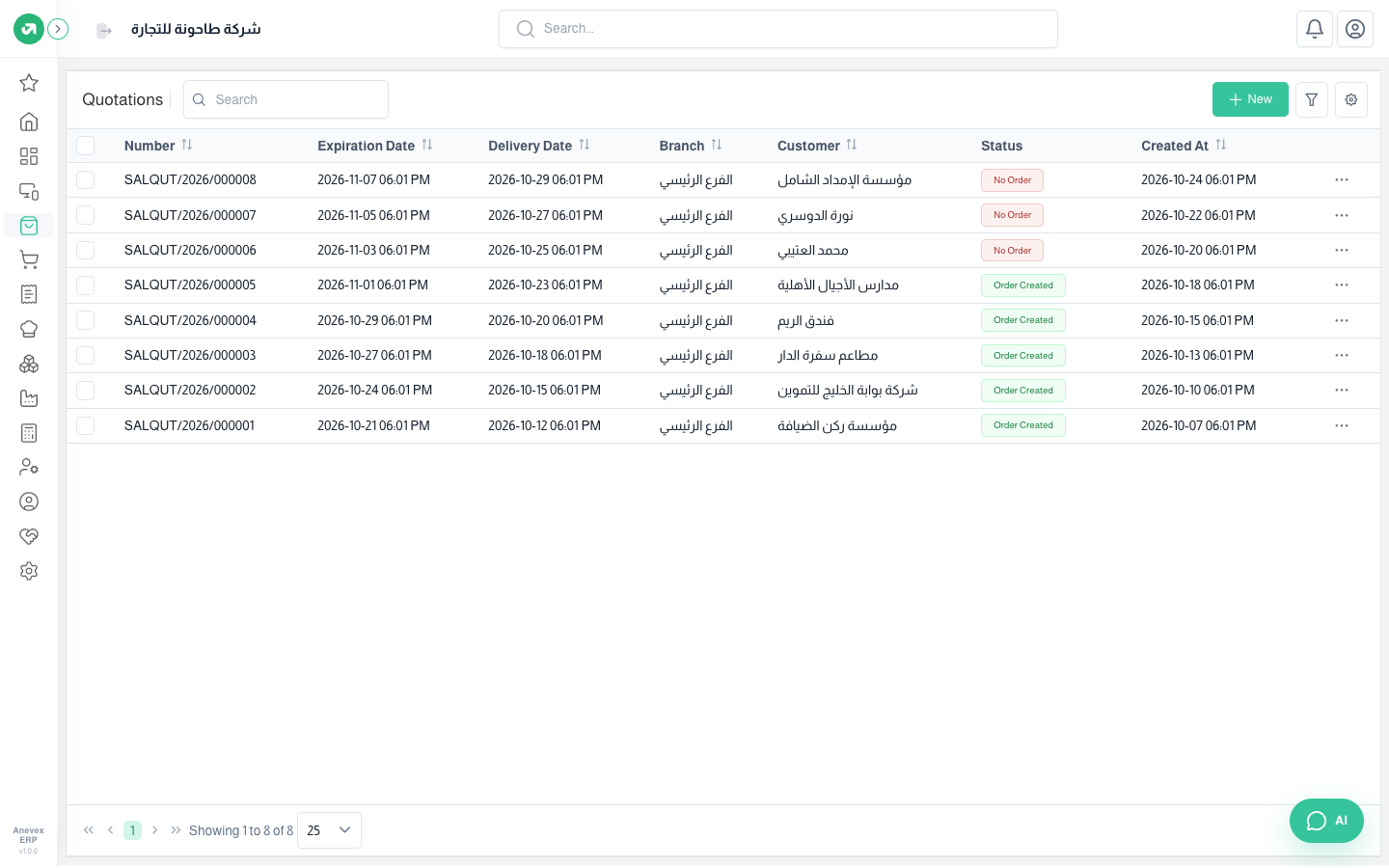
Adding a quotation
Steps
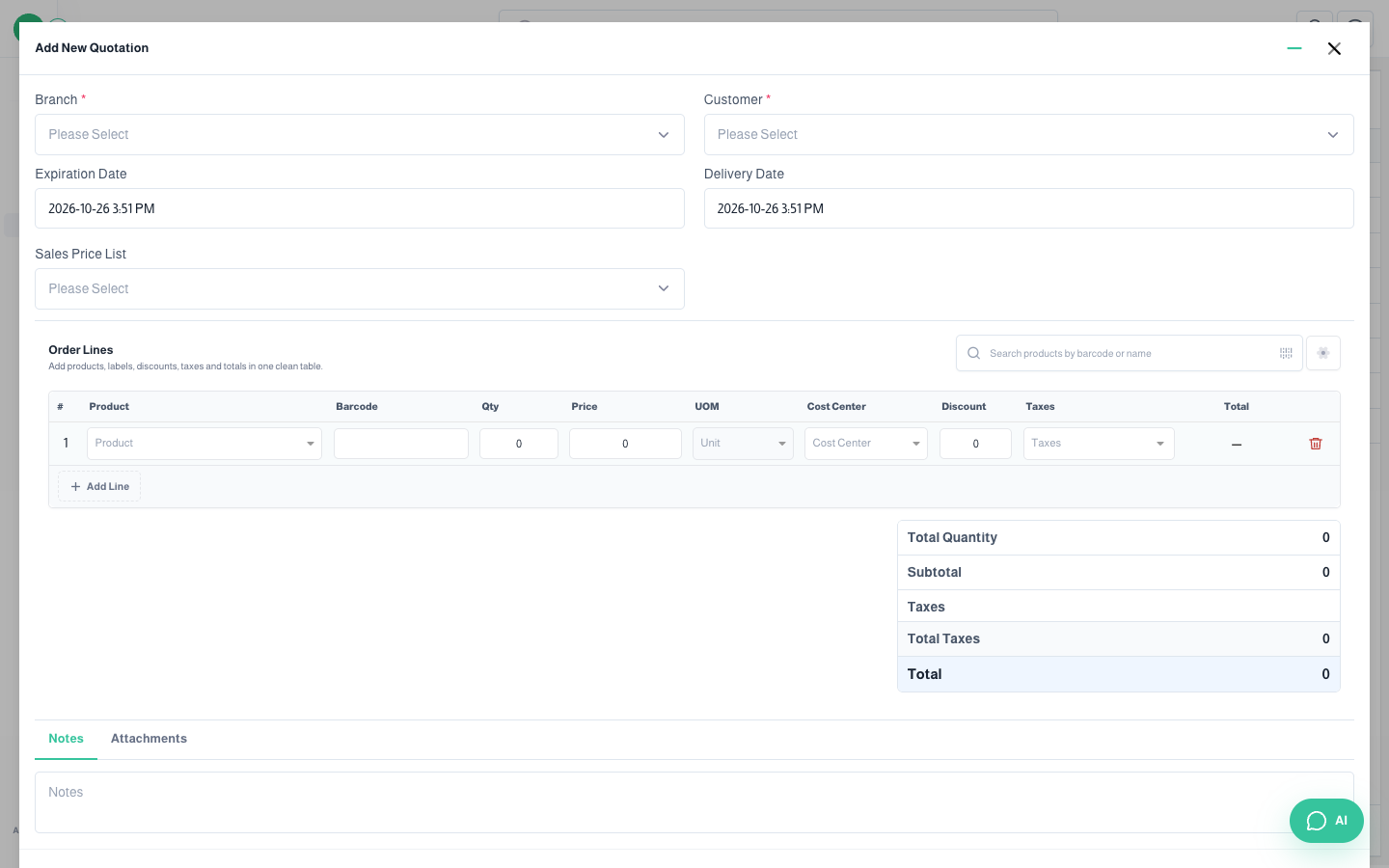
- Click New.
- Choose the Branch and Customer, and set the Expiration Date and Delivery Date.
- Under Order Lines, search for products by name or barcode and enter the Quantity. Price and tax fill in automatically.
- Check the totals under the table, then click Submit.
Fields
| Field | Required? | Description |
|---|---|---|
| Branch | Required | The branch issuing the quotation |
| Customer | Required | From the Customers screen |
| Expiration Date | Optional | The last day the quotation is valid |
| Delivery Date | Optional | Expected delivery date |
| Sales Price List | Optional | Applies special prices to this quotation |
| Cost Center | Optional | Assigns the revenue to a cost center |
| Order Lines | Required | Product, quantity, unit, price, discount and taxes for each line |
Turning a quotation into a sales order
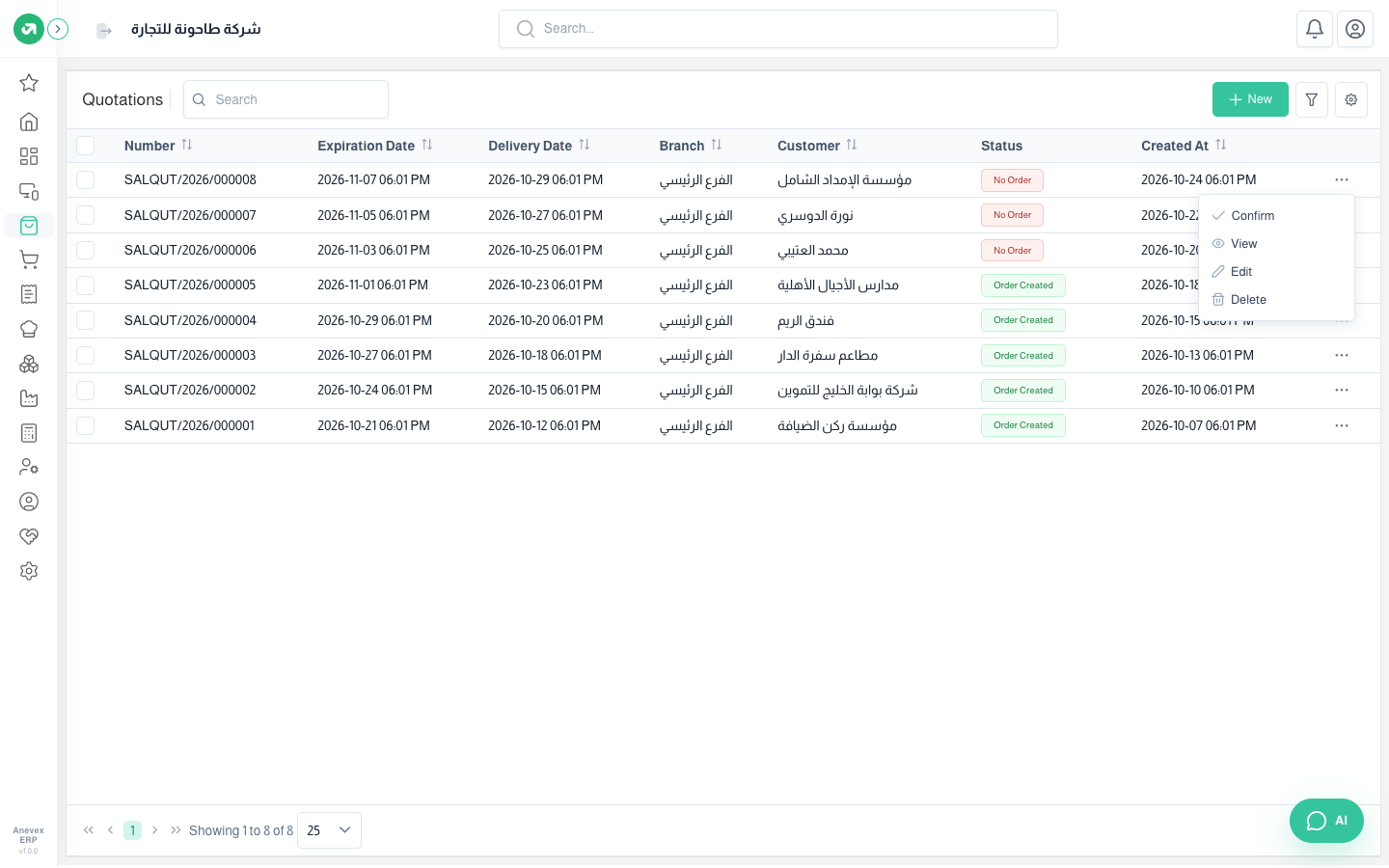
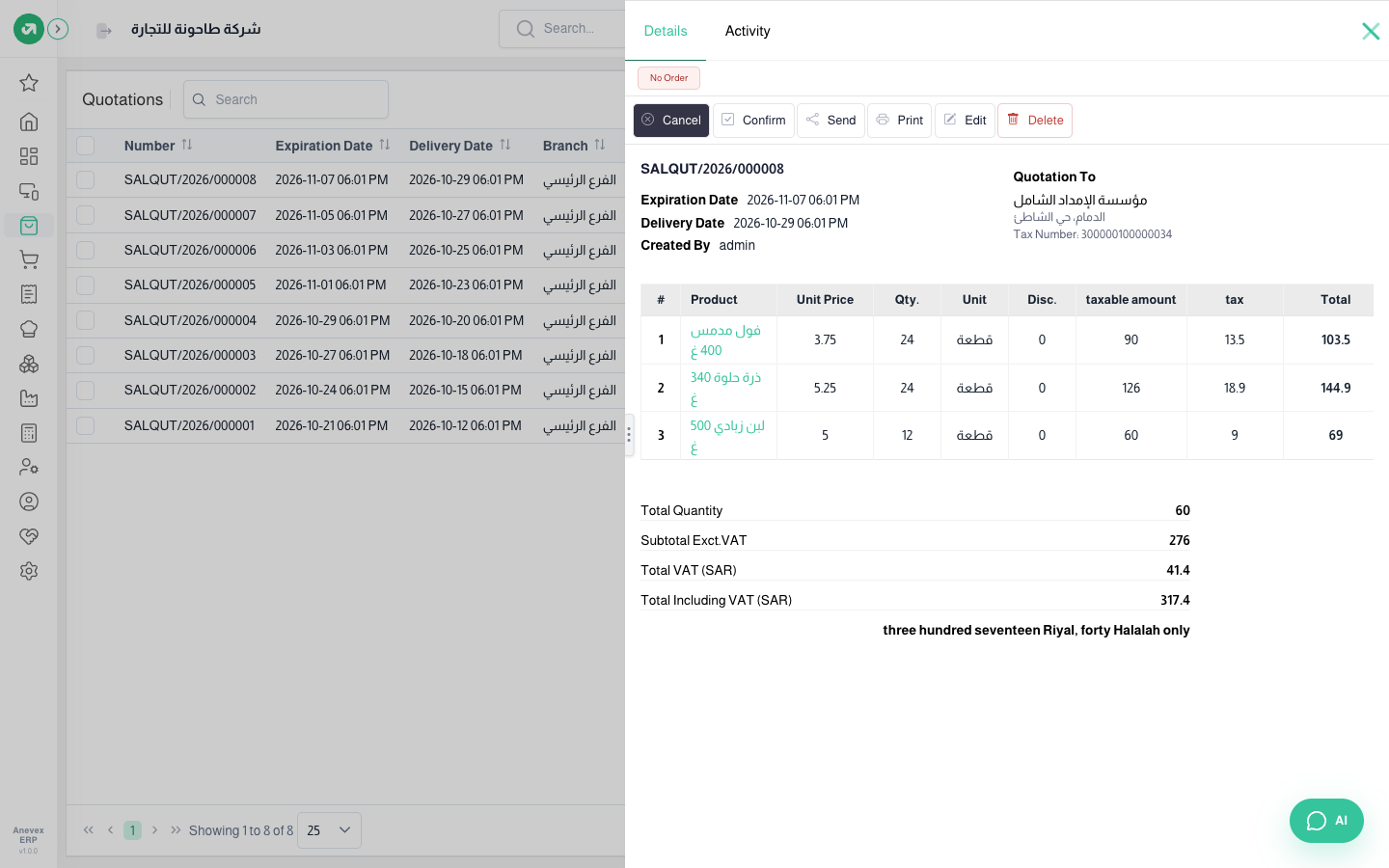
When the customer agrees, click … on the quotation row and choose Confirm. A sales order is created with the same lines, and the status changes from No Order to Order Created.
Notes
- If overselling is off in settings, Confirm is refused when the quantity is more than available stock, with an "insufficient quantity" message.