
AI Settings
Turning AI on, choosing the default provider, and entering the providers’ keys.
Overview
Where to find itSettingsAI SettingsAI Settings
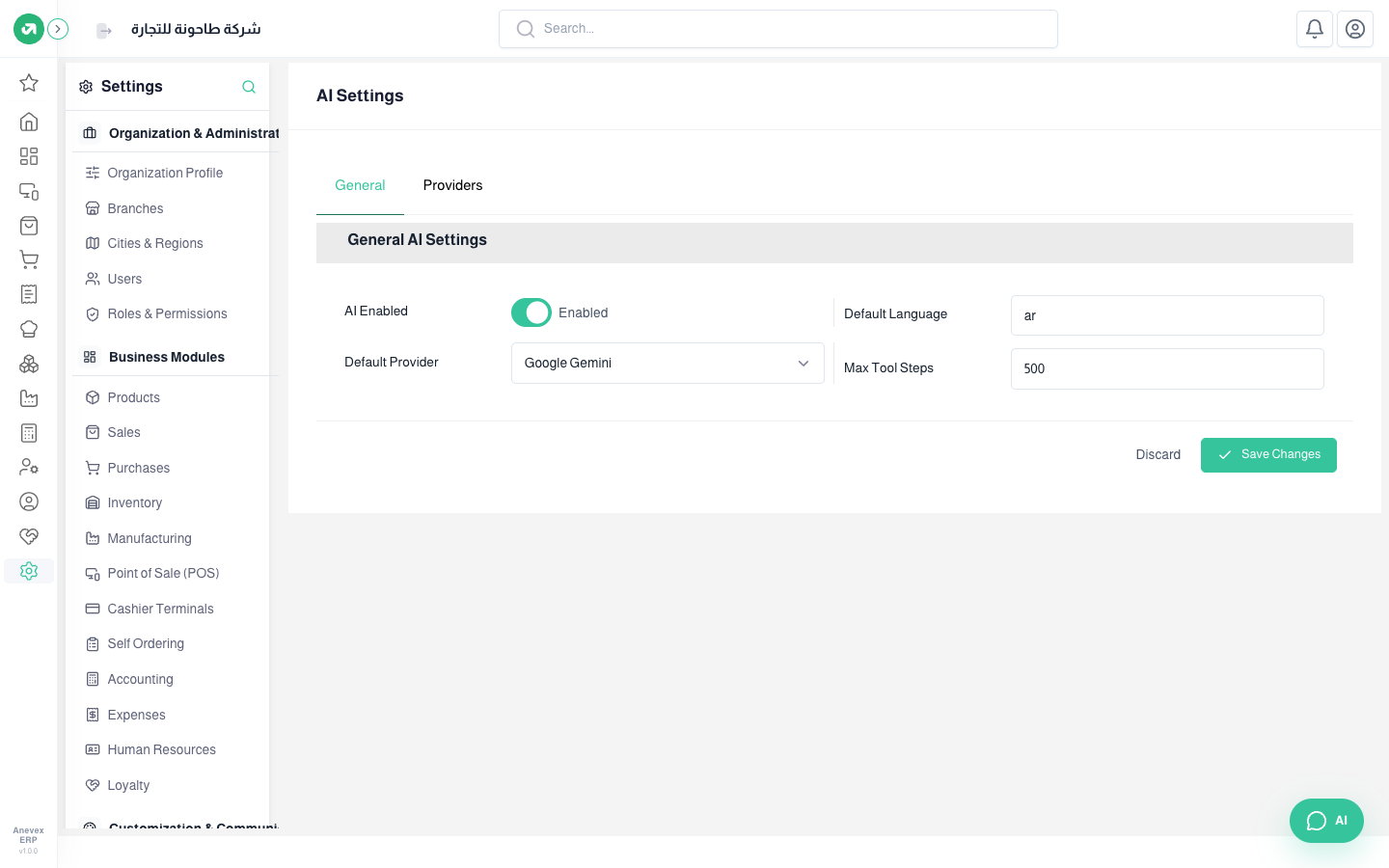
Steps
- Open an account with the provider you choose and create an API key there.
- On Providers, turn the provider on, paste the key in API key, and choose a Default Model or keep the default.
- Click Test to check the key works.
- On General, turn on AI Enabled and choose the same provider in Default Provider.
- Click Save Changes. The AI button appears at the bottom of screens.
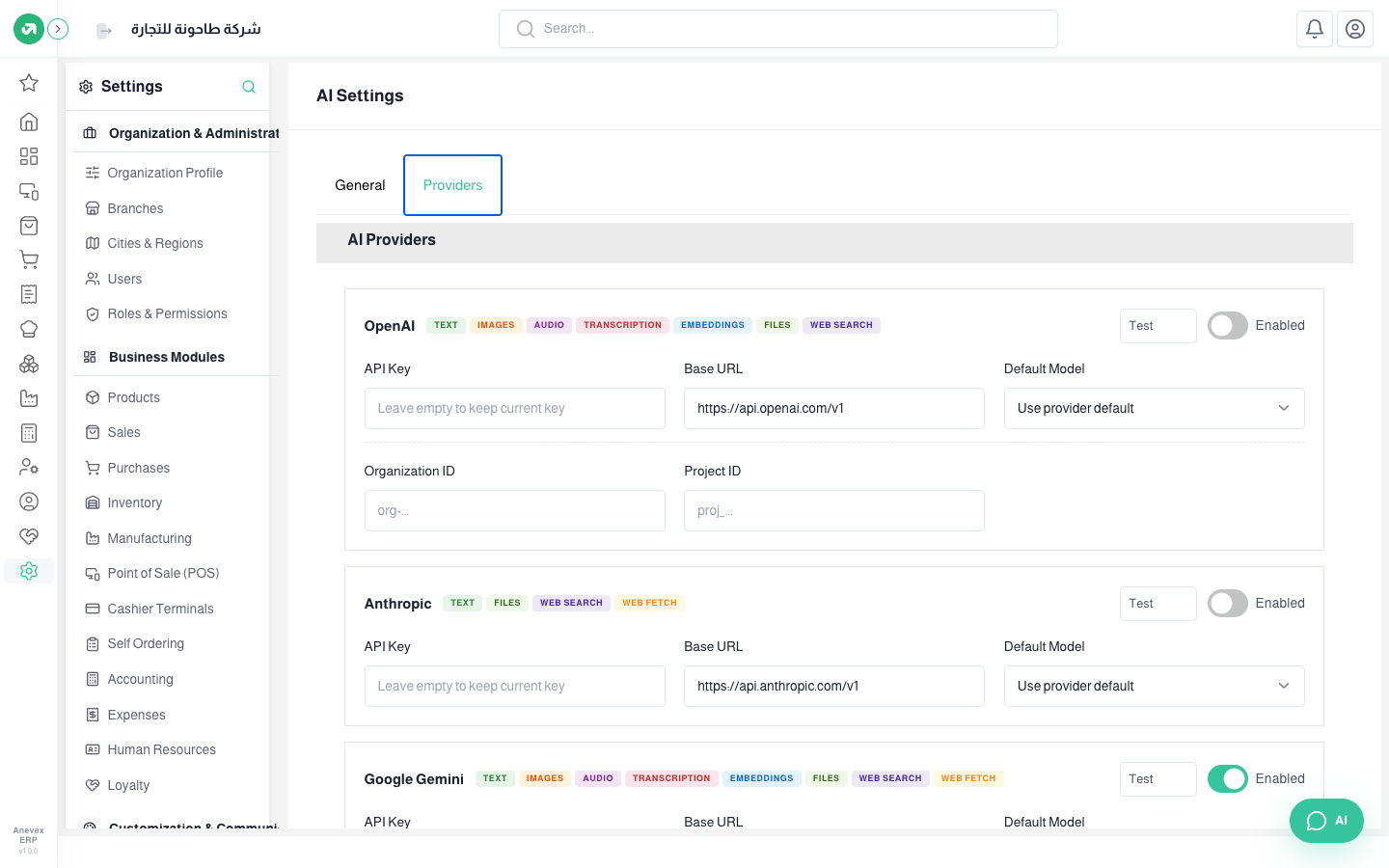
Fields
| Field | Required? | Description |
|---|---|---|
| AI Enabled | Optional | Turns AI on or off for the whole system |
| Default Provider | Optional | The provider every agent on "default" uses |
| Default language | Optional | The answers’ language (ar or en) |
| Max Tool Steps | Optional | The most tool calls in one answer |
| API key | Required | Hidden after saving. Leave it empty to keep the current key |
Notes
- The key is secret and your provider account is billed for it. Do not send it in chats or emails, and replace it on the provider’s site if it leaks.
- If "insufficient credits or quota" appears, your provider account has run out. Top it up or switch providers.