
Price Lists
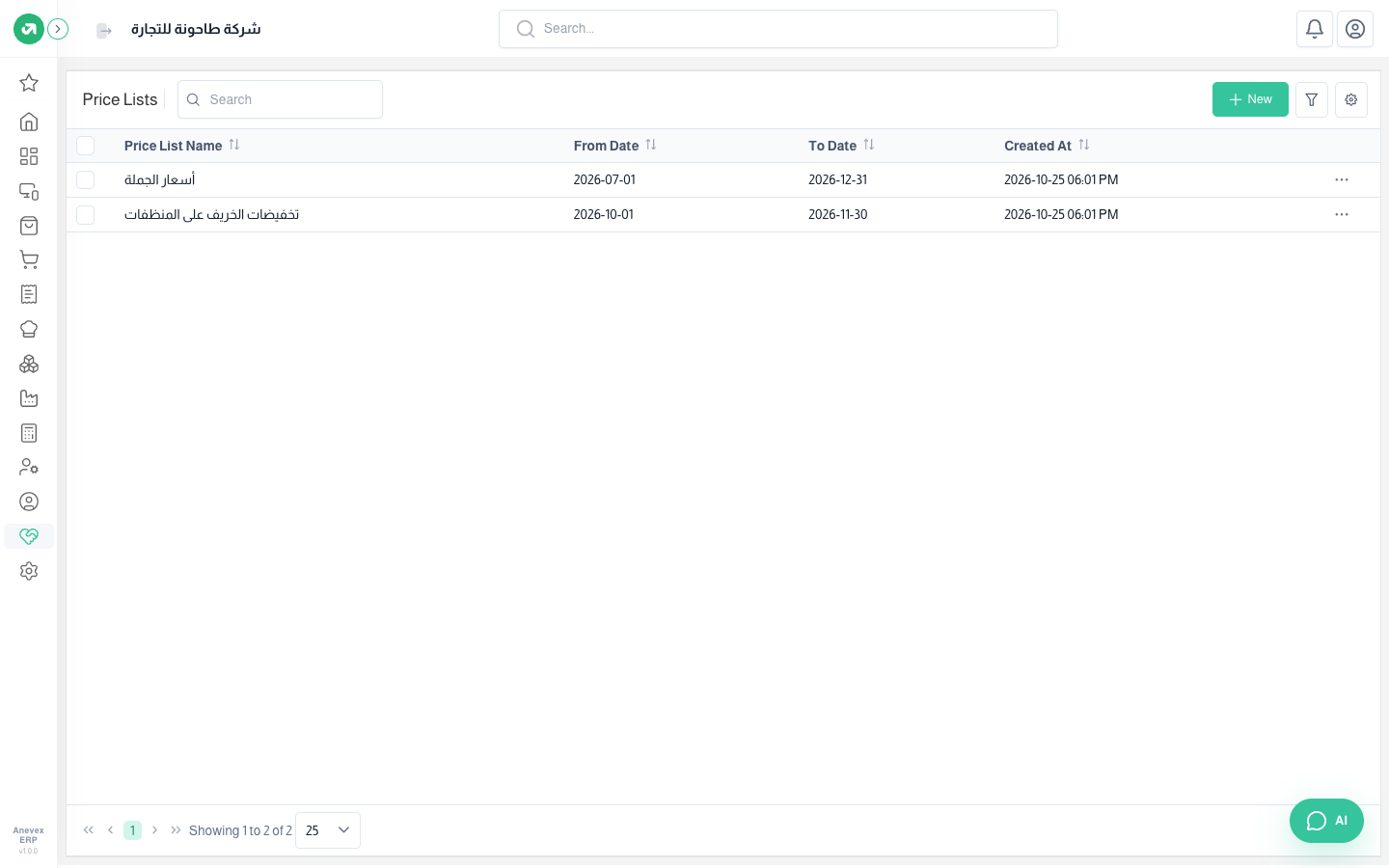
Special selling prices applied automatically in POS and sales during a set period: for some branches, some customers, some delivery apps, or everyone.
Overview
Where to find itCustomer Loyalty & OffersPricing & OffersPrice Lists
Steps
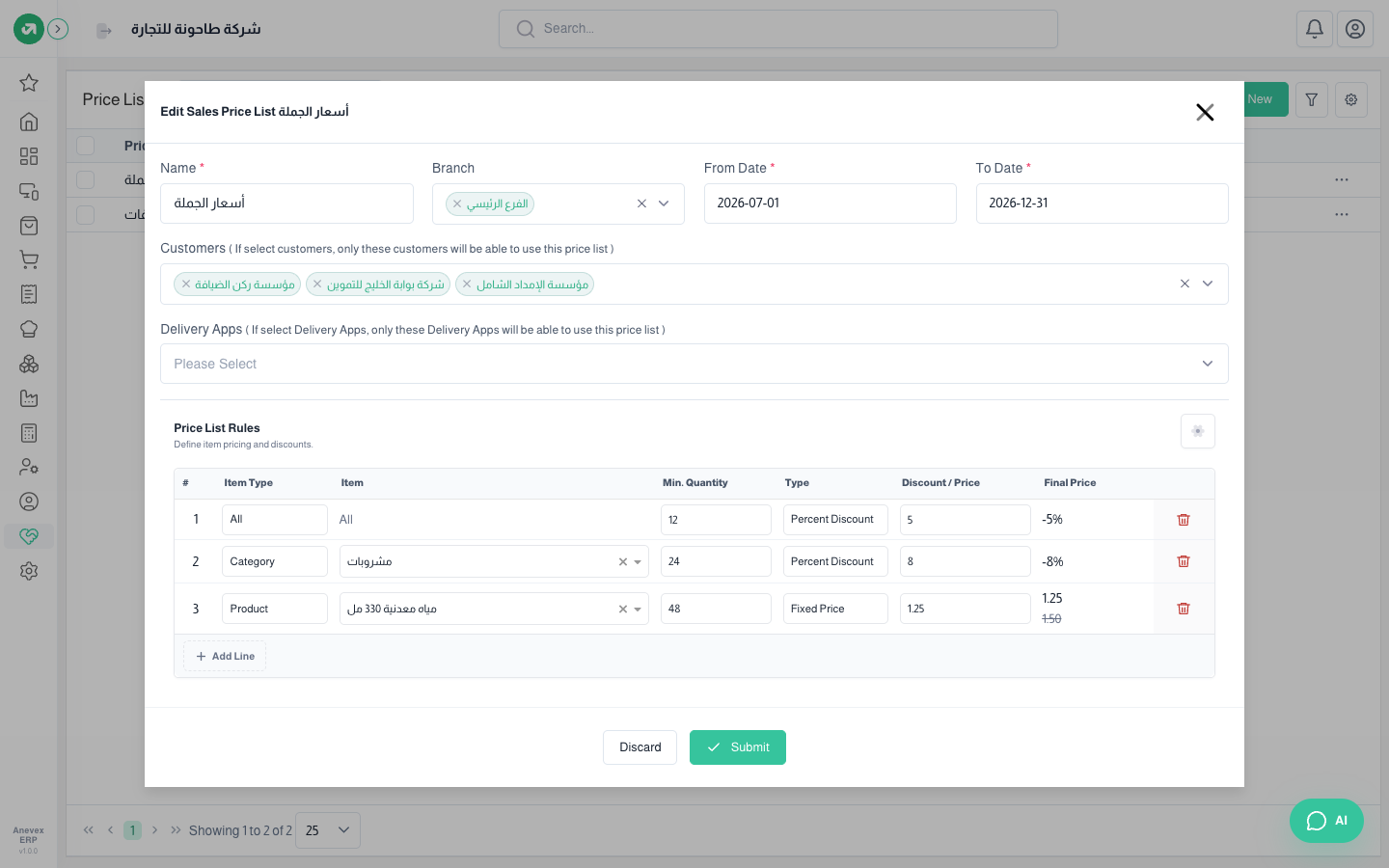
- Click New and enter the name, branches and start and end dates.
- Pick Customers if the list is for certain customers only; leave it empty for everyone.
- Under Price List Rules add one line per rule: scope (all, category, brand, product, variant, modifier), minimum quantity, and type (percent discount, fixed discount or new price).
- Click Submit.
Notes
- When several rules match a product, the most specific wins: product or variant, then category, then brand, then "All".
- A rule only applies once the line quantity reaches its minimum quantity.
- At the cashier, changing the customer empties the bill while price lists are active, since the price may differ per customer.