Promotions
Offers the cashier screen applies automatically when their conditions are met, or after a code is entered. Each offer has a type that decides which fields the form shows and which rewards are allowed.
Overview
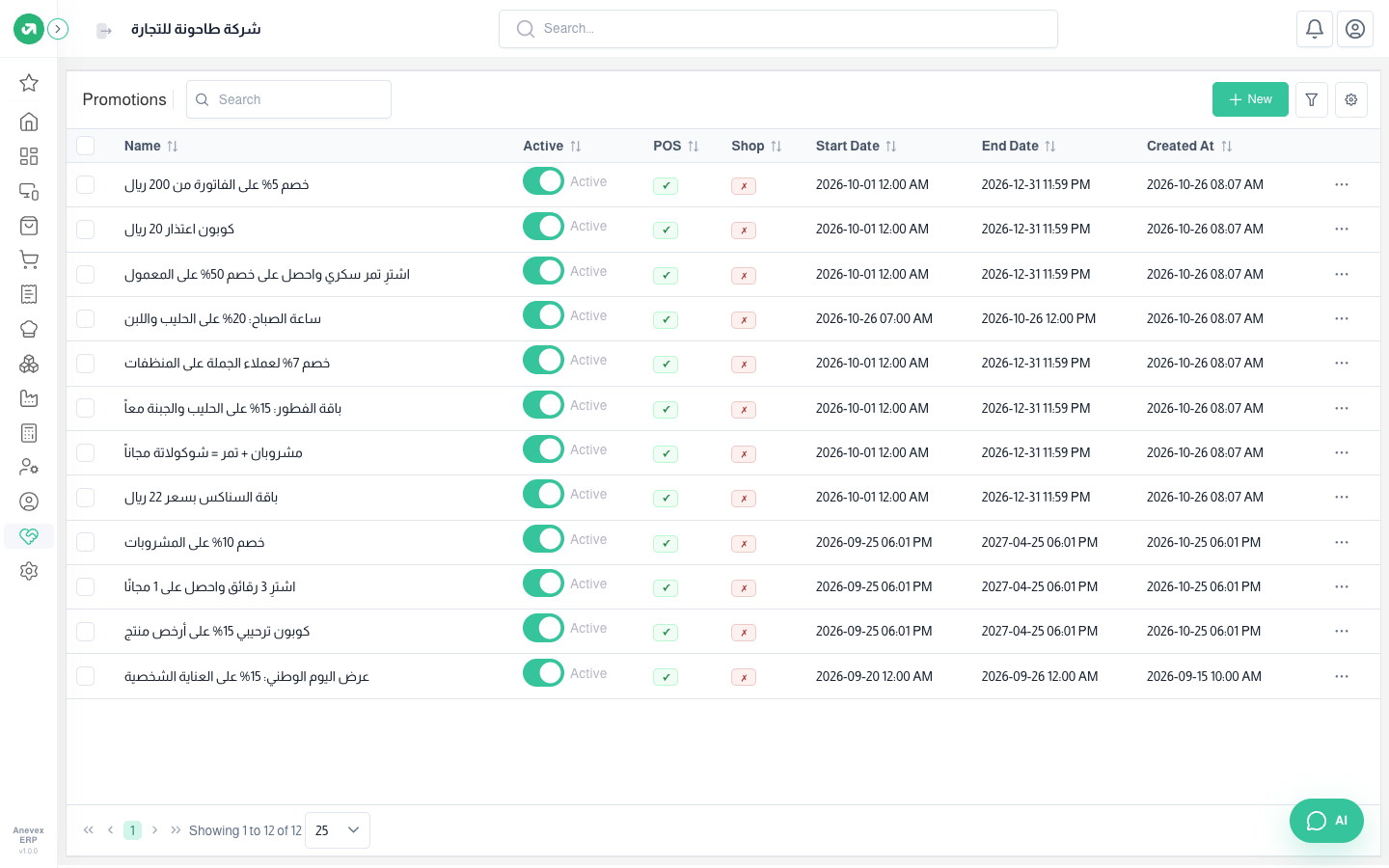
The form’s tabs
Fields
| Field | Required? | Description |
|---|---|---|
| General Data | Required | Name, the short label shown under the product on the bill, image, promotion type, promo code (code types), usage limit (0 = no limit), start and end date and time, channels (POS, delivery apps) and branches |
| Targeting Options | Optional | Specific customers: the offer only works when the bill’s customer is one of them. Specific categories / products: the products whose quantity counts toward the condition |
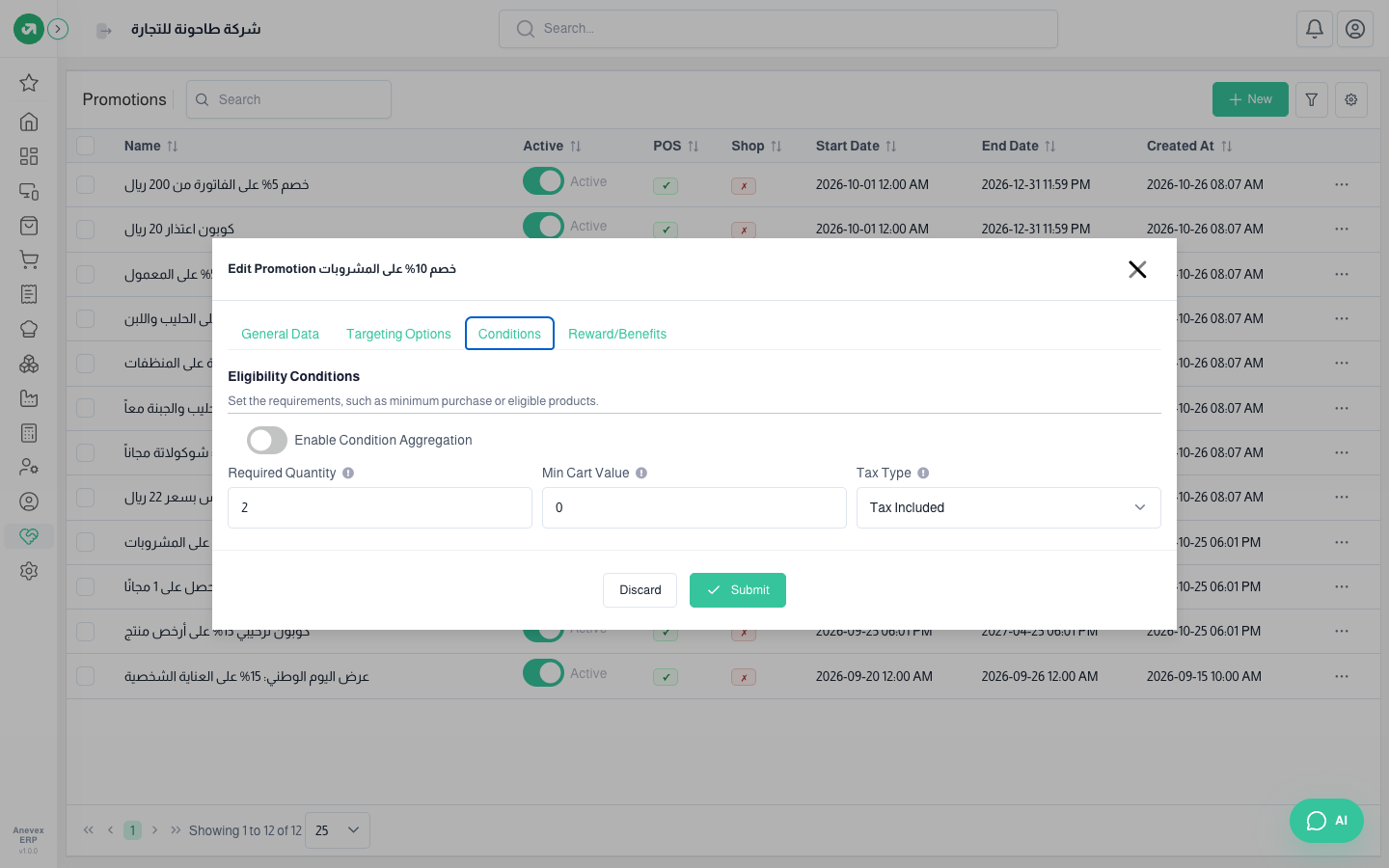
| Conditions | Optional | Required quantity of the targeted products (or any product if none are set), minimum purchase for the bill (with or without tax), and condition aggregation for a formula of categories and products |
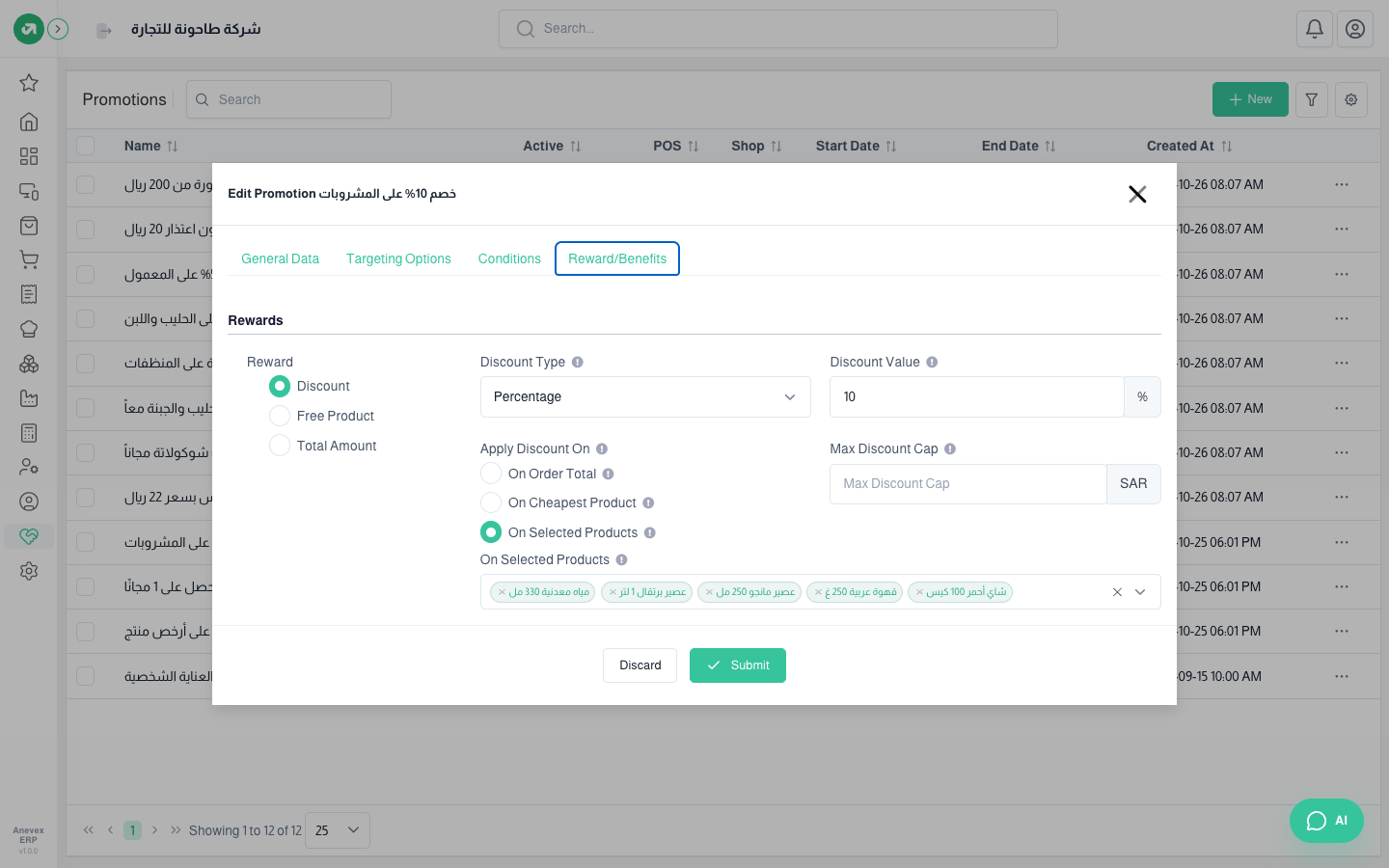
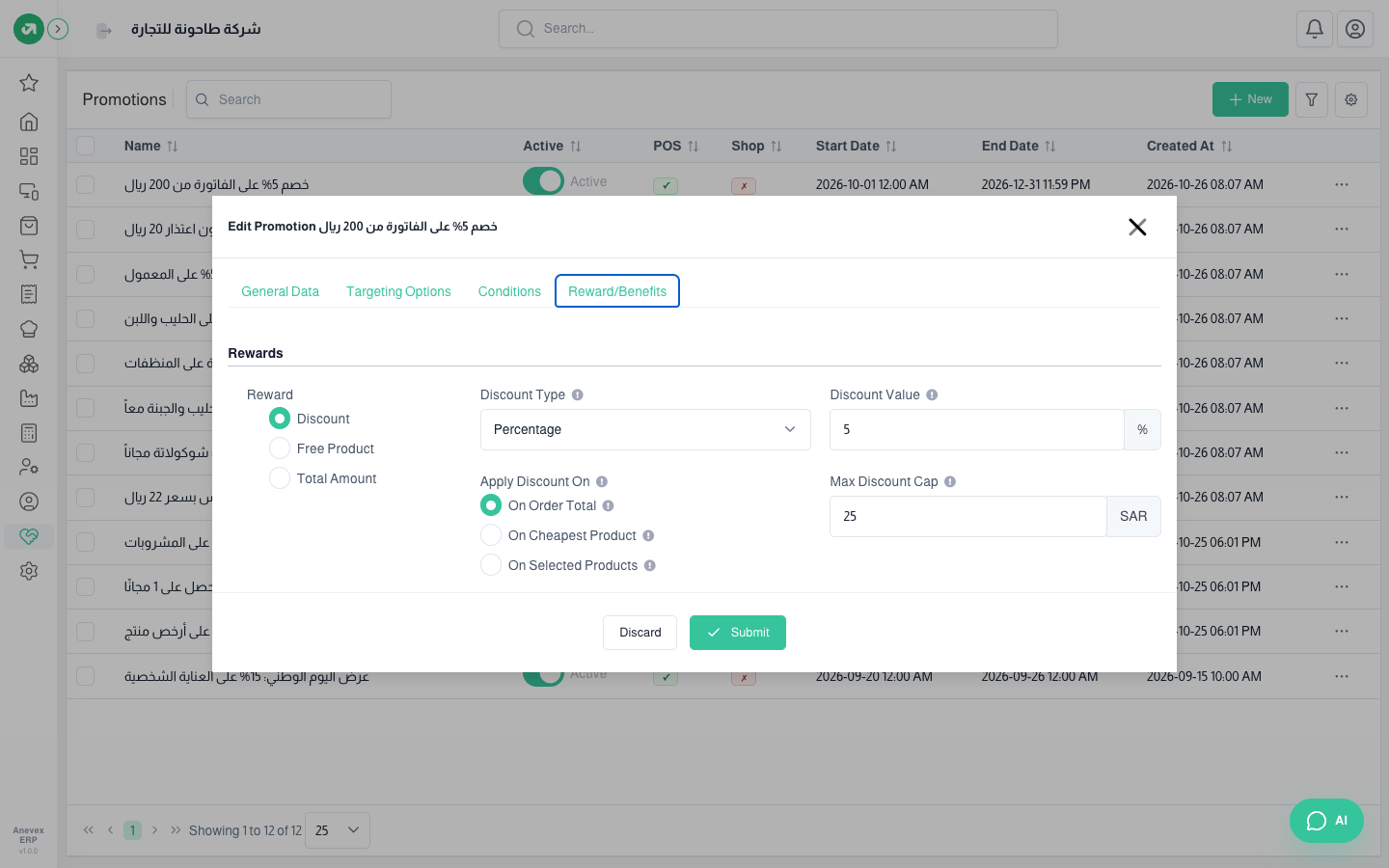
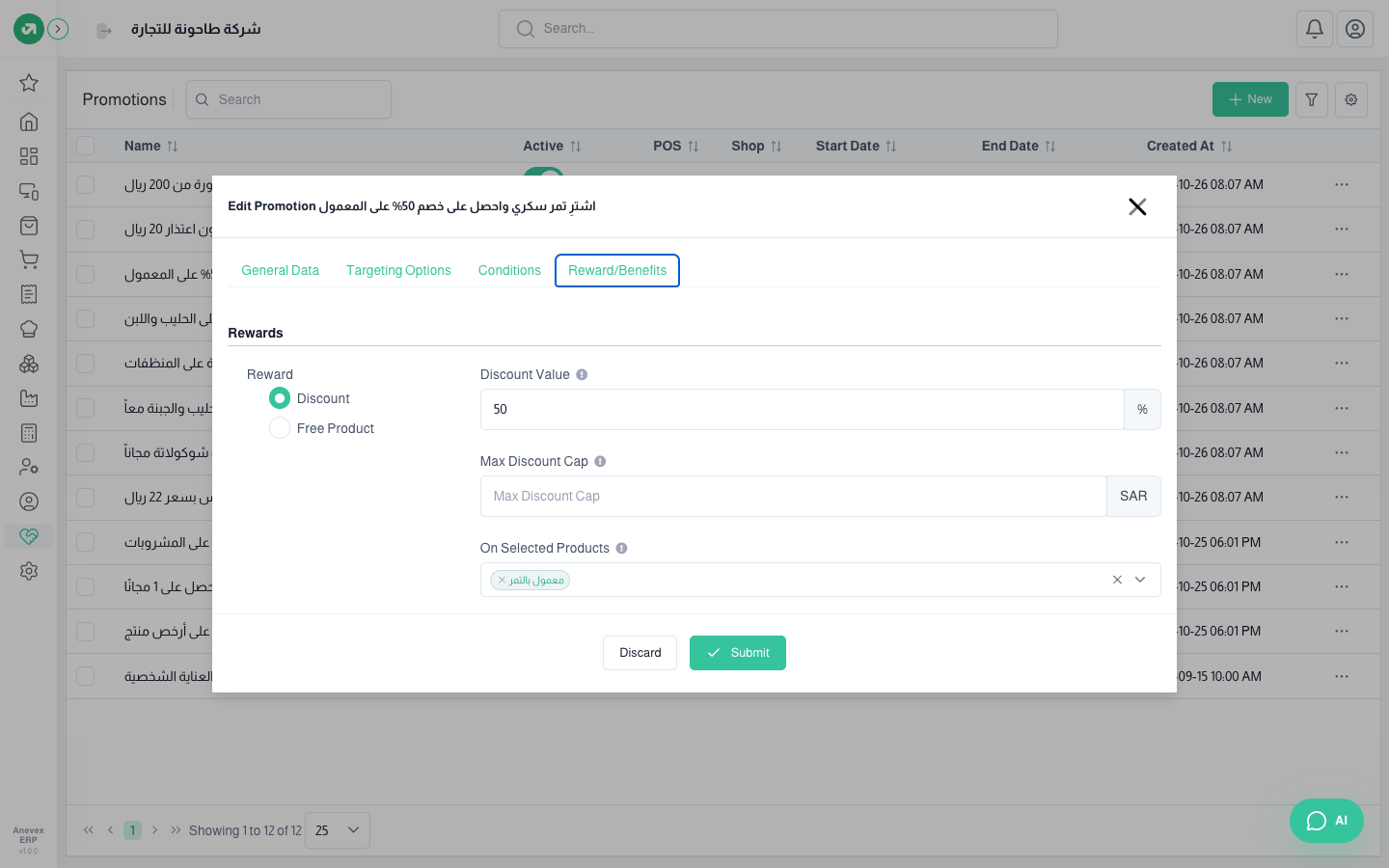
| Reward/Benefits | Required | A discount (percent or amount) on the whole bill, the cheapest product or specific products, with a maximum, a free product with a quantity, or a total amount (a set price for the bill) |
Mind the difference between targeted products and the reward’s specific products: the first decides whether the condition is met (e.g. buying dates), the second decides where the discount lands (e.g. on maamoul).
How the cashier applies promotions
- When the cashier screen opens it loads offers that are running now, on for POS, for the session’s branch (or no branch) and not yet at their usage limit. Coded offers are only loaded once their code is typed.
- On every change to the bill each offer is checked again: customer, then minimum amount, then quantity. All offers that qualify are applied together.
- If two offers land on the same product their discounts do not add up; the last offer in the list wins, even if it is smaller.
- Completing the order checks the offers again. If one ended while the screen was open (such as a happy hour) a message asks you to pause the order, reload the page and resume it.
- Every use is recorded, and the offer’s details show the order count and discount value.
Notes
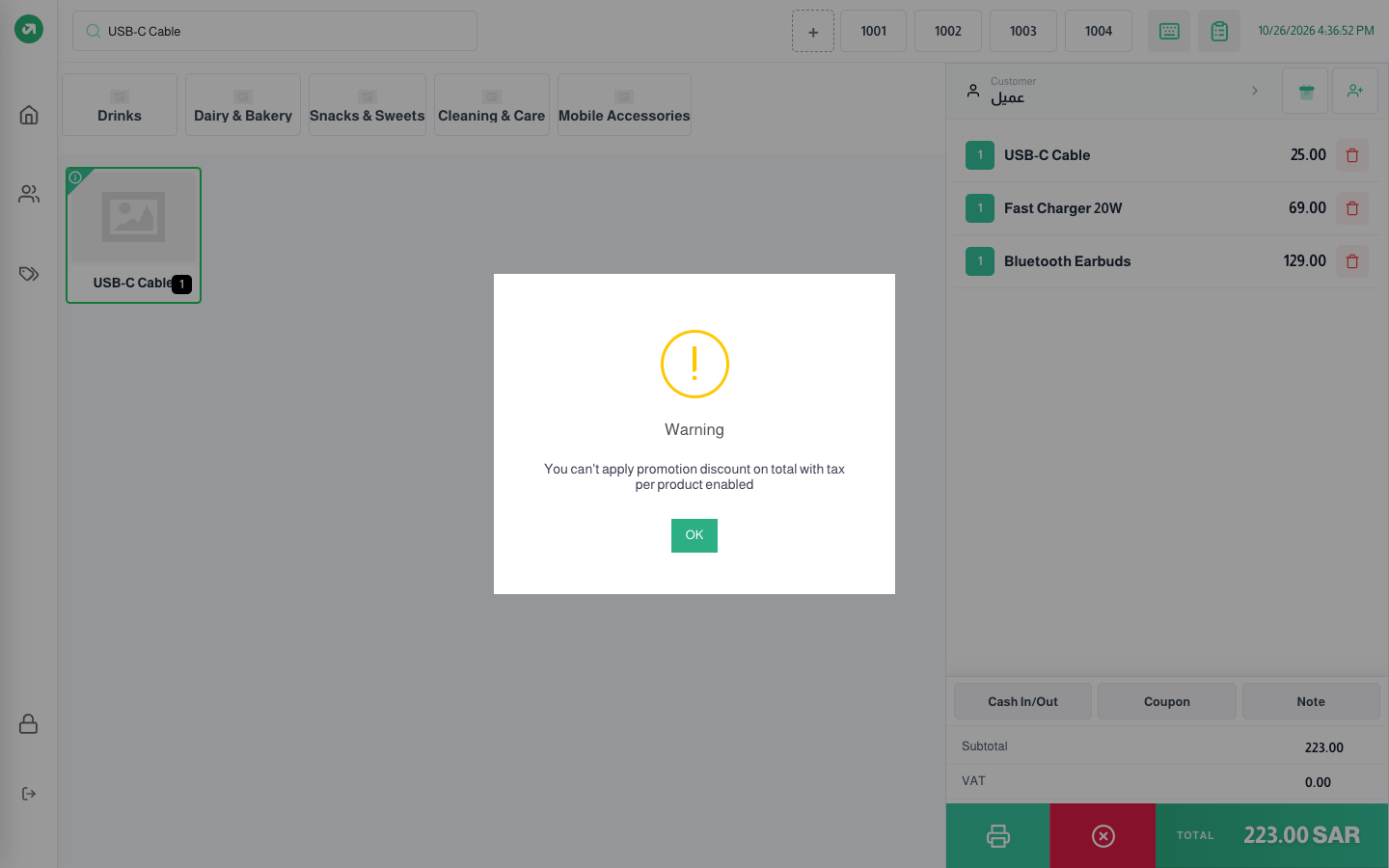
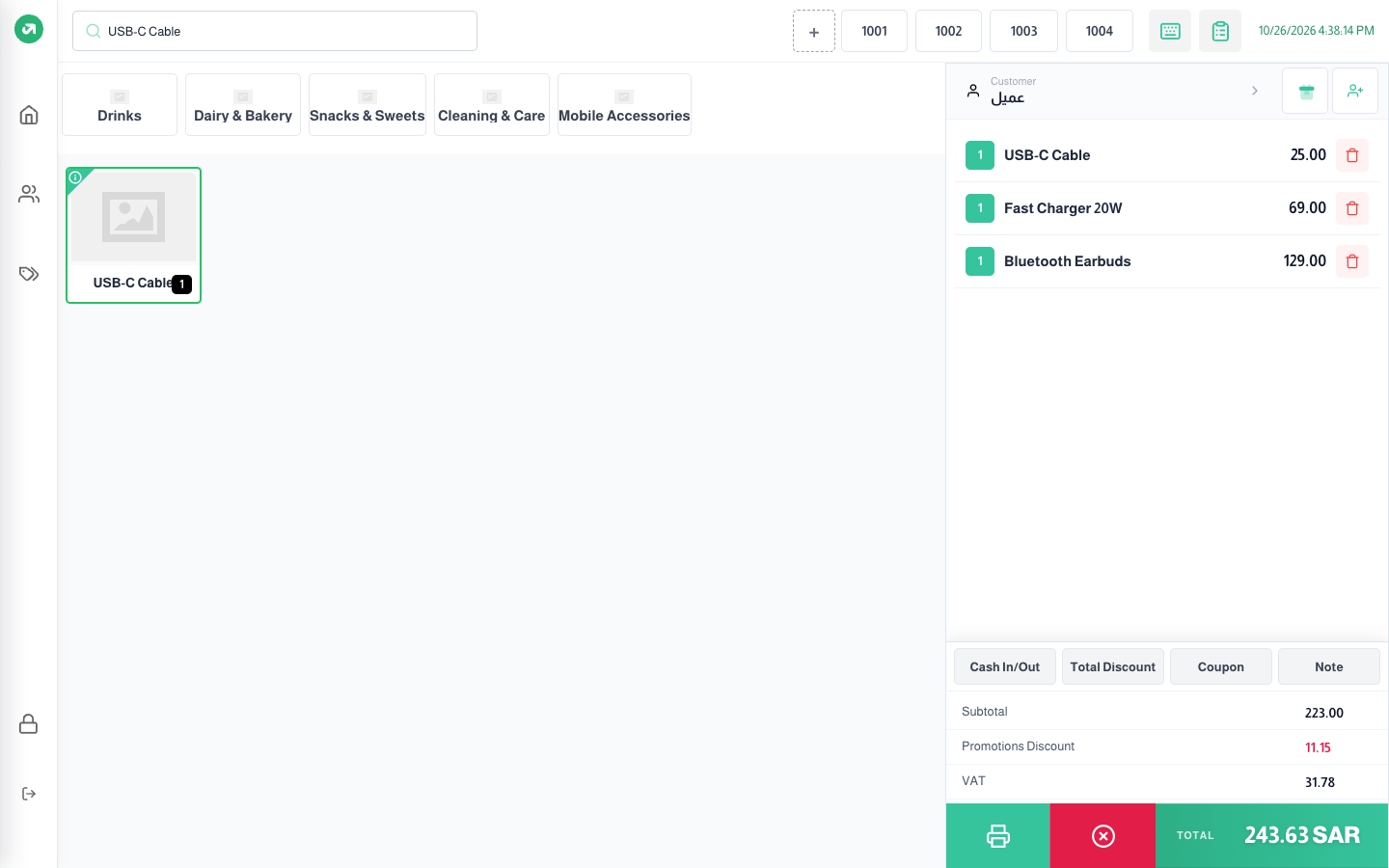
- Tax per product (product settings): while it is on, the cashier refuses every discount on the bill total and every fixed-amount discount, with the message "You can’t apply promotion discount on total with tax per product enabled". This rules out the Coupon type entirely, bill discounts and "total amount". The pictures of those types were taken with the setting switched off for the moment.
1. Promotion
The general type: applied automatically with no code, all rewards available. Use it for category and seasonal offers.
| Example | Setup |
|---|---|
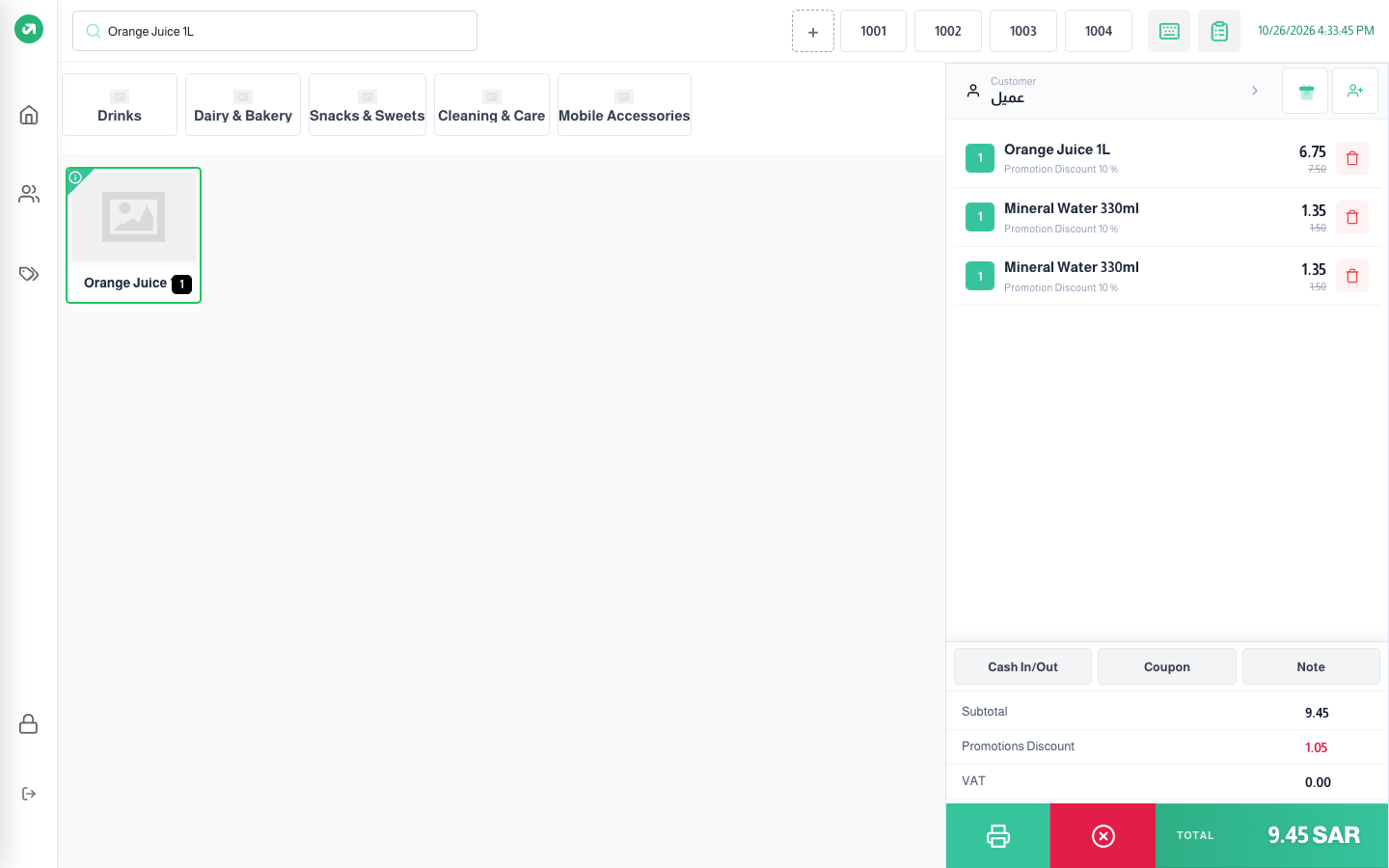
| 10% off drinks | Conditions: quantity 2. Reward: 10% on specific products (the five drinks) |
| 5% off bills of 200+ | Conditions: minimum 200 incl. tax. Reward: 5% on the whole order, capped at 25 |
2. Discount Code
Only applied after its code is typed in the cashier’s Coupon window. The reward is a discount only (percent or amount, on the order, the cheapest product or specific products). Good for campaign and influencer codes. Loyalty redemptions create codes of this type.
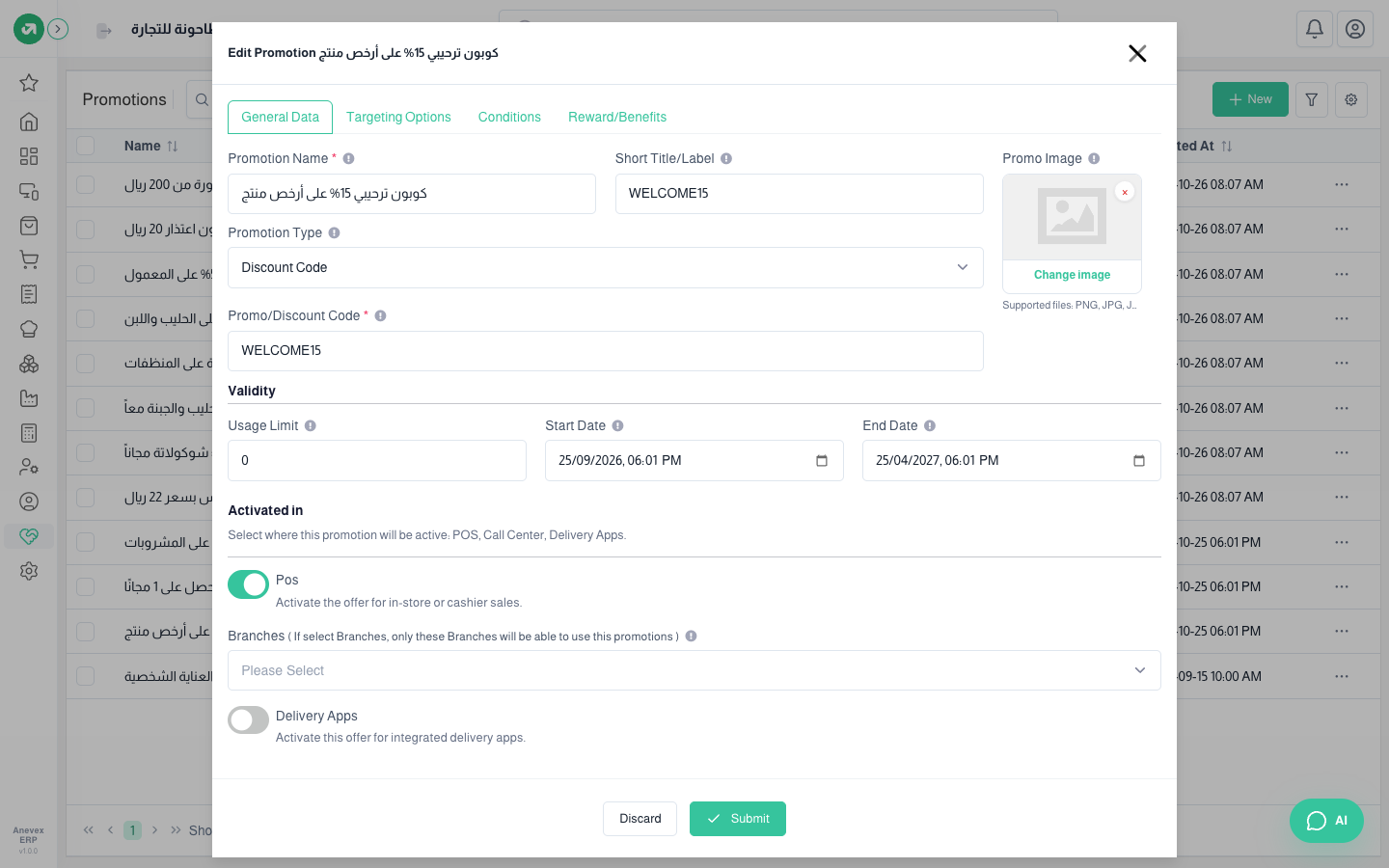
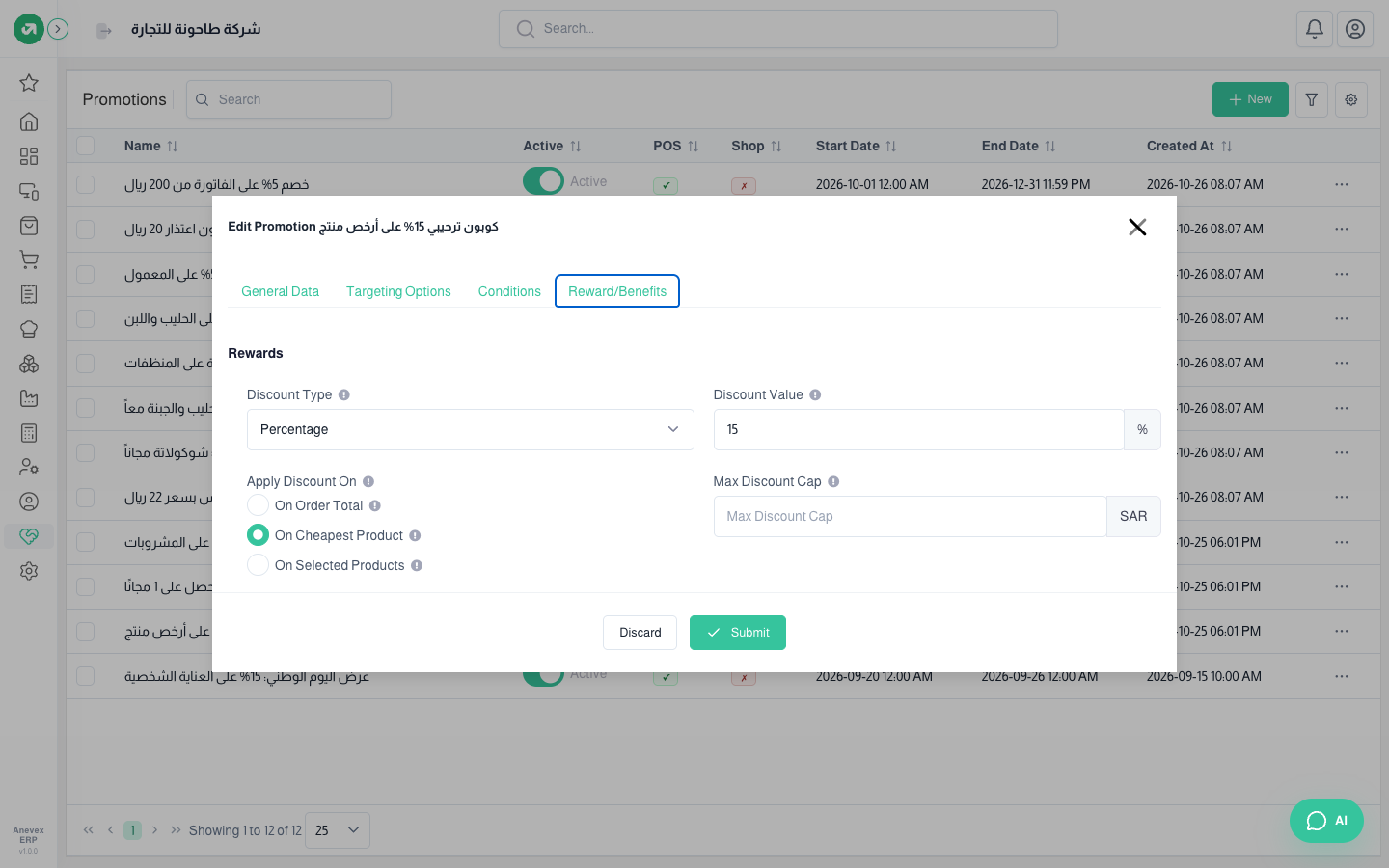
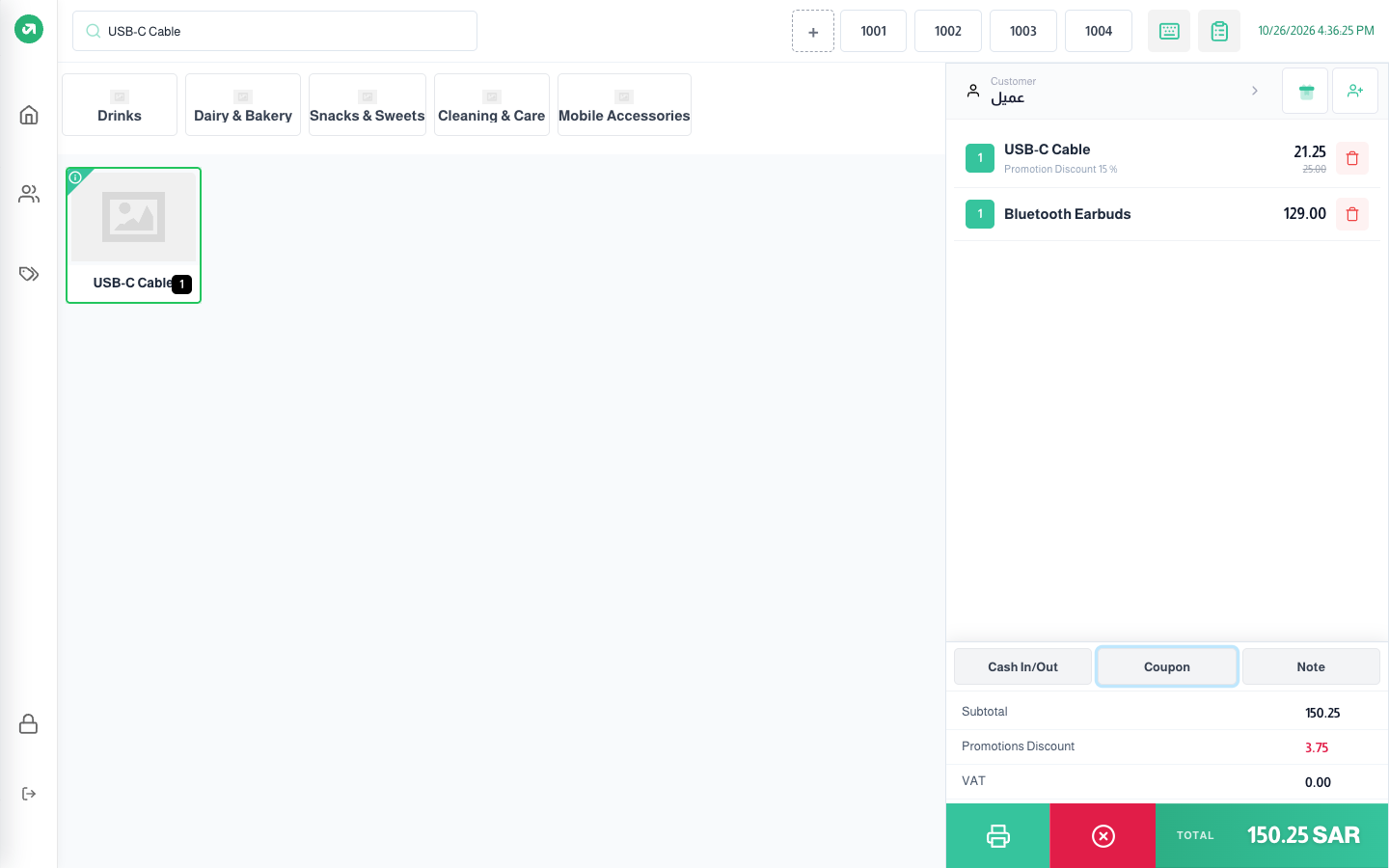
- If the conditions are not met the reason shows: unknown code, usage limit reached, not available for this customer, bill below the minimum, or not enough quantity.
- A discount on the cheapest product takes the line with the lowest unit price and discounts that whole line with its quantity.
3. Coupon
A code used once (the usage limit is set to 1 and locked), and the discount always goes on the whole order. Good for compensating a customer or a one-person prize.
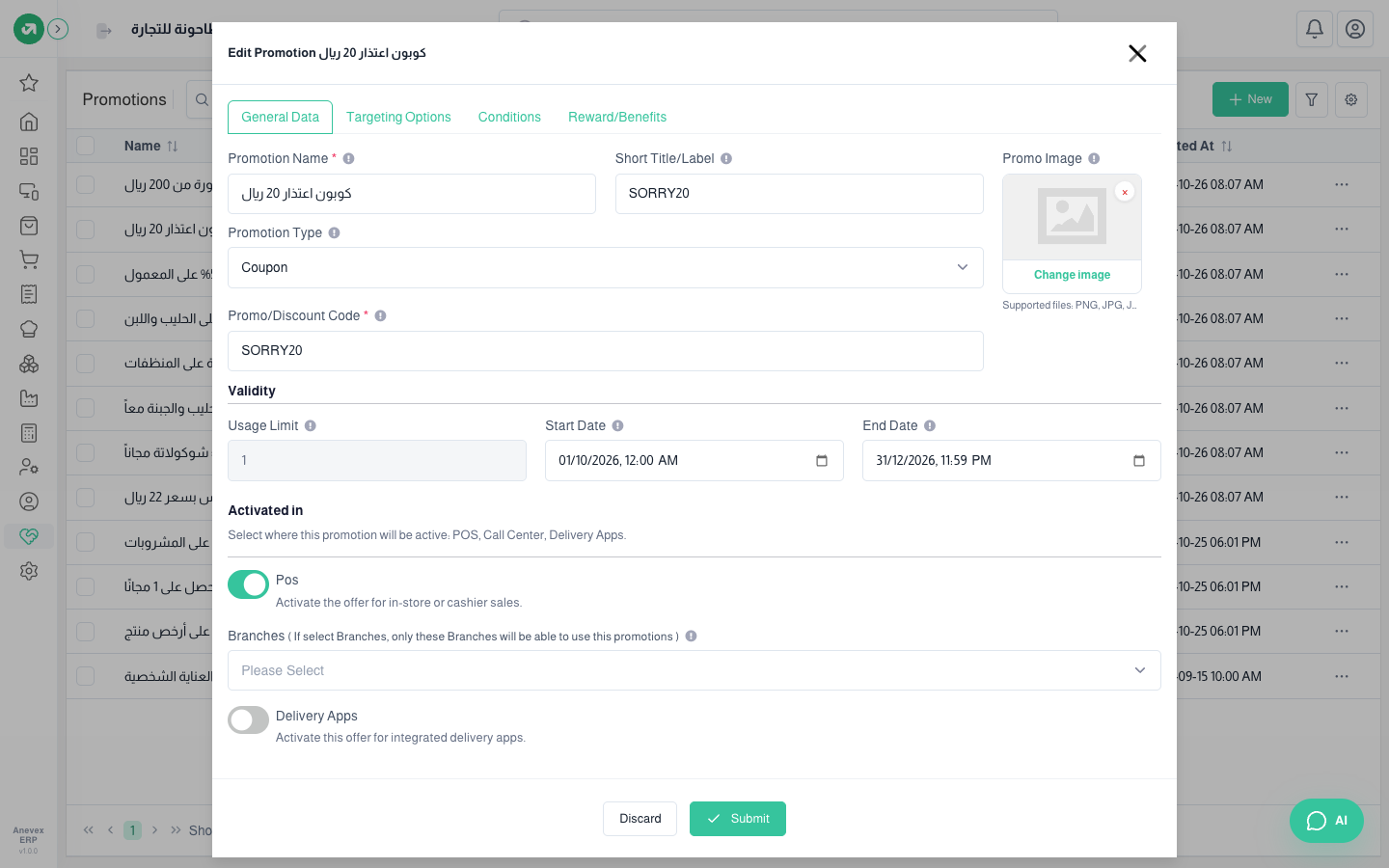
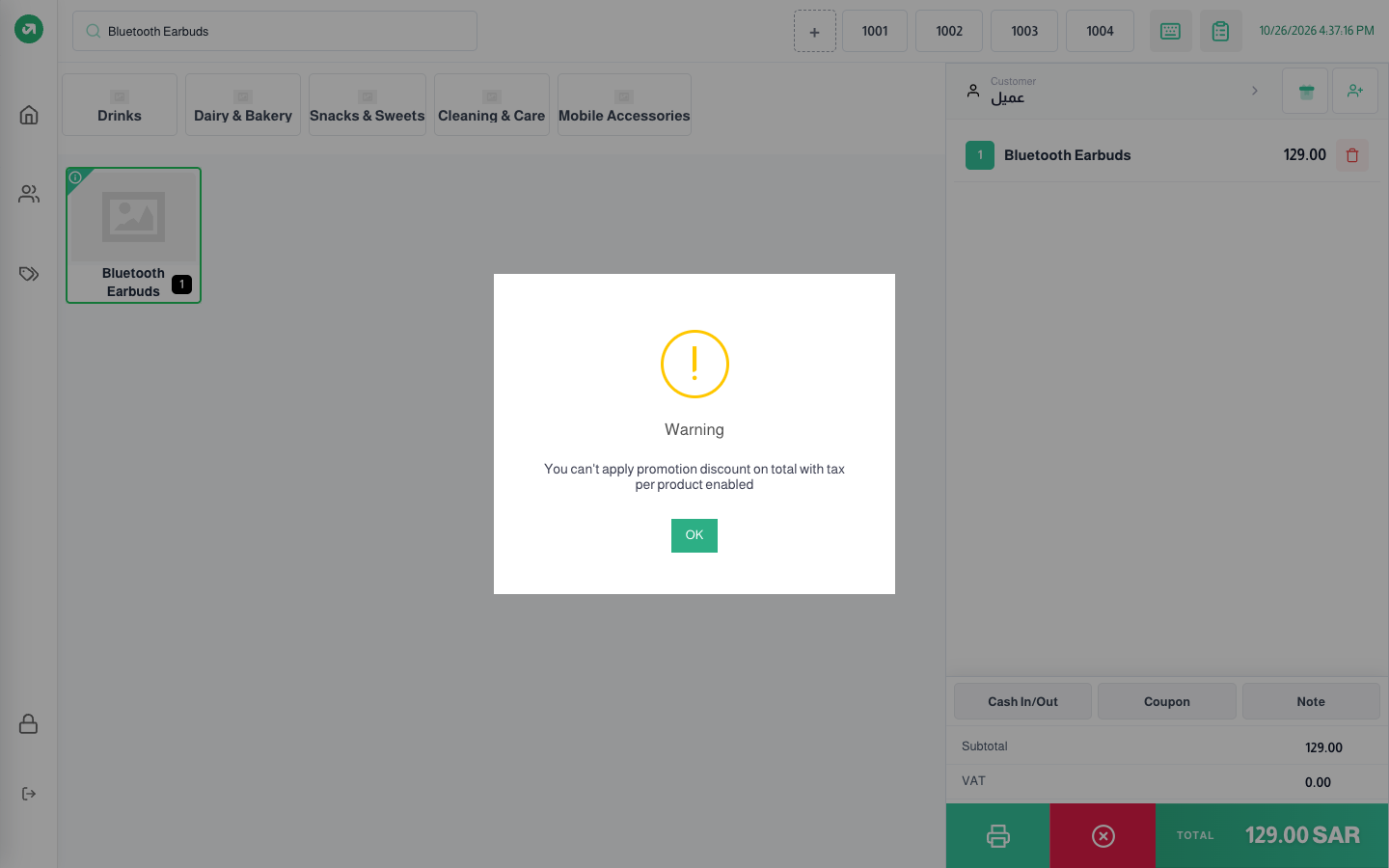
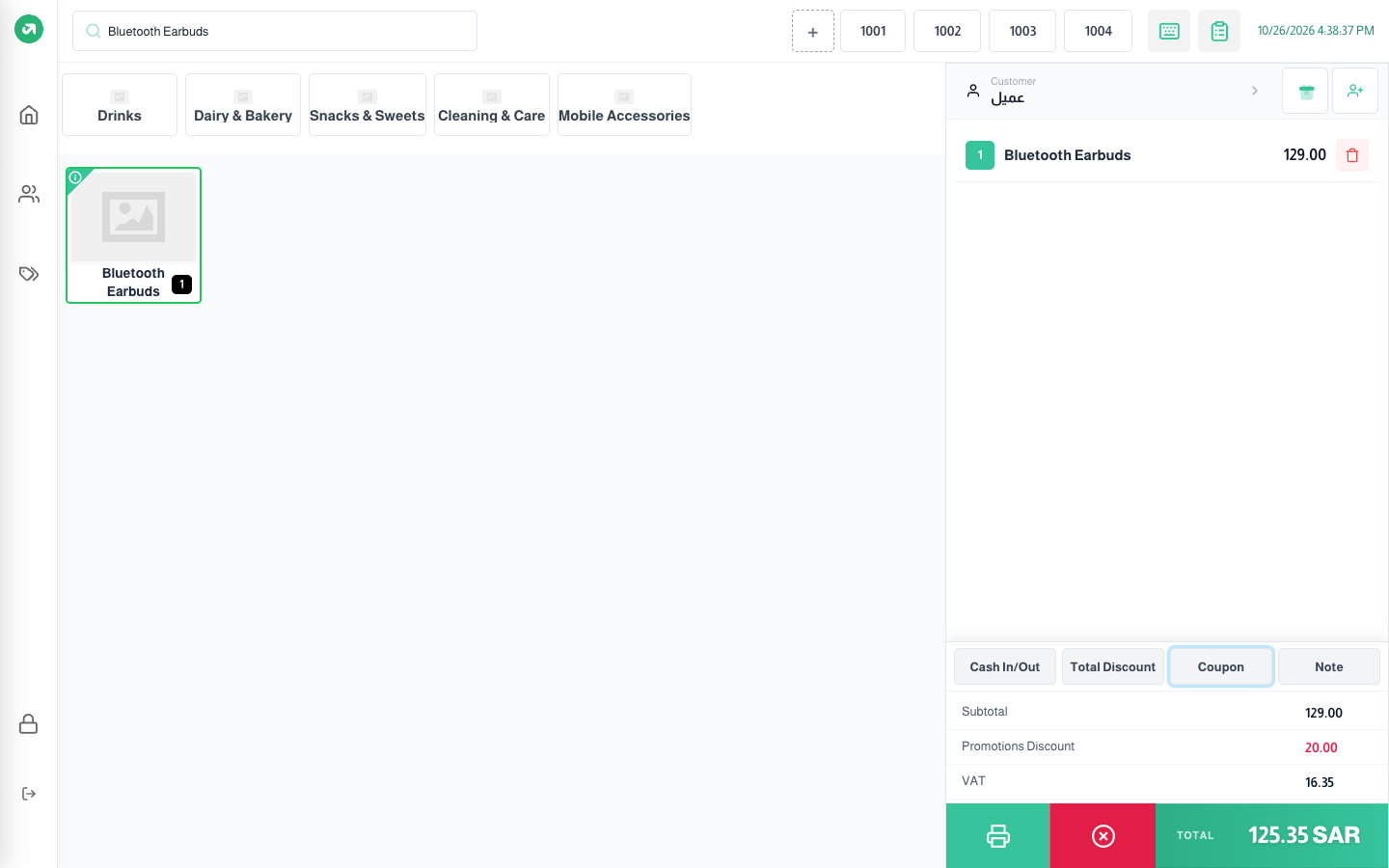
The limit counts every use by every customer, so after the first order the code is refused with "reached uses limit".
4. Buy X Get Y
Buying a quantity of a product (X) earns a free product, or a percentage off another product (Y). Set X in Targeting Options → Specific products and the quantity in Conditions.
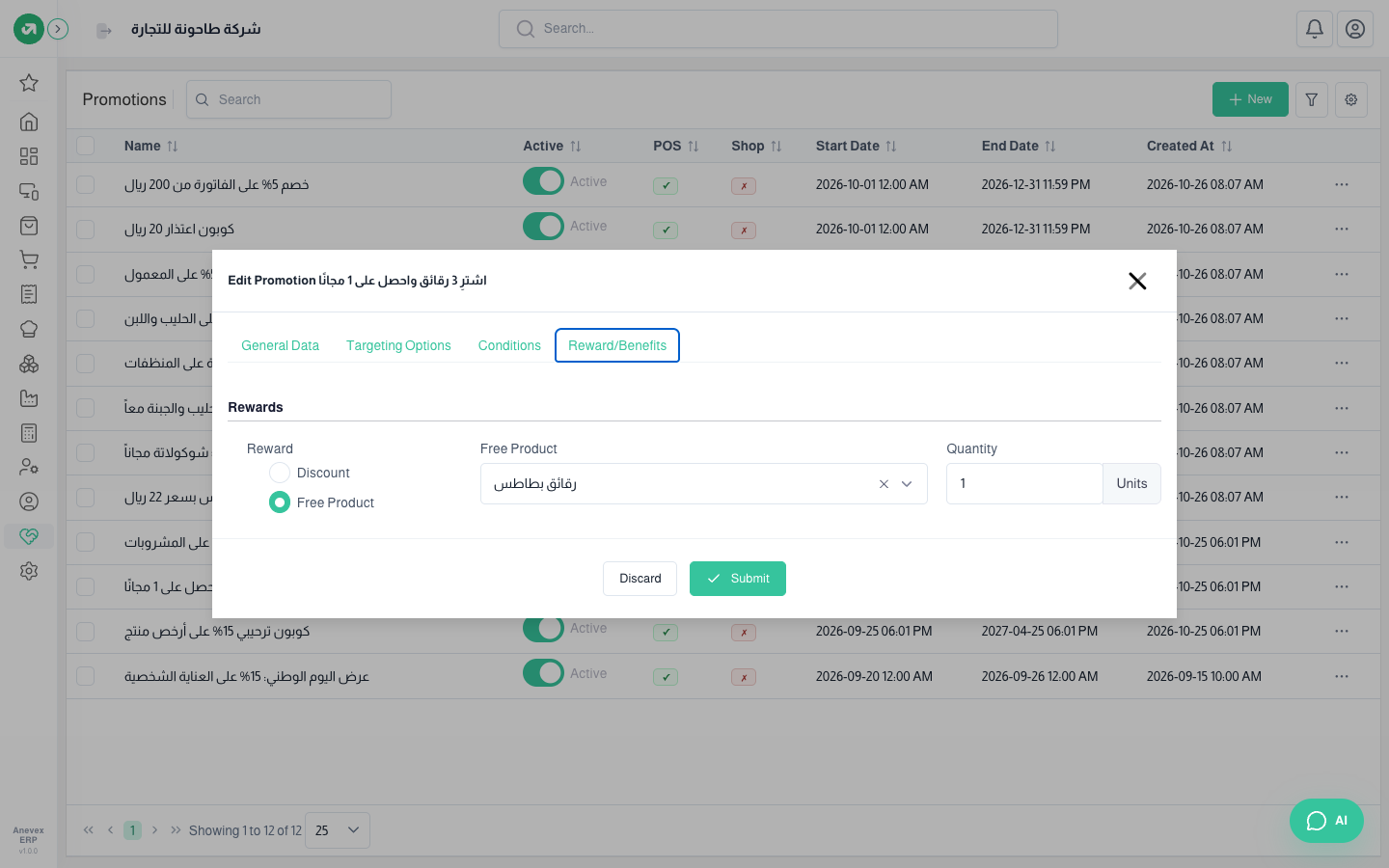
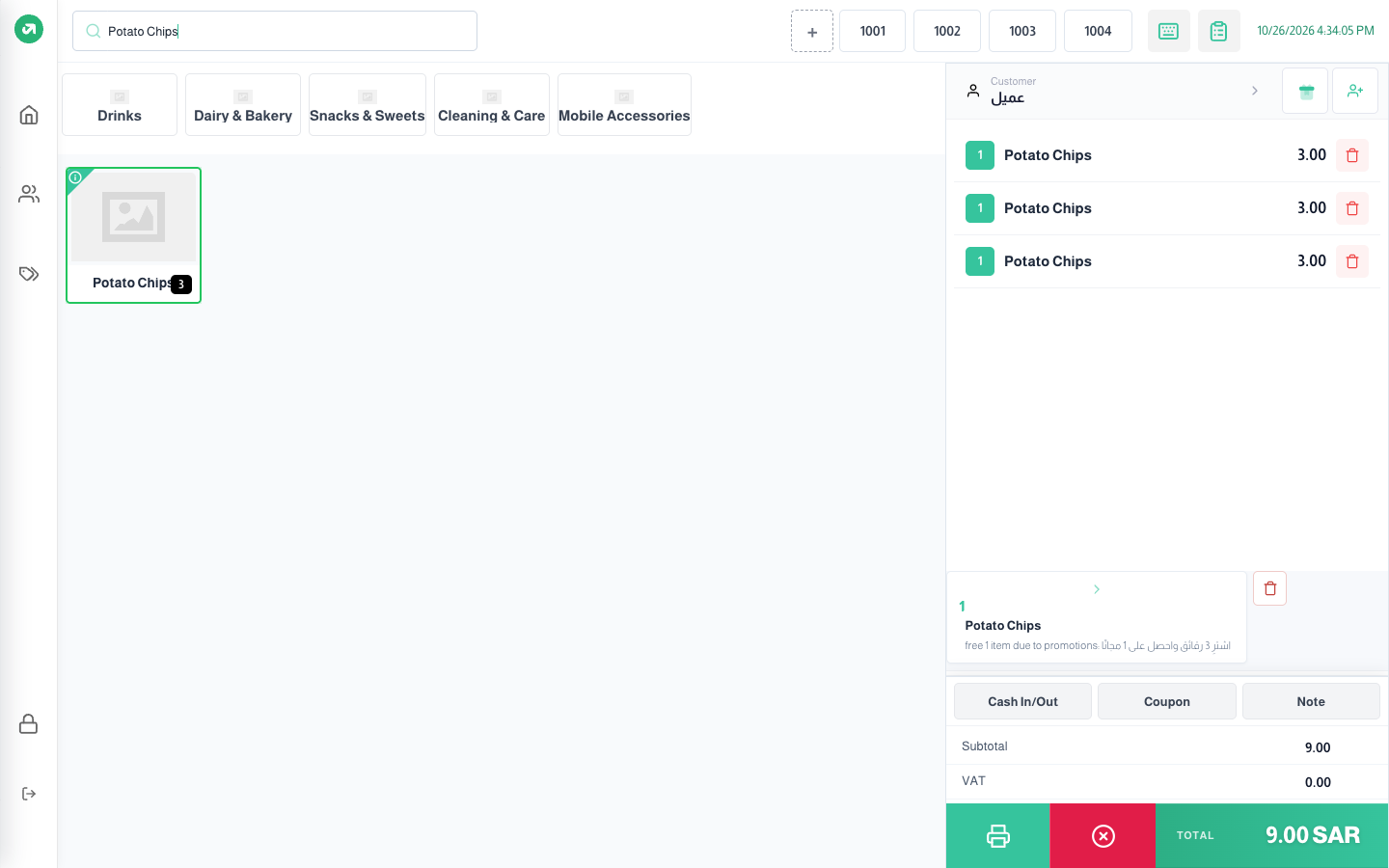
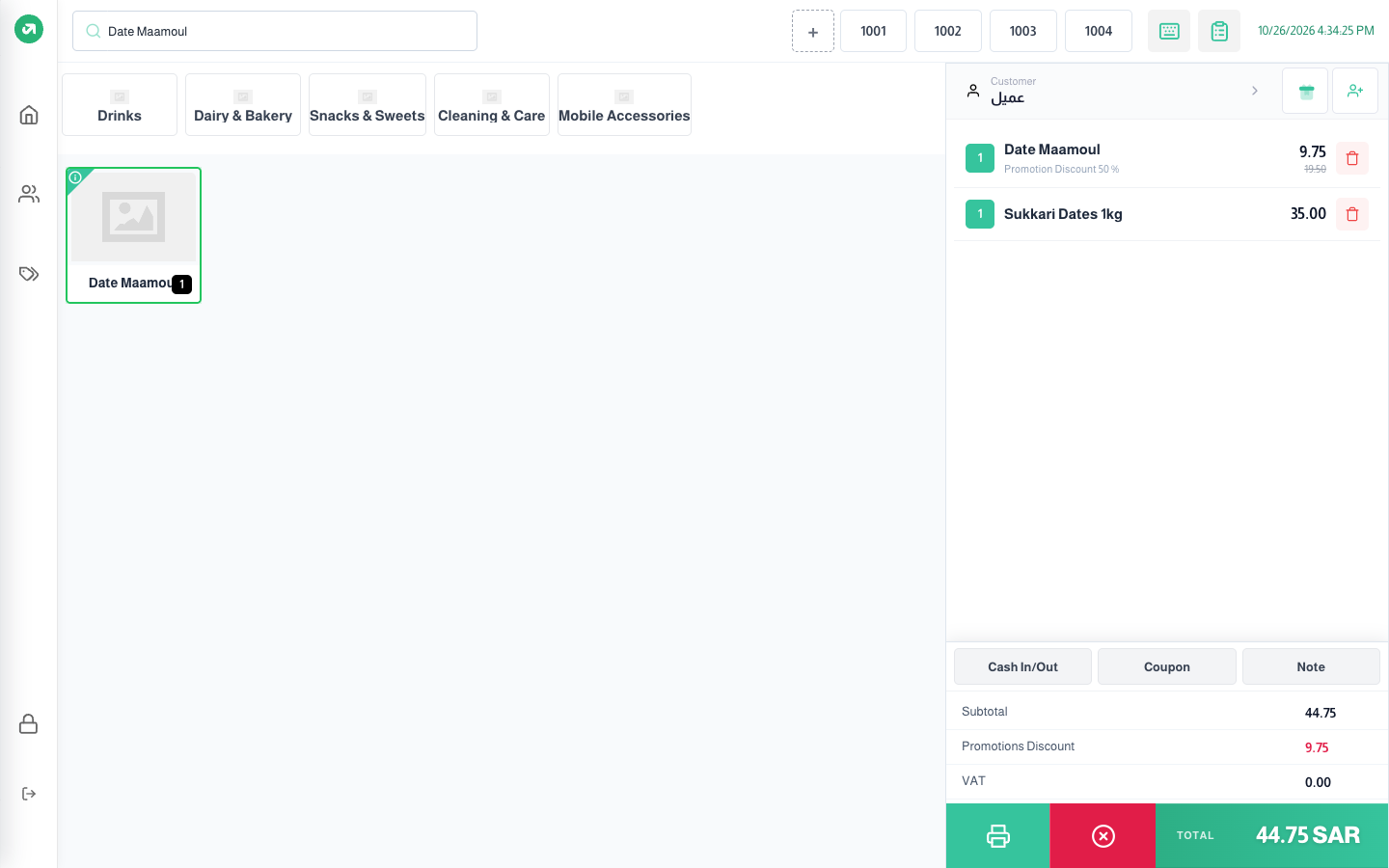
- The free product is given in its set quantity once per bill; buying 6 bags does not give two.
- If the free product is out of stock the offer is skipped with a message.
5. Happy Hour
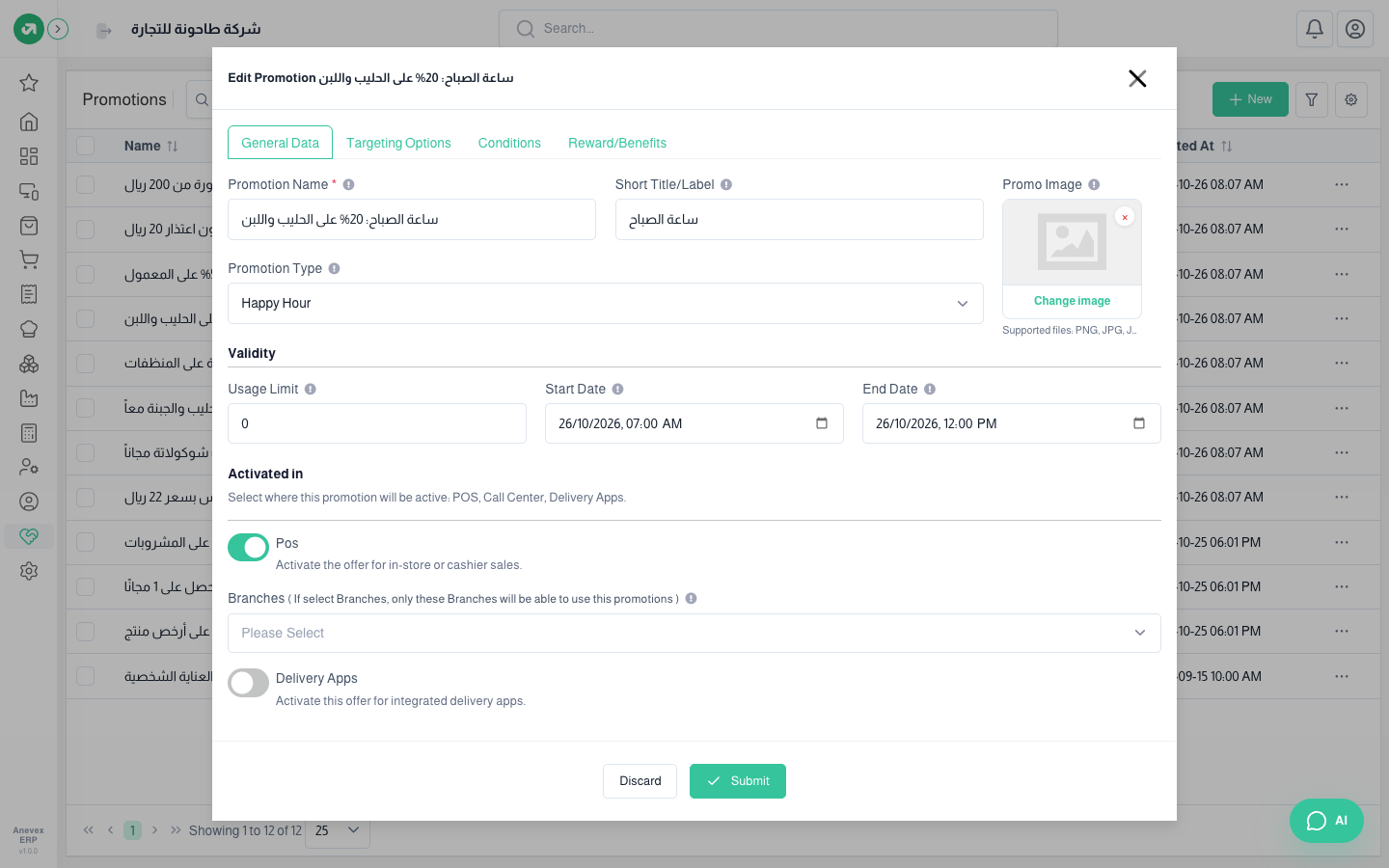
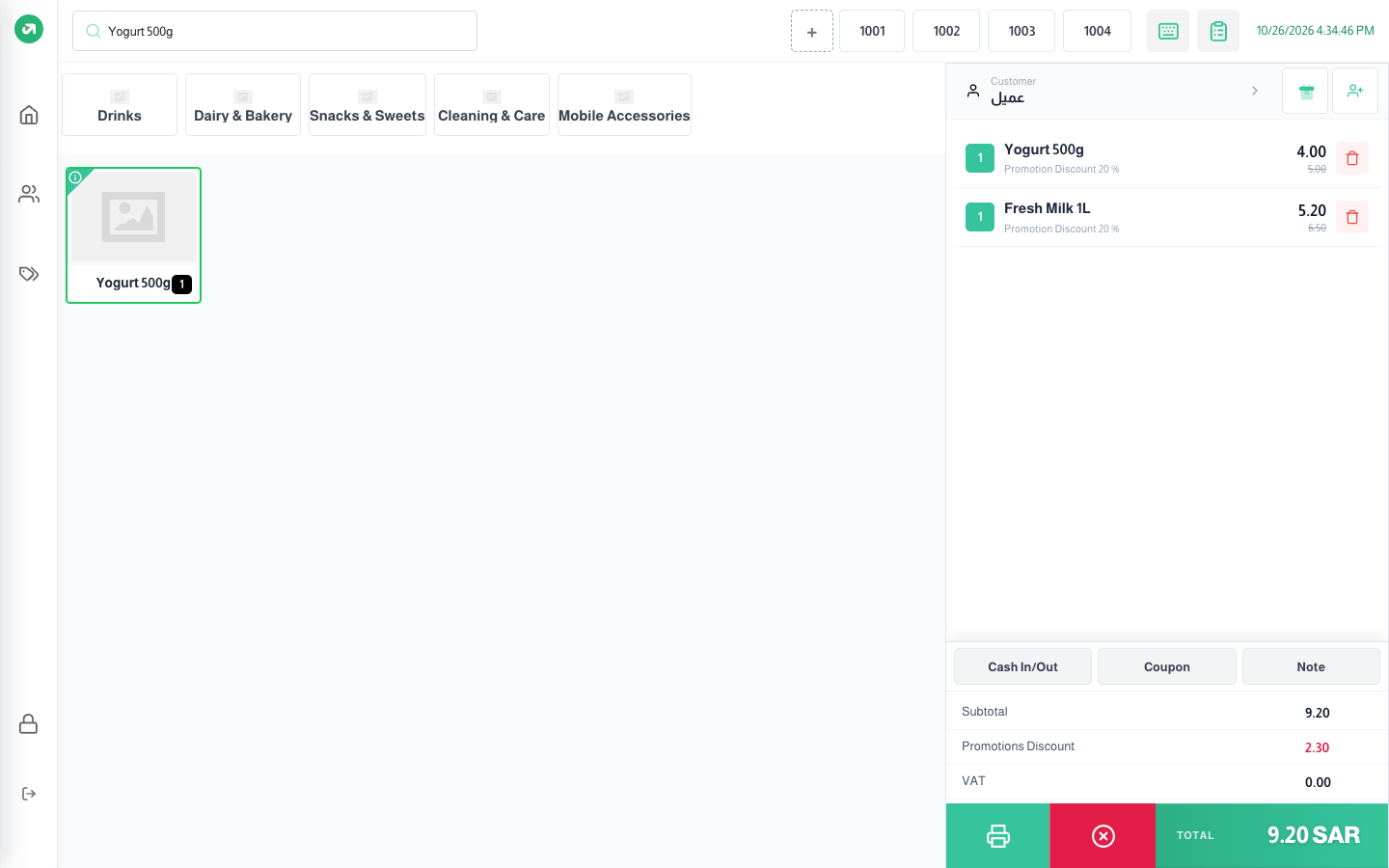
An offer for a short window set by date and time in General Data, such as early morning or before closing. The rest is set up like a Promotion.
Notes
- The window is one continuous stretch and does not repeat daily. For a daily happy hour create one offer per day, or switch it on and off from the Active toggle in the list.
- If the window ends while the screen is open, completing the order is refused until the page is reloaded.
6. First Order Discount
For the online shop only: it is saved for the shop and off for POS, and only appears in the type list while the online shop module is on (not covered in this guide).
7. Customer Segment Discount
An offer for chosen customers only (wholesale, VIP, staff). Pick them in Targeting Options → Apply only to specific customers. The cashier must choose the customer on the bill for the discount to show.
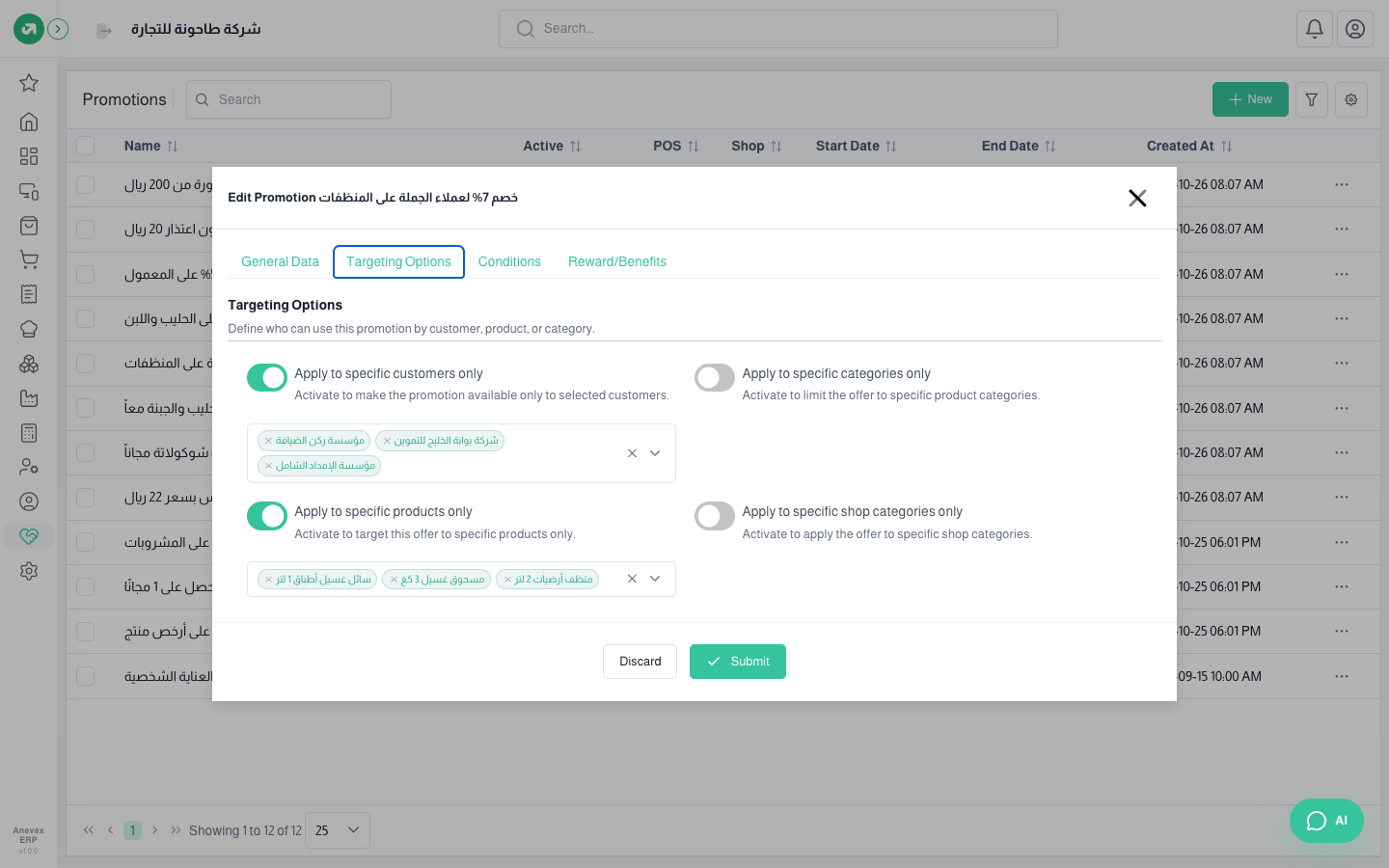
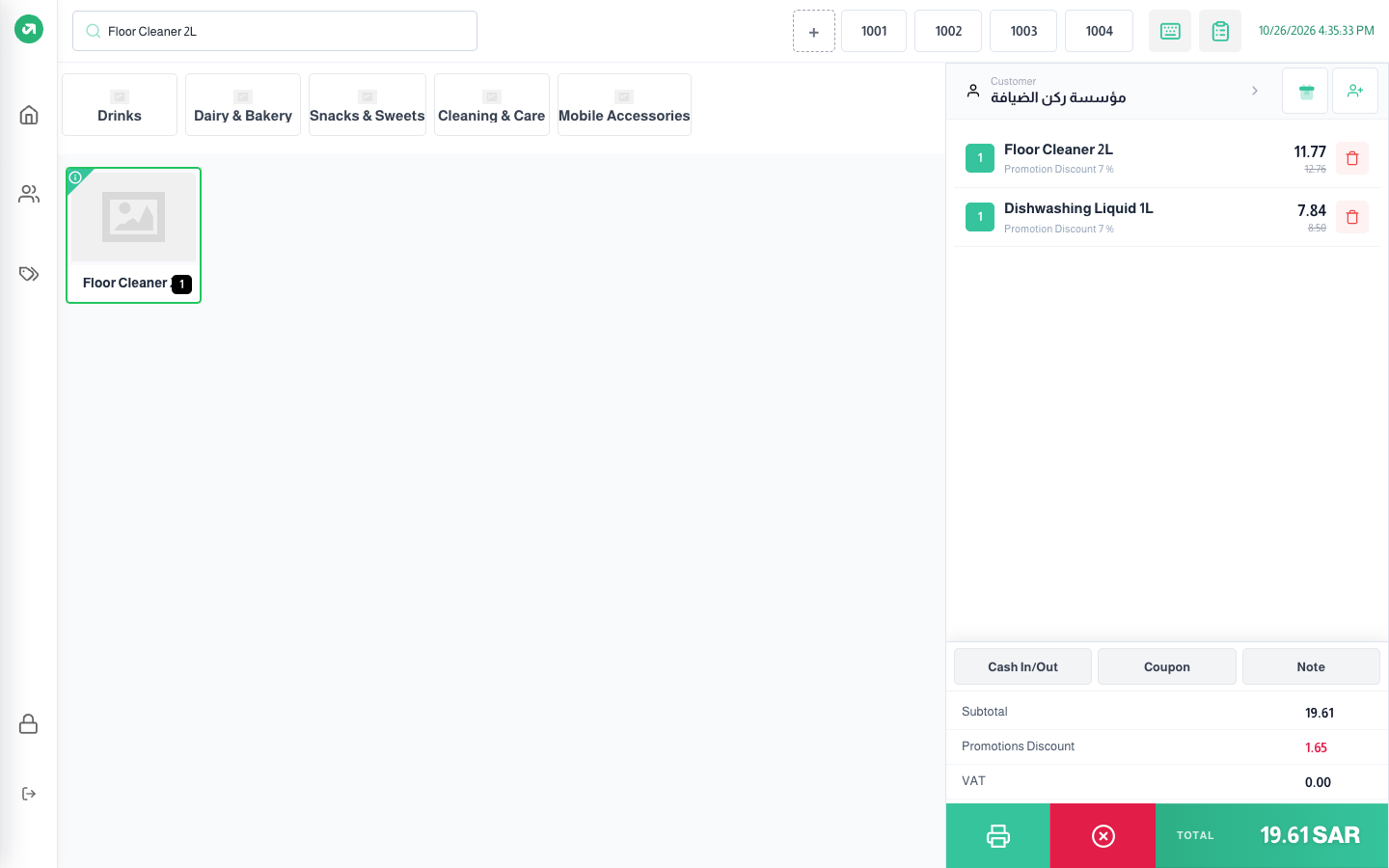
The offer discount is worked out from the price after price lists. In the picture the floor cleaner’s pre-offer price is 12.76 (15.75 less 10% twice), i.e. the "autumn cleaners" list was applied twice once this customer was chosen.
8. Bundle Upsell
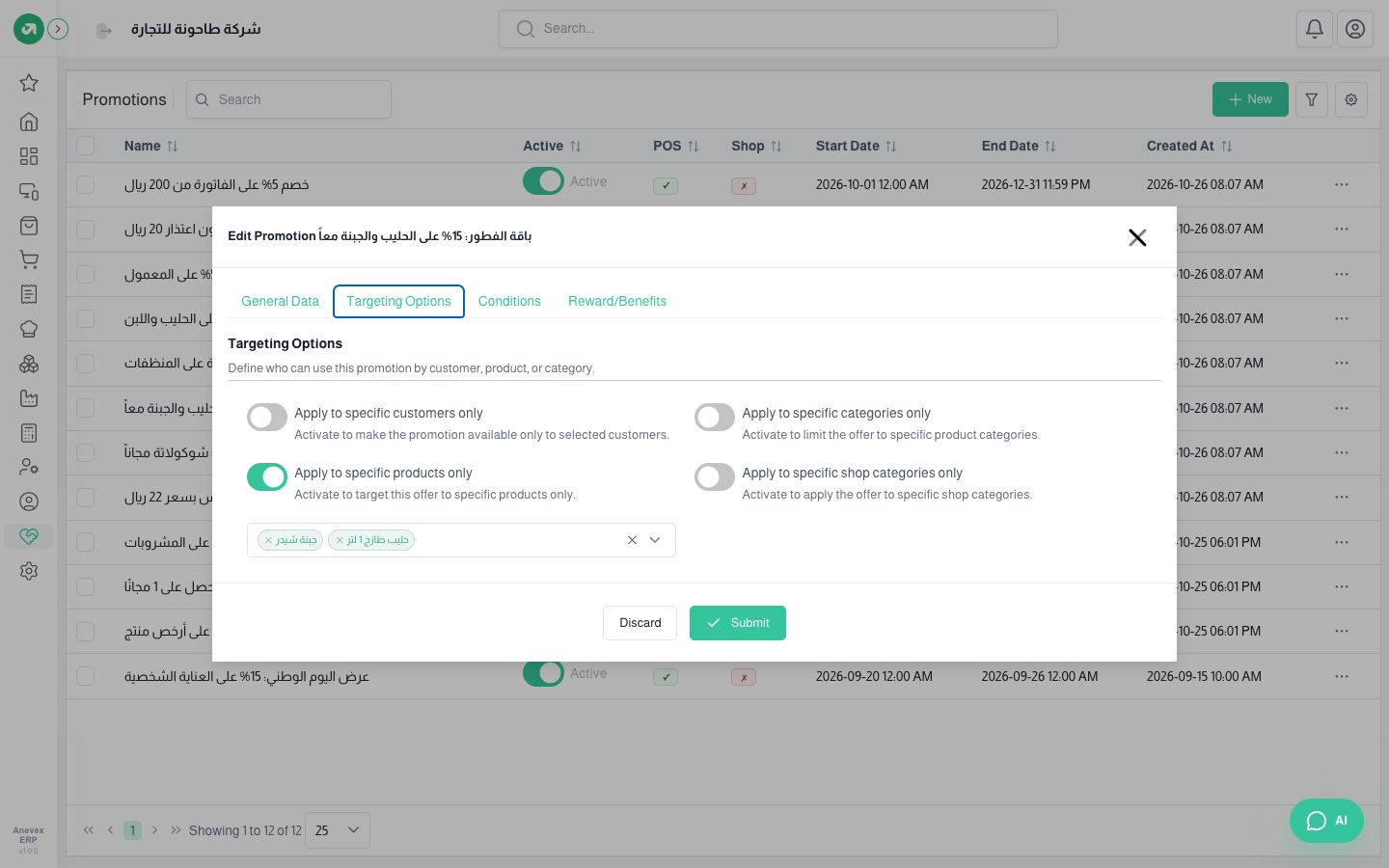
A percentage off a set of products bought together, to encourage adding a matching item. Set the bundle’s products in targeting, the required quantity in conditions, and the same products in the reward.
Notes
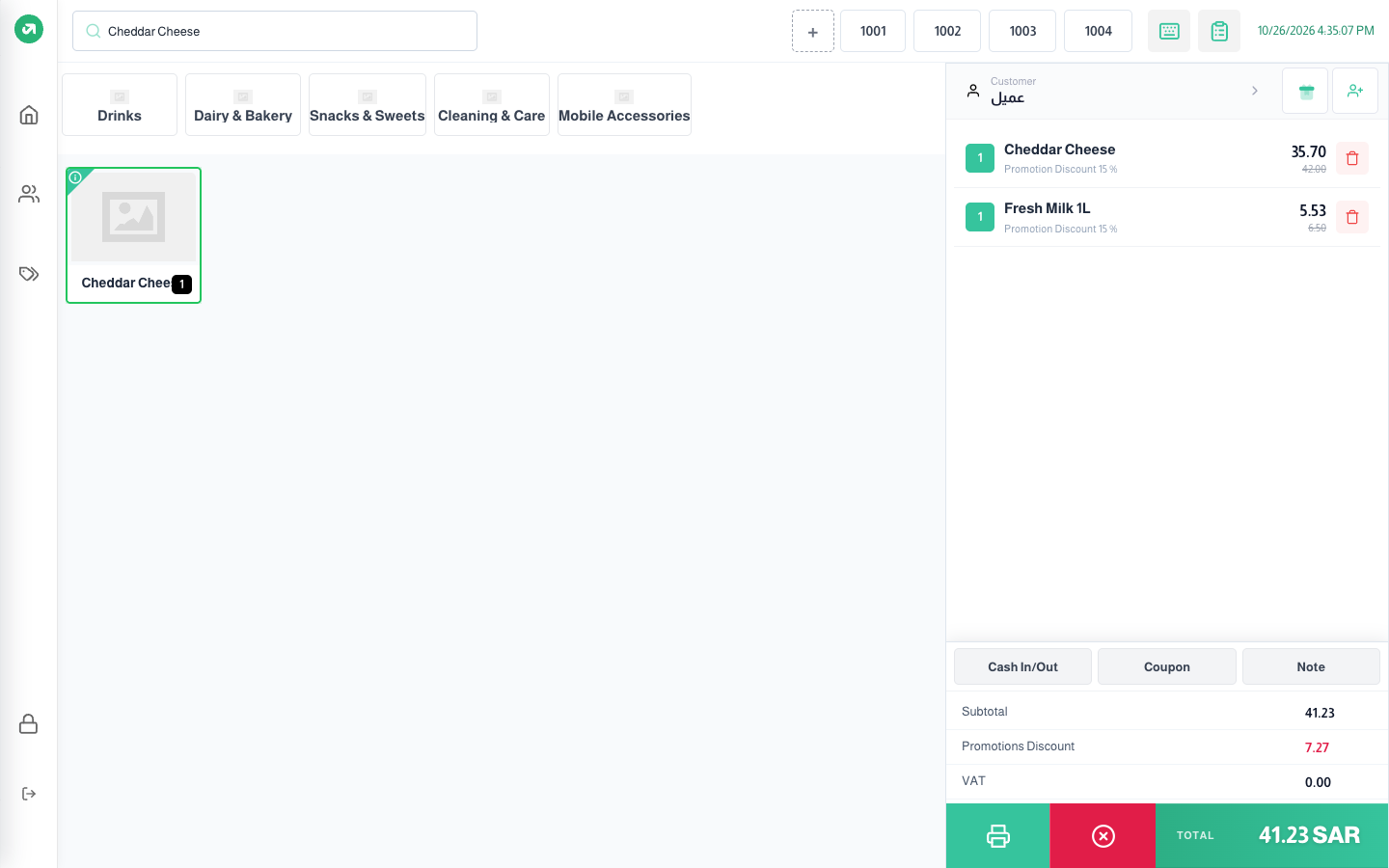
- The condition counts the quantity of any bundle product, so two milks without cheese also qualify. For "product A and product B" use condition aggregation.
- In the picture the milk also has the 20% morning-hour offer, but the 15% bundle discount stayed because it is the last offer in the list.
Condition aggregation (formula)
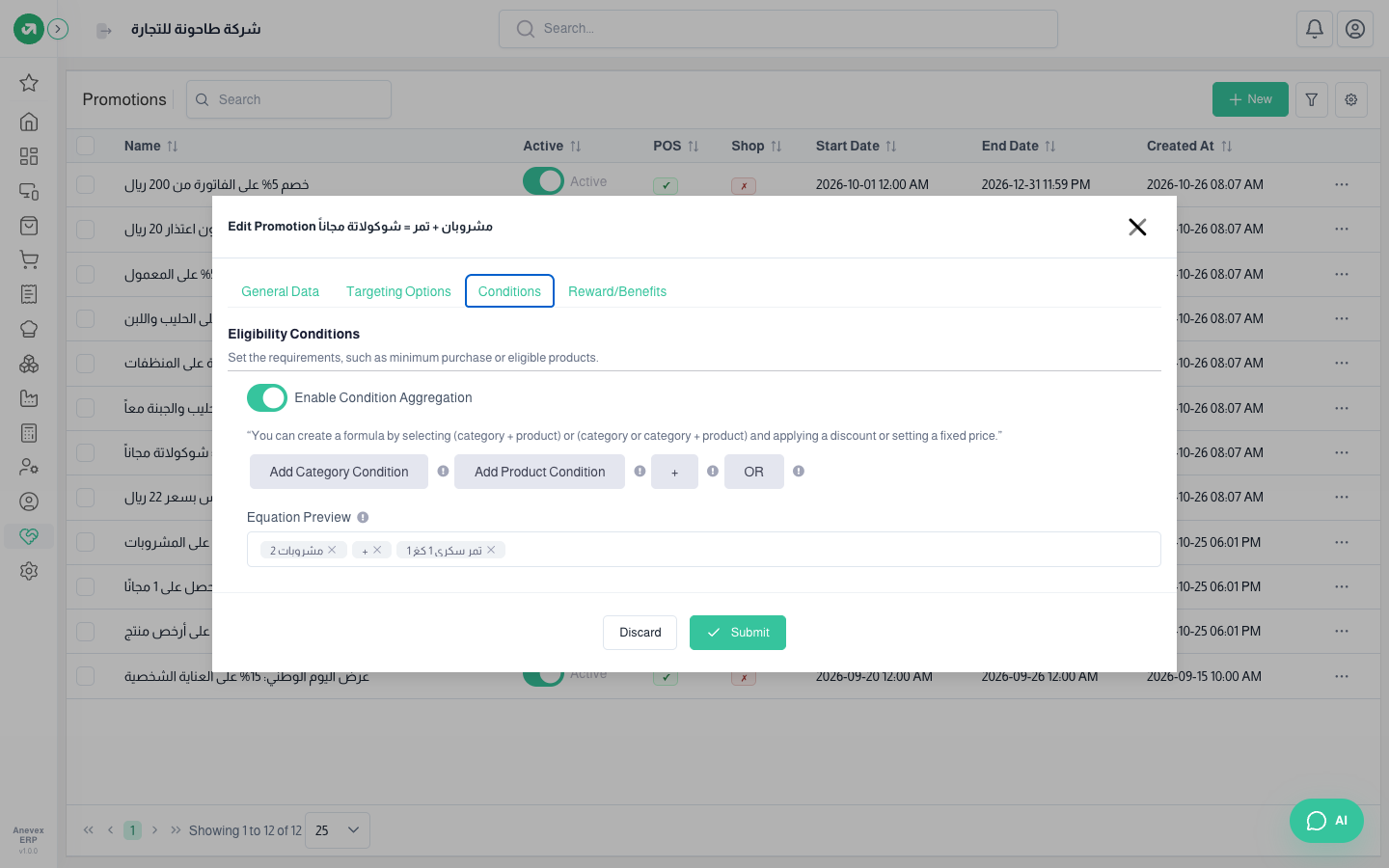
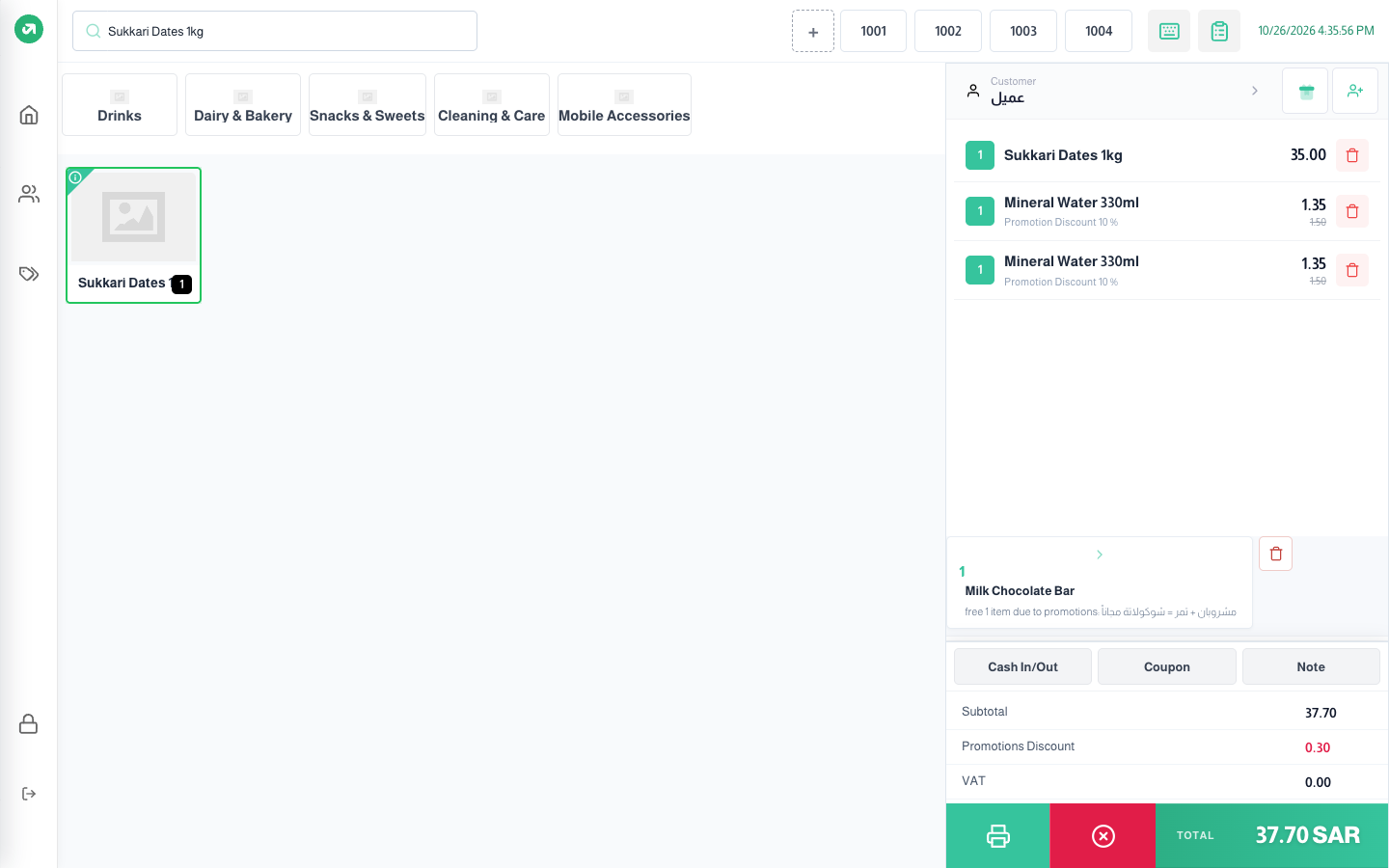
On Conditions turn on condition aggregation, then build the formula: add a category condition or add a product condition with a quantity, with + between them. Example: "Drinks 2 + Sukkari dates 1" means two drinks and a box of dates on the same bill.
Notes
- The OR button does not work for now: the form saves a value the cashier does not recognise, so no offer with OR ever qualifies. Use + only.
- With a formula on, the cashier ignores the customer and minimum-amount conditions.
- Opening an offer with a formula for editing shows the switch on but hides the formula; switch it off and on again to see it.
Total amount reward (set price)
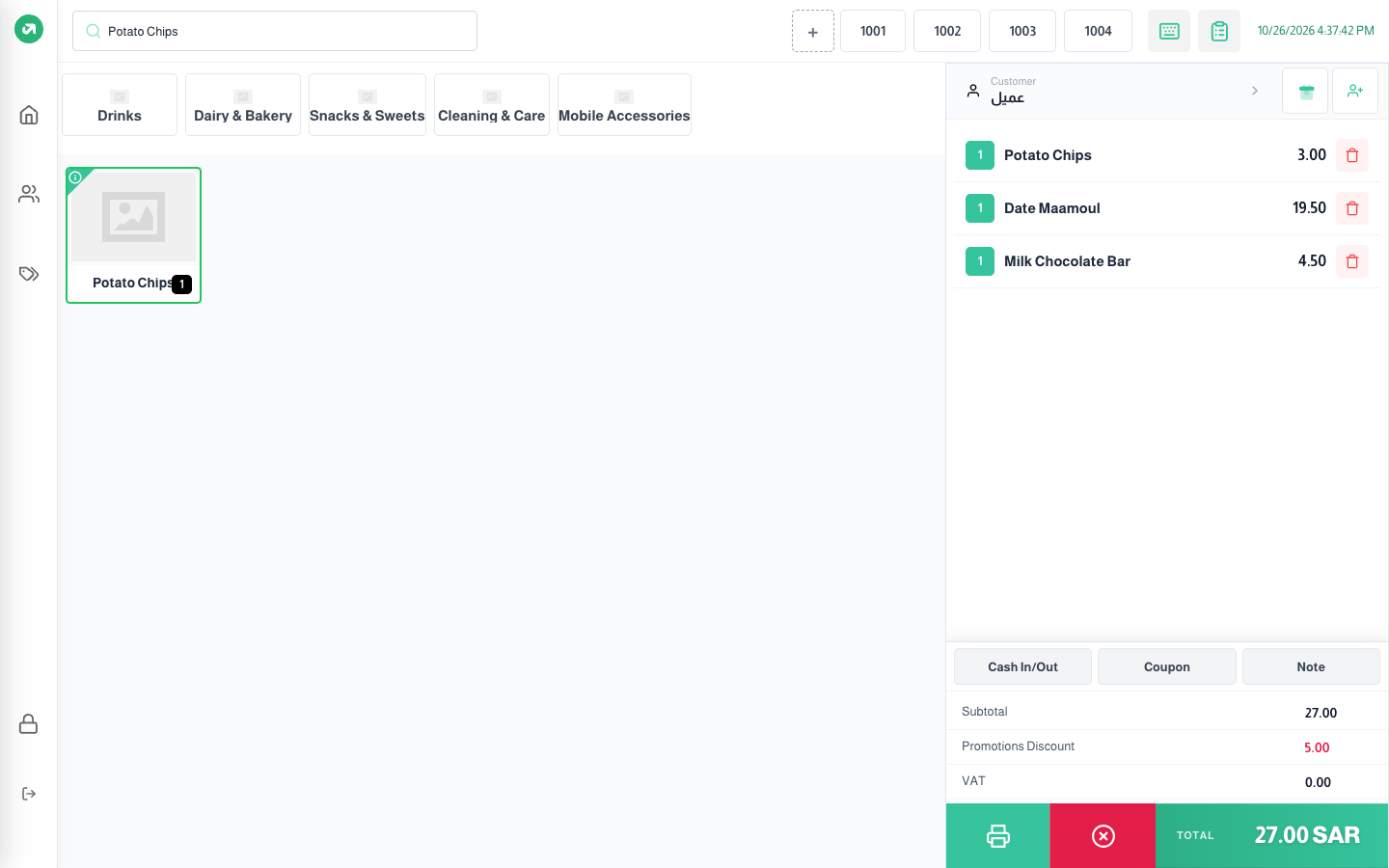
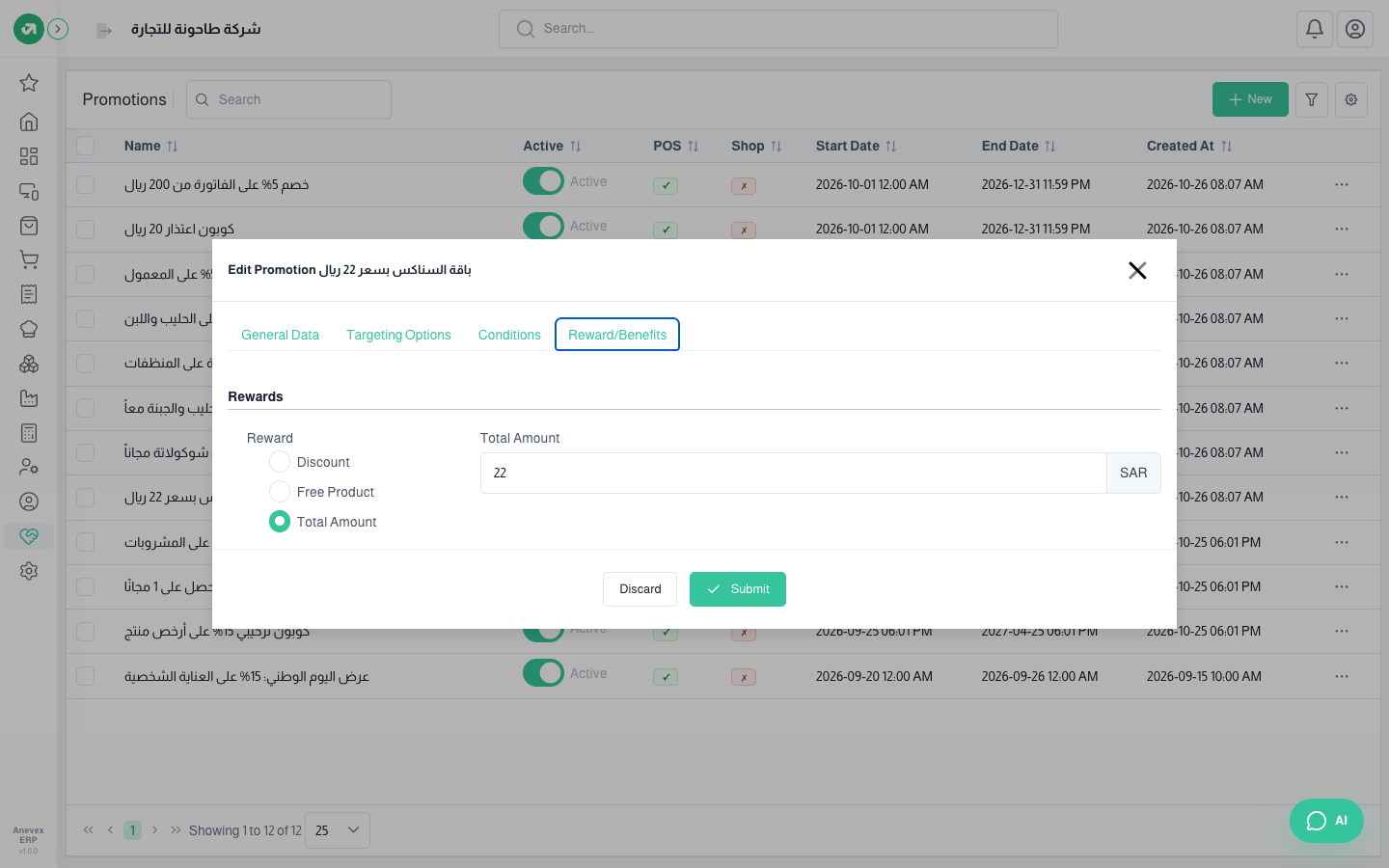
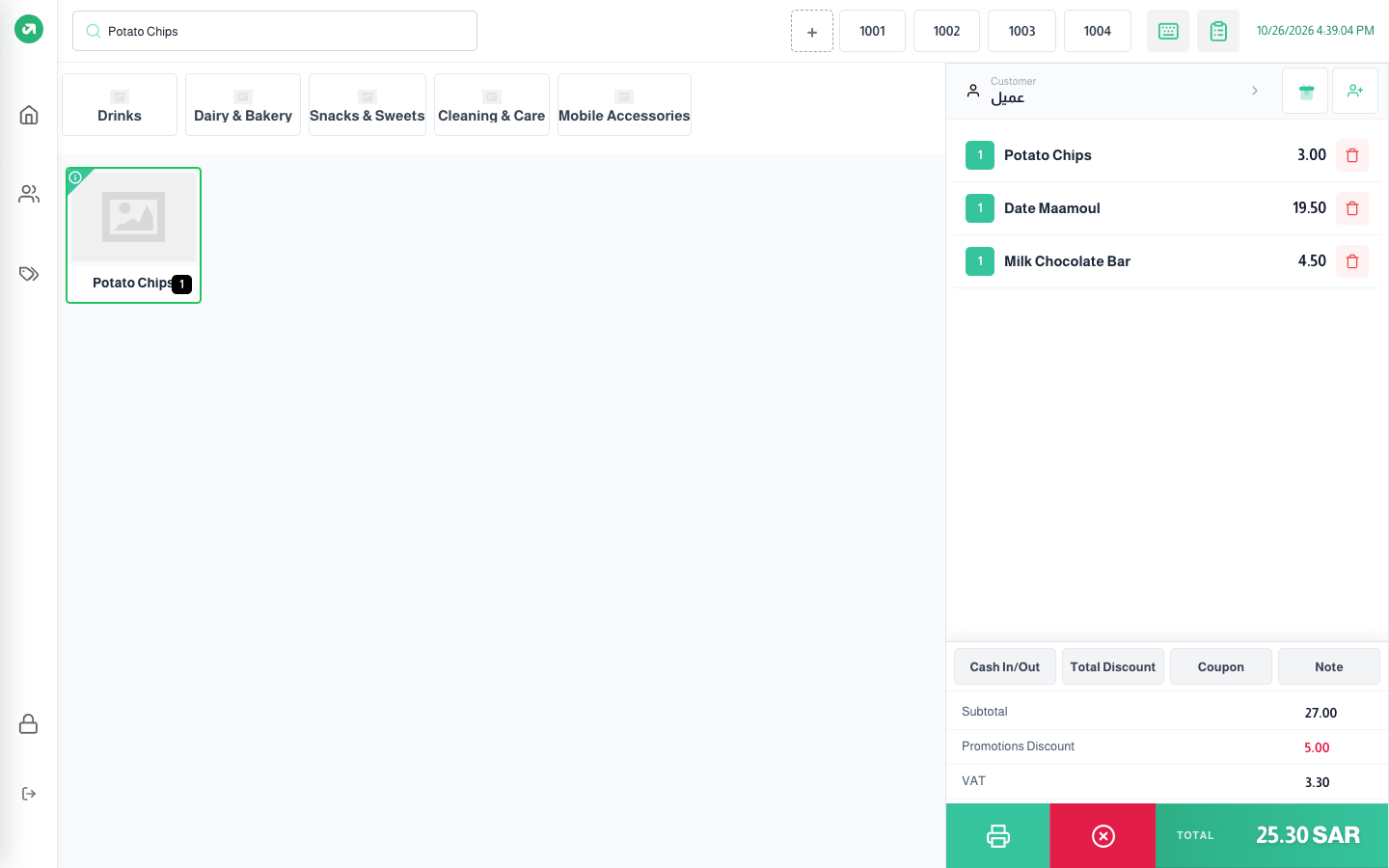
Makes the bill’s pre-tax total a set amount when it is higher. Example: "Snacks bundle for 22" when chocolate, maamoul and chips (27 riyals) are bought.
Notes
- The set price applies to the whole bill, not just the bundle’s products; anything else the customer adds falls into the same price. Use it for bundle-only bills.
- With tax per product on, the promotions discount line shows 5 but the total stays at 27, so the customer pays full price.