
Notifications
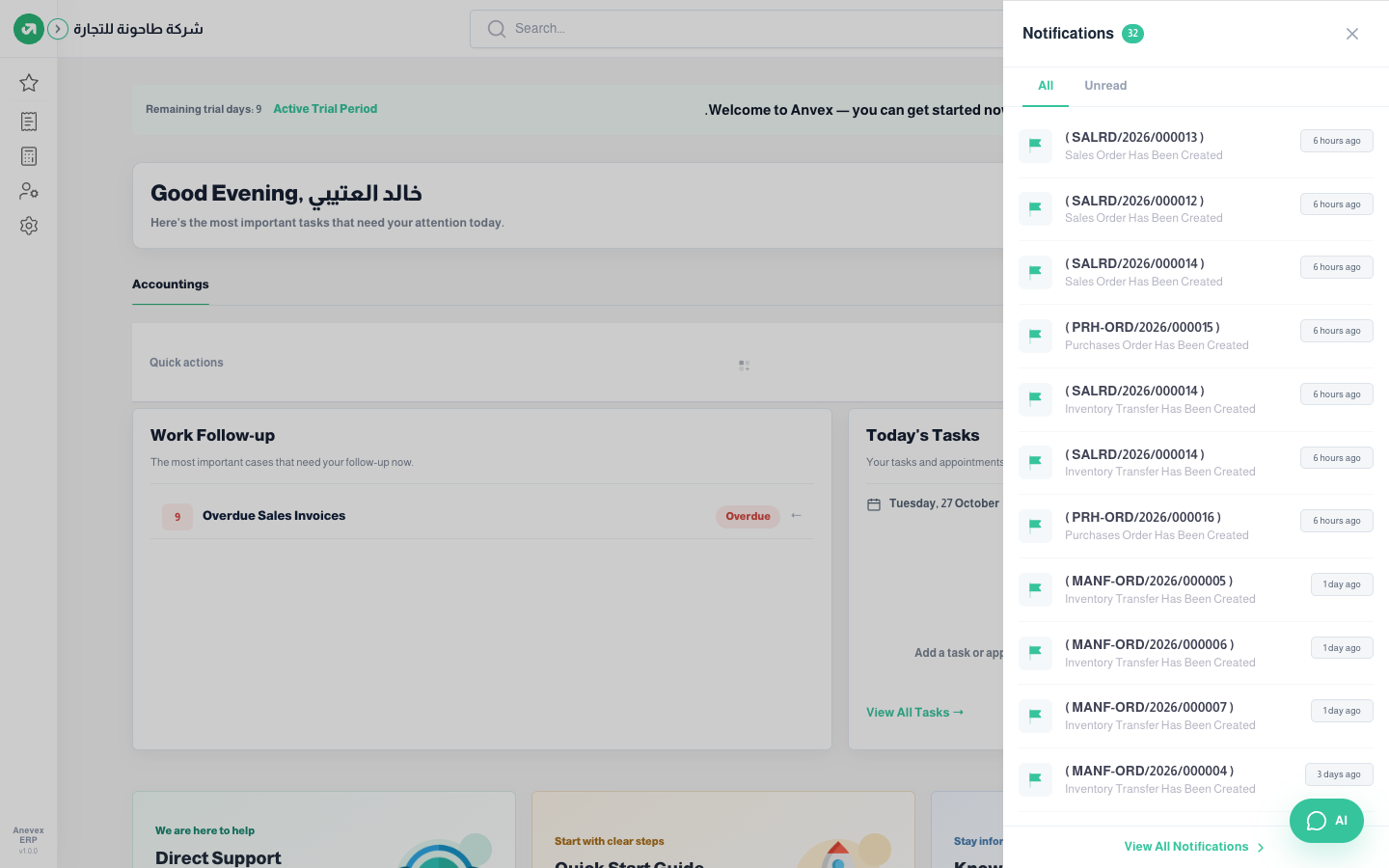
Alerts about what happens in the system that concerns you: a new sales order, purchase order, stock transfer, manufacturing order… The red number on the bell is the count of unread notifications.
Overview
Where to find itTop barBell icon
Steps
- Click the bell. The notifications panel opens with two tabs: All and Unread.
- Each notification shows the event, the document number and when it happened (6 hours ago, a day ago…). Click it to open the document; it is marked as read.
- Click View All Notifications for the full notifications page.
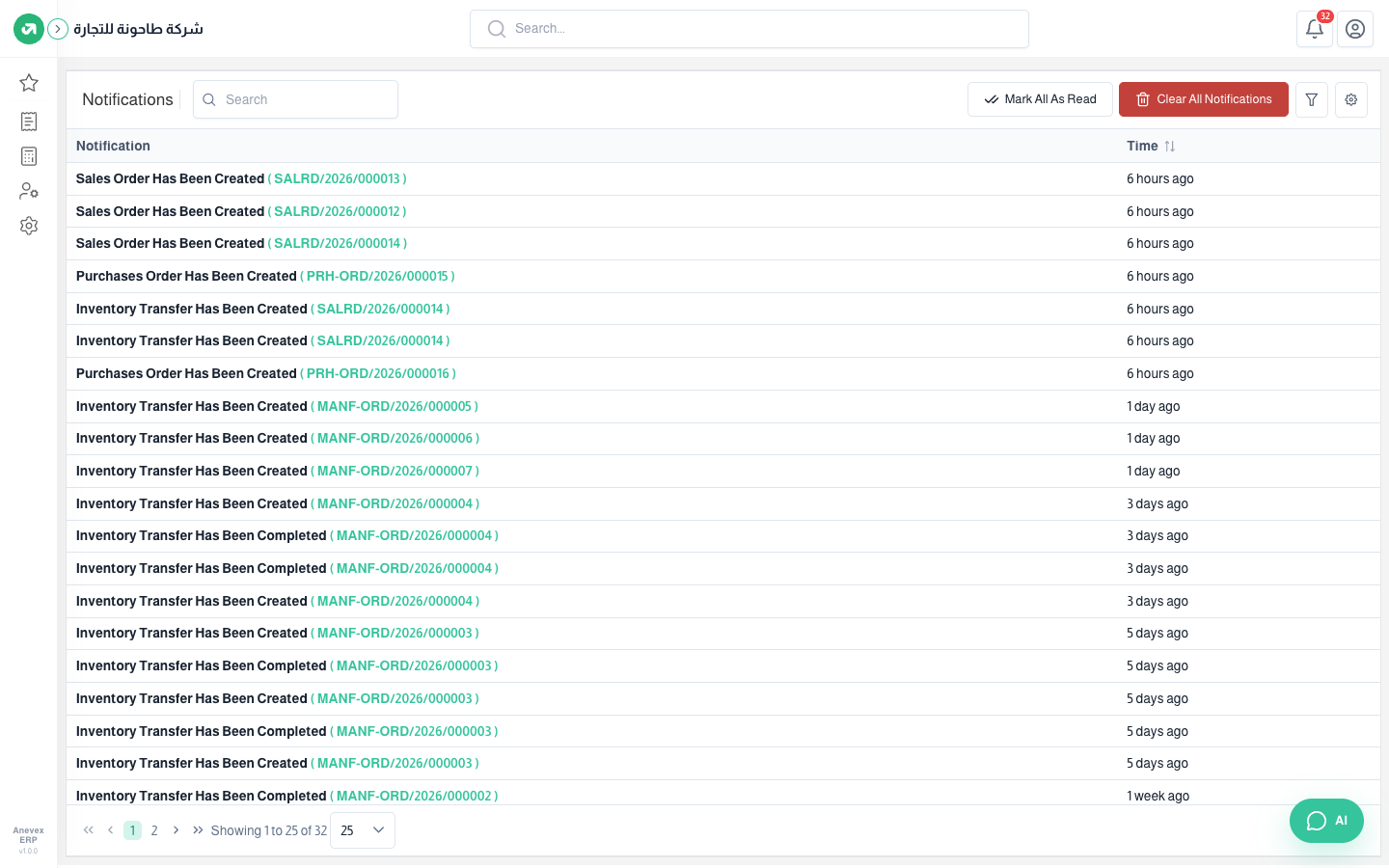
- Notifications page: all your notifications in a table with search, filters and sorting by time.
- Mark all as read: marks every notification as read at once.
- Clear all notifications: deletes them all. It cannot be undone.
Notes
- A notification goes to the other users concerned, not to the person who did the action. So a manager does not get a notification for a sales order they created.
- Which events send a notification, to whom and by which channel (in-app, email, SMS) is set in Settings → Notifications Settings.