
Bills of Materials
The product’s "recipe": what goes into it and how much, and the operations it goes through in order. Every manufacturing order is built on a bill of materials.
Overview
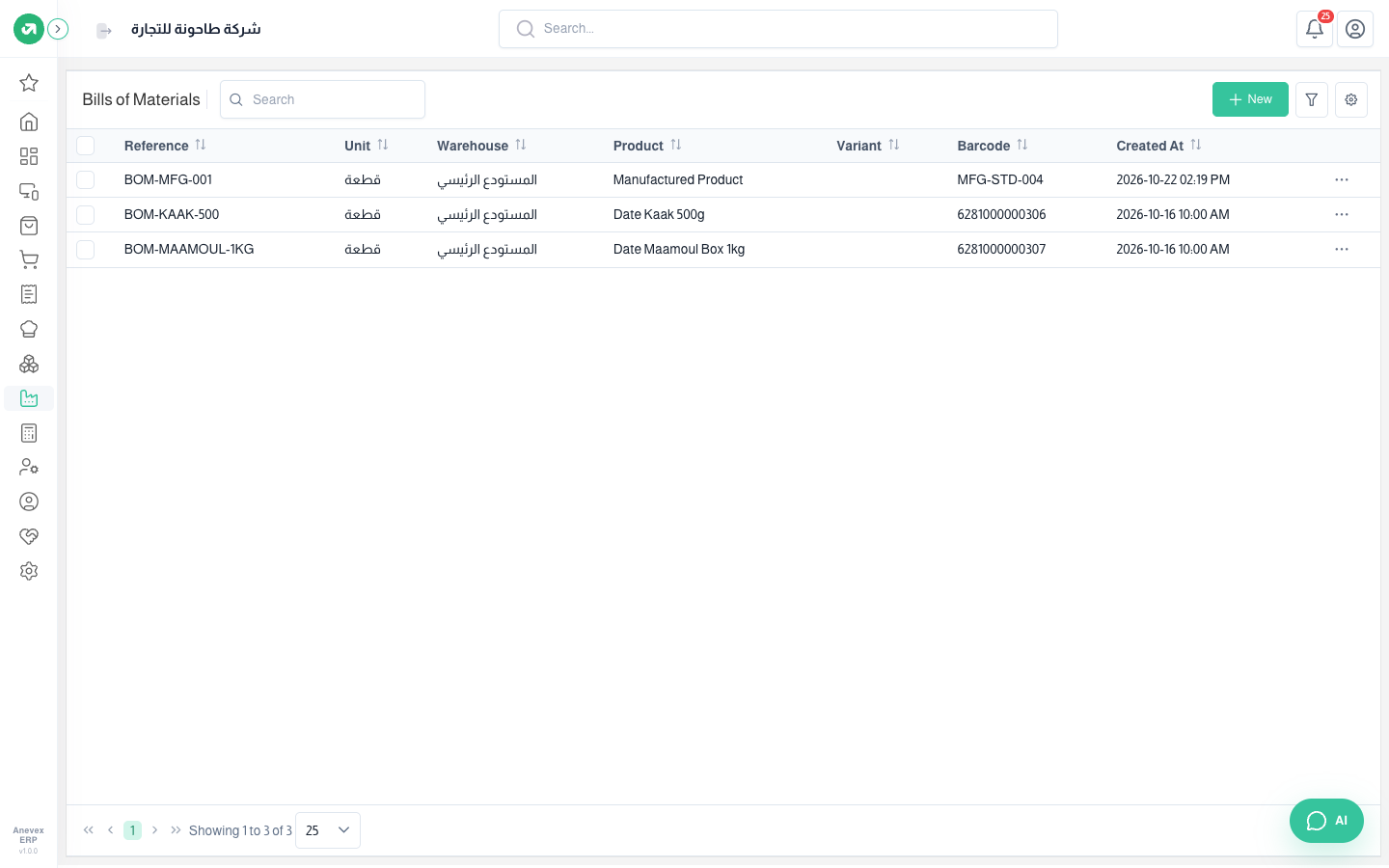
Where to find itManufacturingMaster DataBills of Materials
Steps
- Click New.
- Choose the manufactured Product. Its barcode fills in.
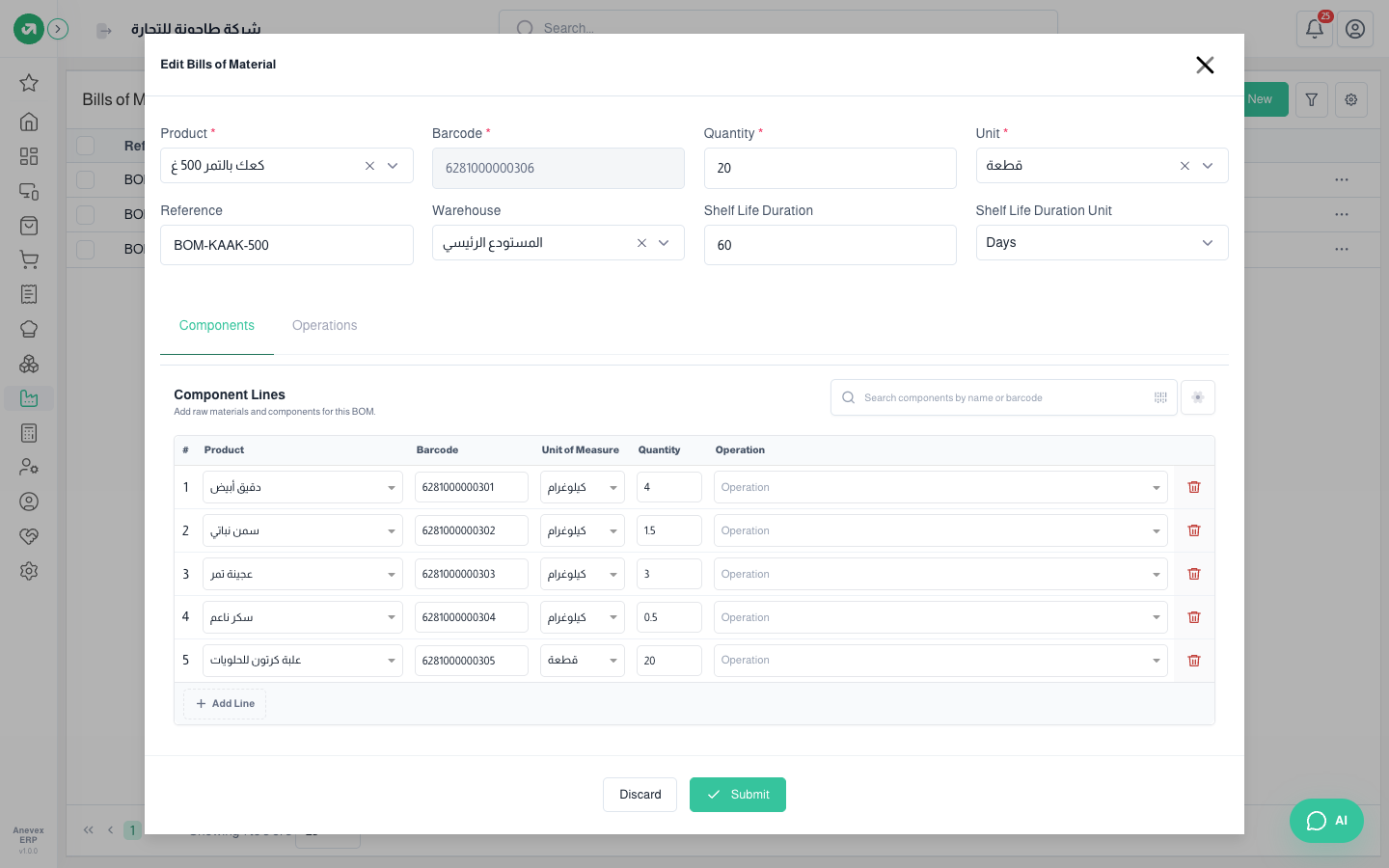
- Enter the Quantity and Unit this recipe makes, for example 20 boxes. Component quantities are written for that quantity.
- Choose the Warehouse the components come from, and enter a Reference (optional) and the finished product’s Shelf Life.
- On the Components tab add each component: product, unit and quantity. The Operation column links a component to an operation if you want it issued when that operation starts.
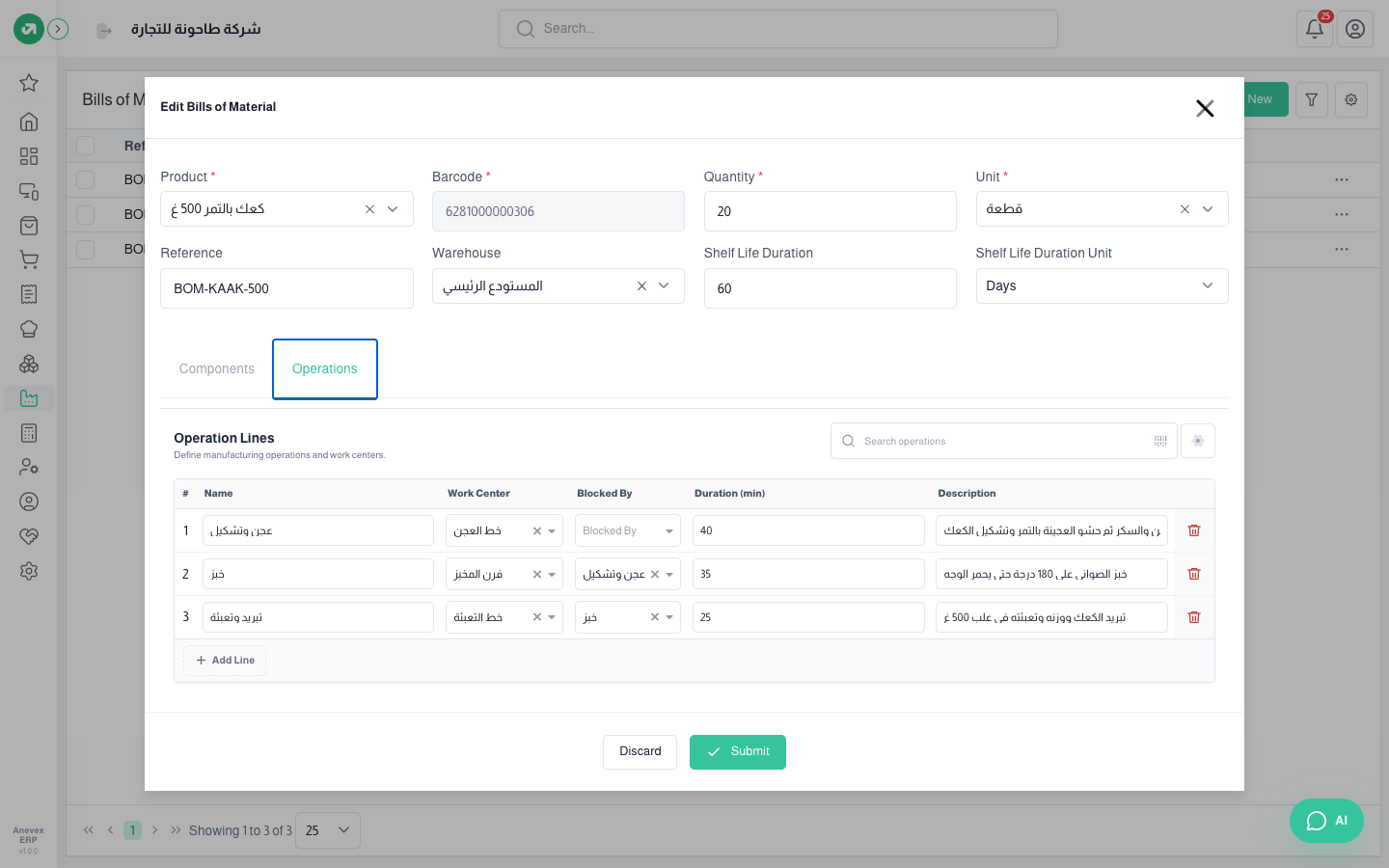
- On the Operations tab add the steps in order: name, Work Center, Duration (min), Blocked By (the step that must finish first) and description.
- Click Submit to save.
Notes
- Blocked By only lists operations that are already saved. Save the bill first, then open it with Edit and link the operations.
- Editing the bill does not change open manufacturing orders; it applies to new ones only.