
Work Orders
Each step of a manufacturing order at its work center: when it started and how long it took against the plan. The supervisor sees from it what to run now.
Overview
Where to find itManufacturingOperationsWork Orders
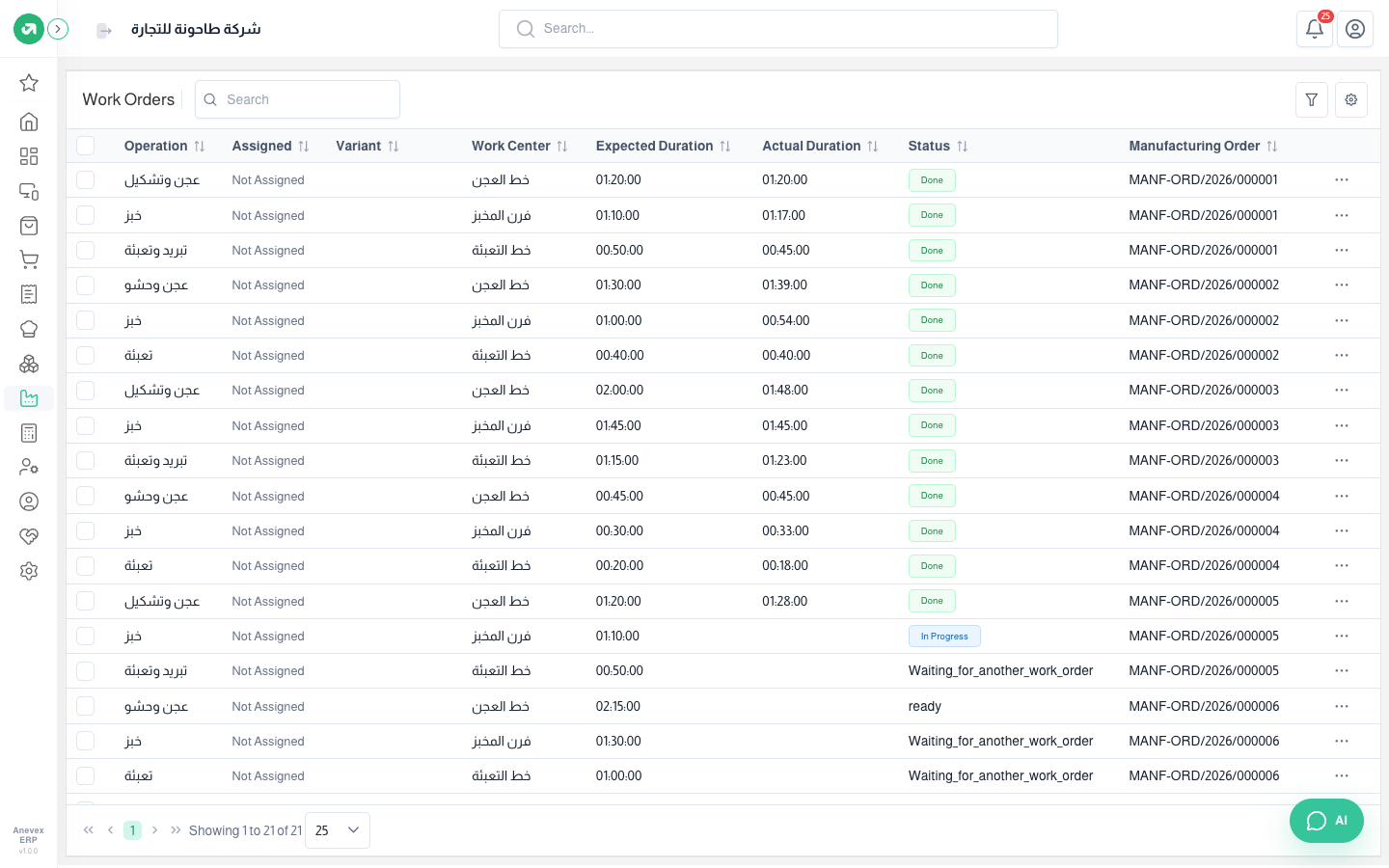
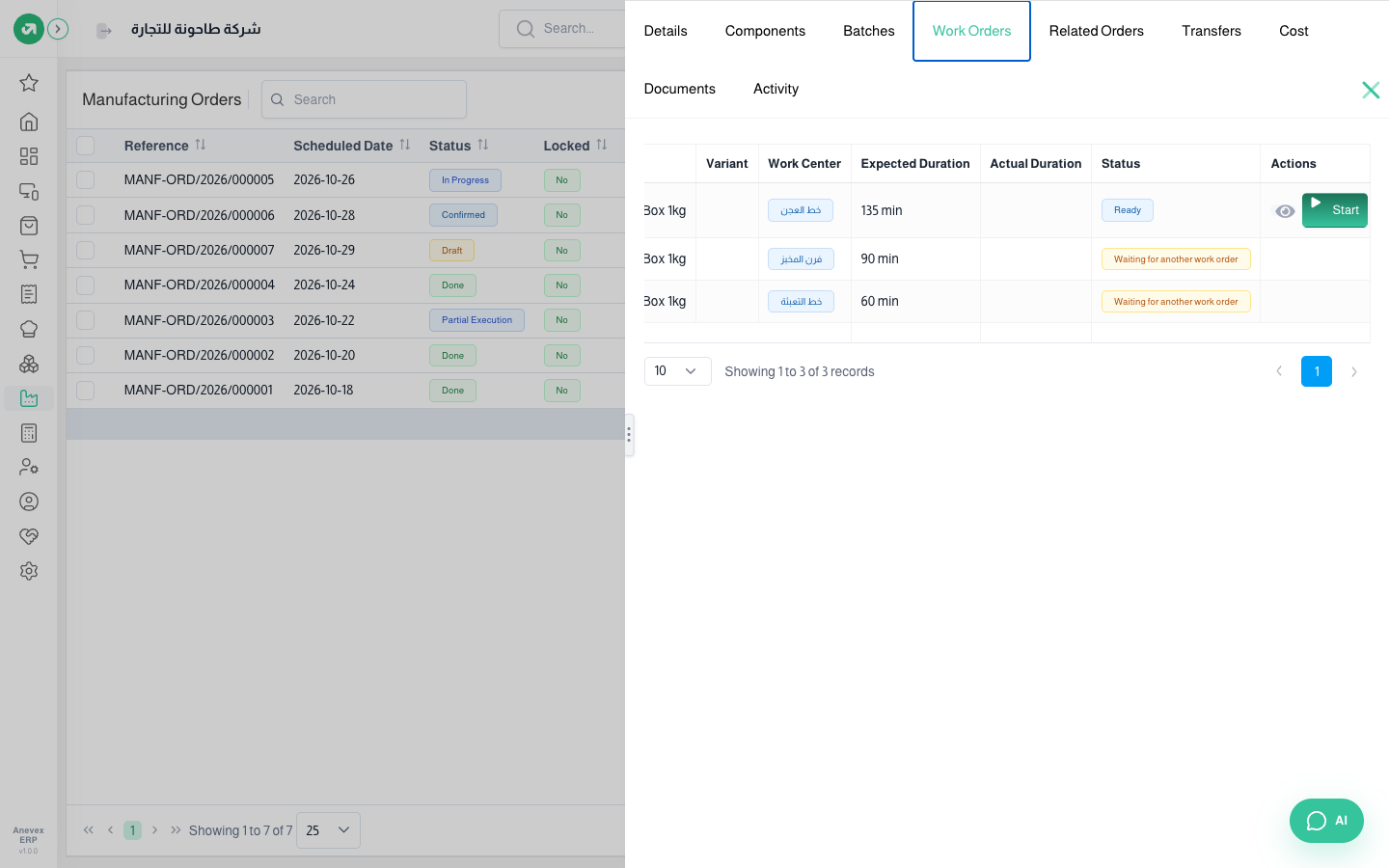
- Ready: can start. Waiting for another work order: the step before it has not finished.
- In Progress: started and the timer is running. Paused: stopped for now. Done: finished, with its actual time and cost worked out.
Steps
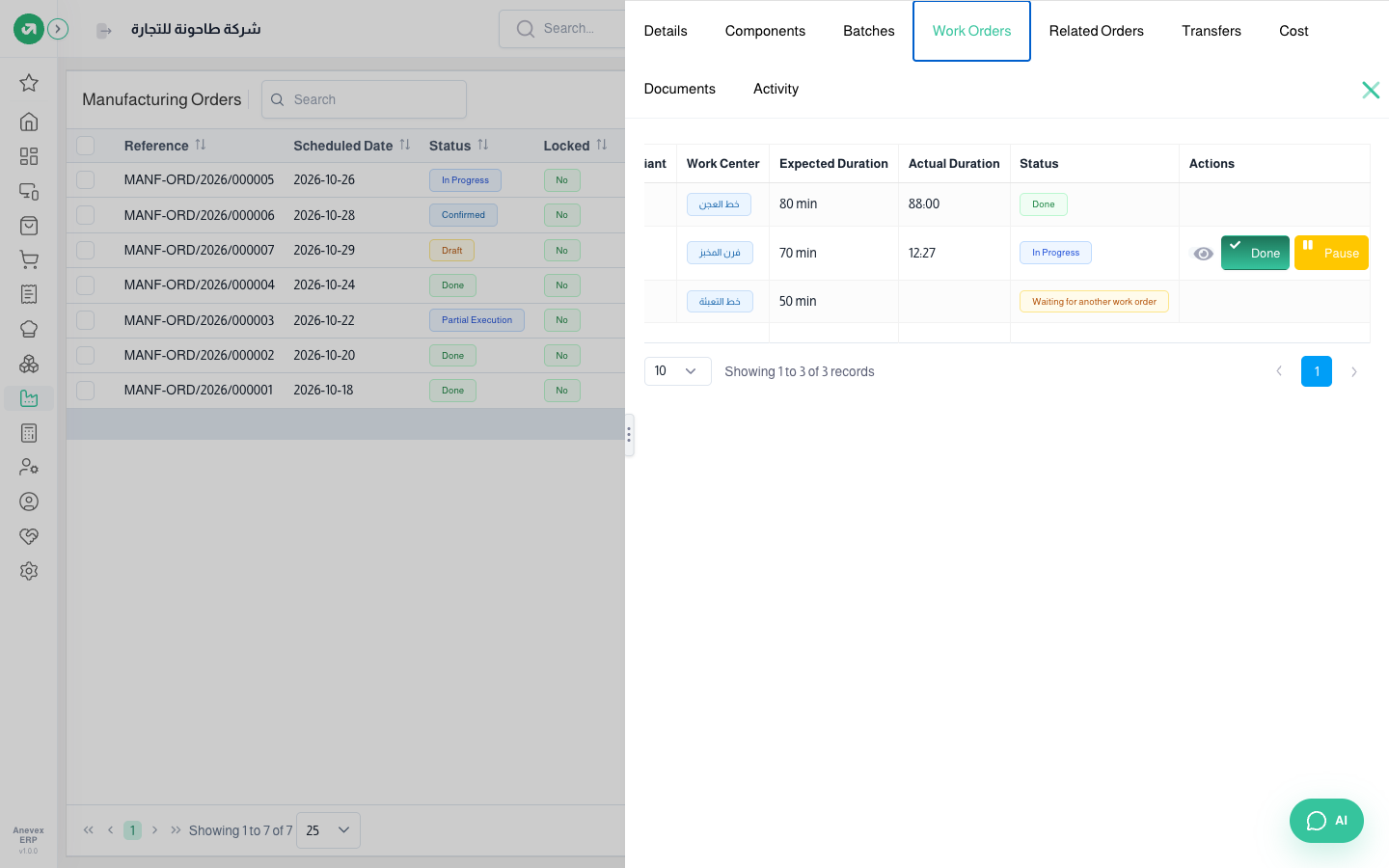
- Open the manufacturing order, then the Work Orders tab.
- Click Start next to the ready step. The timer starts and the order becomes In Progress.
- To stop for a while (a break, a breakdown) click Pause, then Resume to carry on. Paused time is not counted.
- When finished click Done. The actual time and the step’s cost are worked out, and the next step becomes Ready.
- Use the person icon to assign the step to an employee.
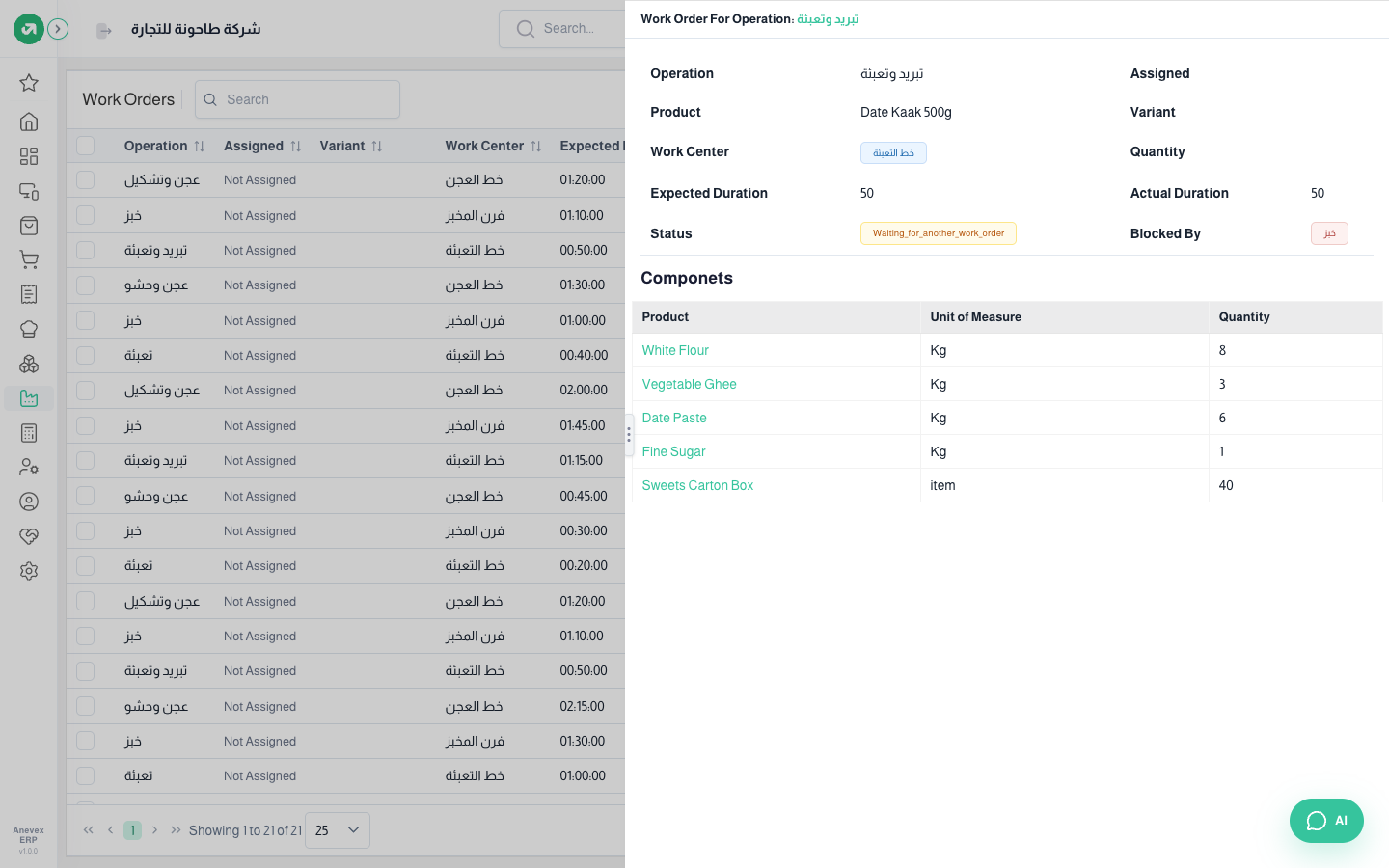
With View in the row menu you open the work order details: operation, product, work center, expected and actual duration, the step it depends on, and the order’s components.
Notes
- Work orders come from manufacturing orders only; they are not added on this screen.
- Produce on the manufacturing order finishes every remaining work order at once. To record real times, start and finish each step before producing.