
Manufacturing Orders
A request to make a quantity of a product on a given date. From it you follow the work, record production, and see what was taken from stock and what it cost.
Overview
Where to find itManufacturingOperationsManufacturing Orders
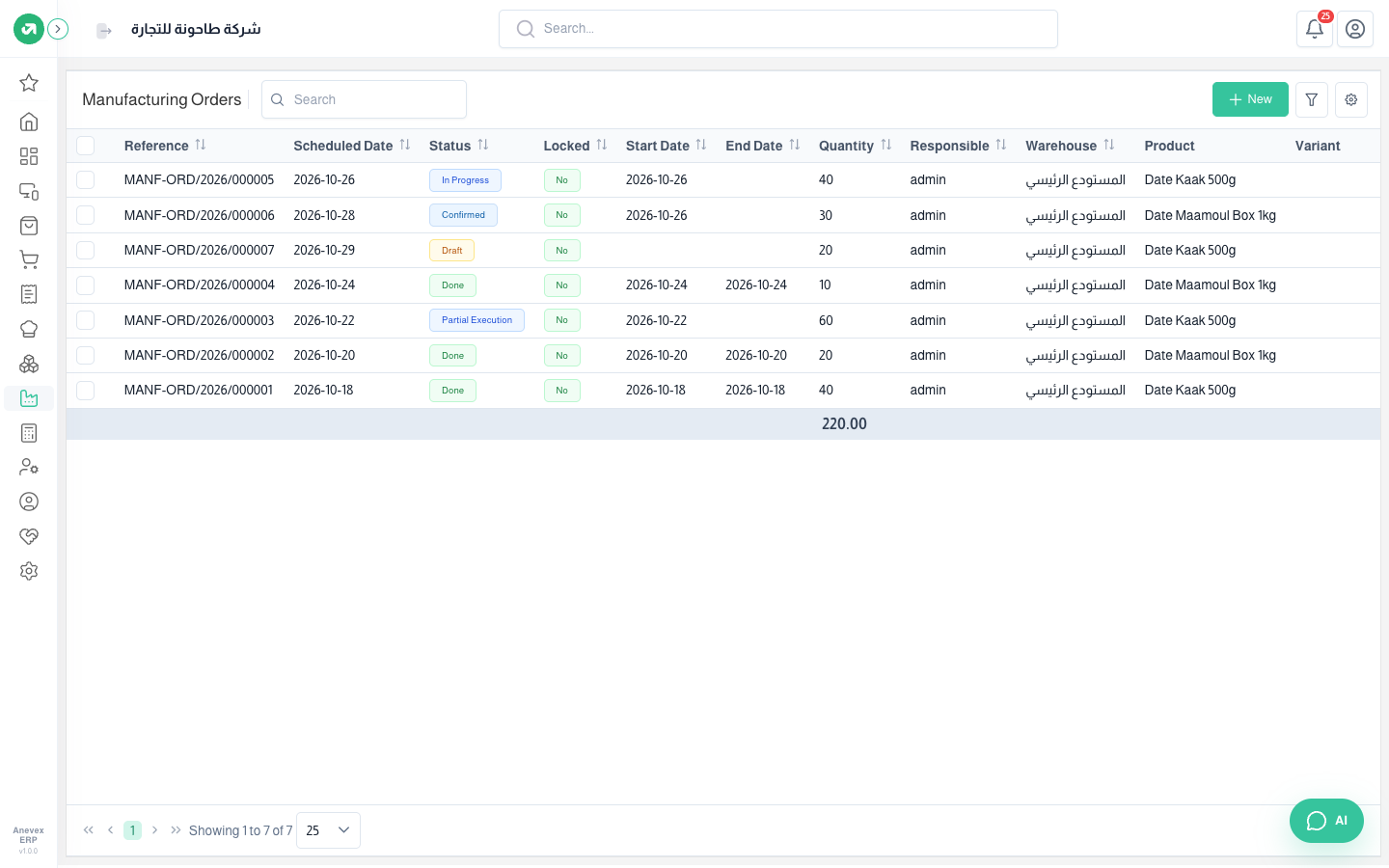
- Draft: a new order not confirmed yet. It can be edited or deleted.
- Confirmed: ready to start. The first work order becomes Ready and the rest wait for the one before.
- In Progress: one of the work orders has started.
- Partial Execution: only part of the quantity was produced; the rest is still to make.
- Done: the whole quantity was produced and is in stock. Cancelled: the order was cancelled.
Steps
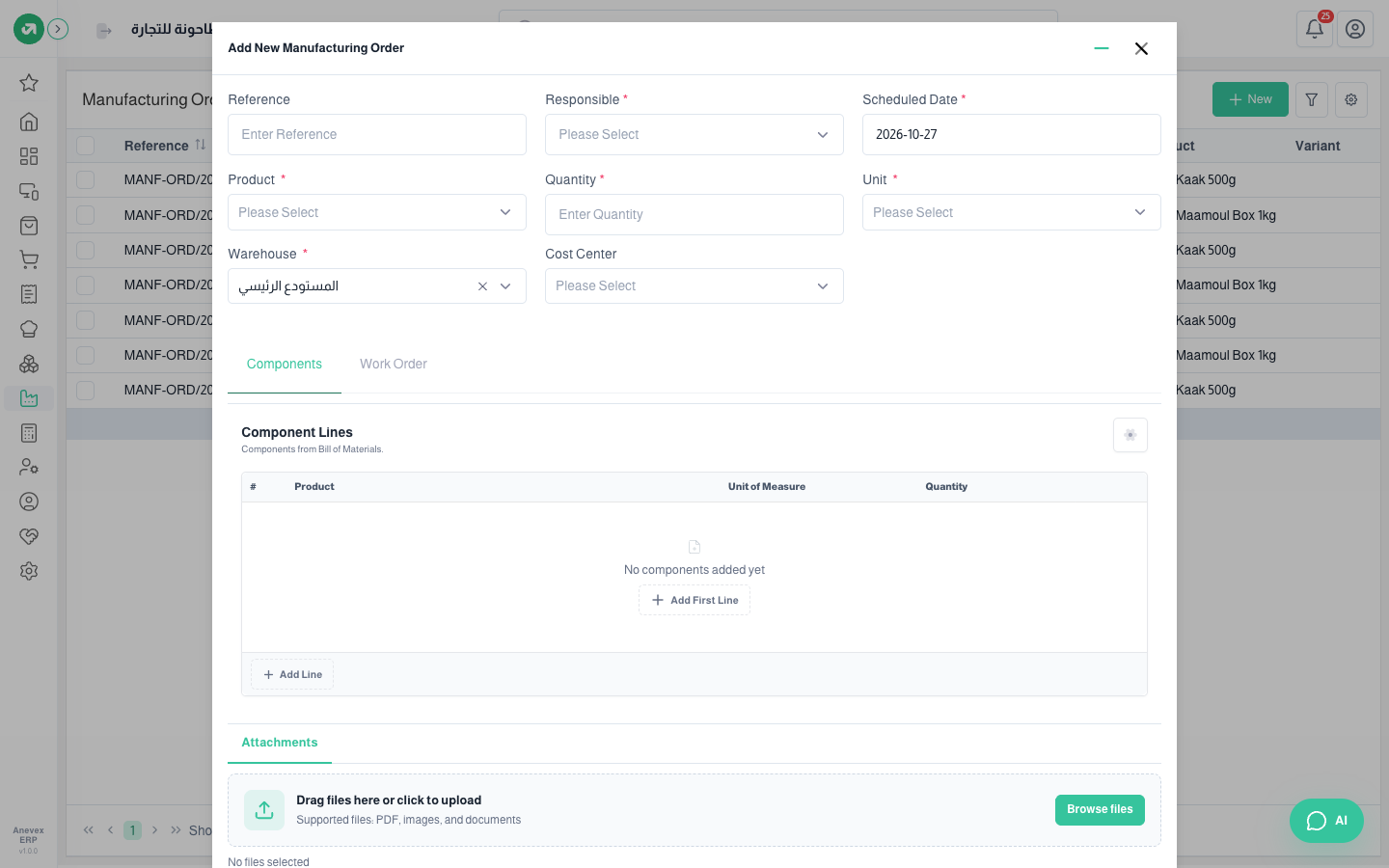
- Click New.
- Choose the Responsible person and the Scheduled Date. Reference is optional; left empty, the system numbers it (MANF-ORD/2026/000001).
- Choose the Product, enter the Quantity, unit and the Warehouse the finished product goes into, and a Cost Center if you want.
- The system takes the product’s bill of materials and fills the Components and Work Orders tabs, with quantities and durations worked out for the quantity you entered. Adjust them if needed.
- Click Submit. The order is saved as Draft.
- Open the order and click Confirm when it is ready to start.
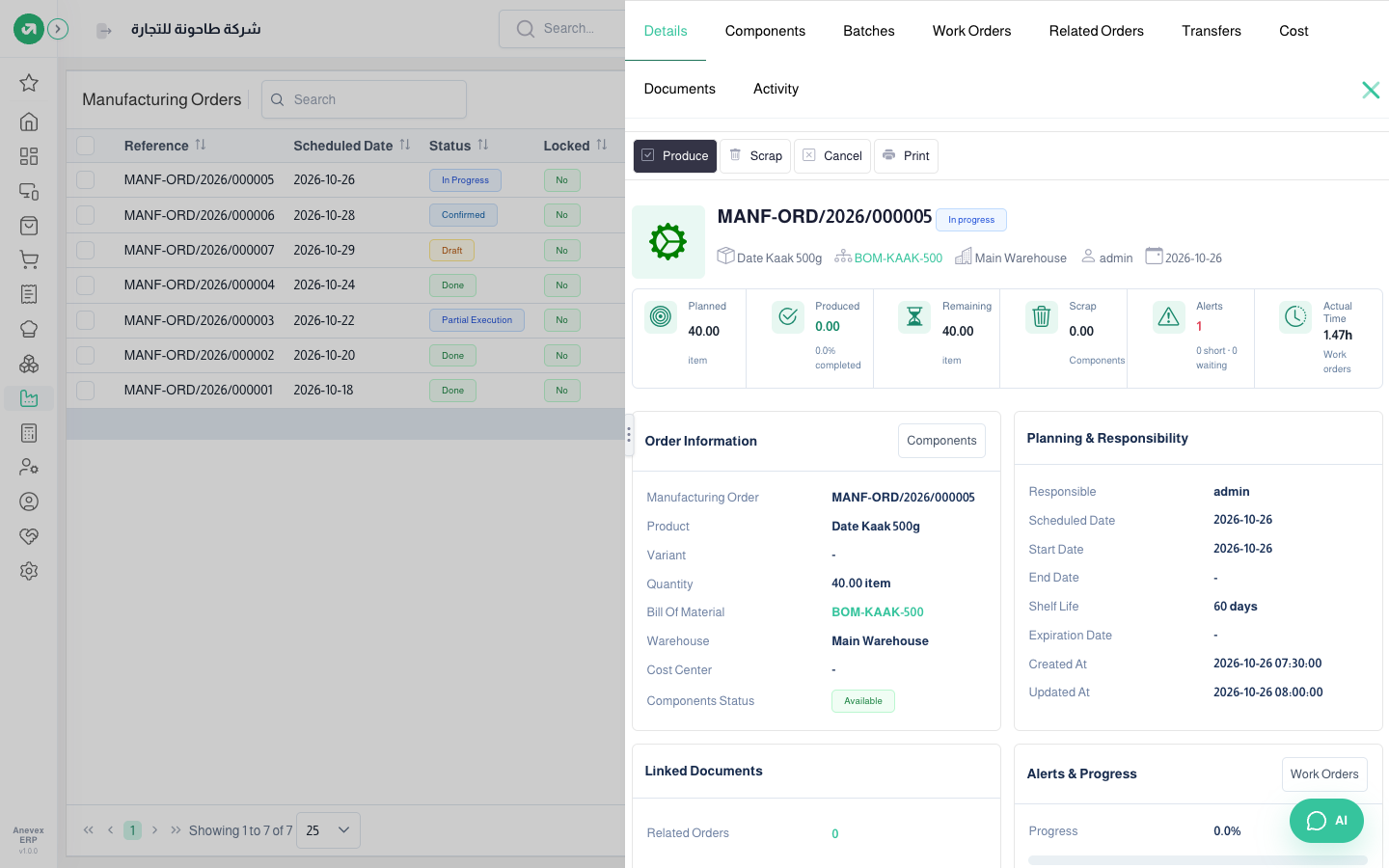
Open any order with View in the row menu. At the top are the status buttons, then cards: Planned, Produced, Remaining, Scrap, Alerts and Actual time, then the order and planning details.
- Produce: records production. It asks for the quantity (the remaining one by default). The full quantity makes the order Done; part of it makes it Partial Execution and records a batch on the Batches tab.
- Scrap: records components spoiled during manufacturing; they leave stock for the scrap location.
- Cancel: cancels the order and its work orders. Print: prints the order.
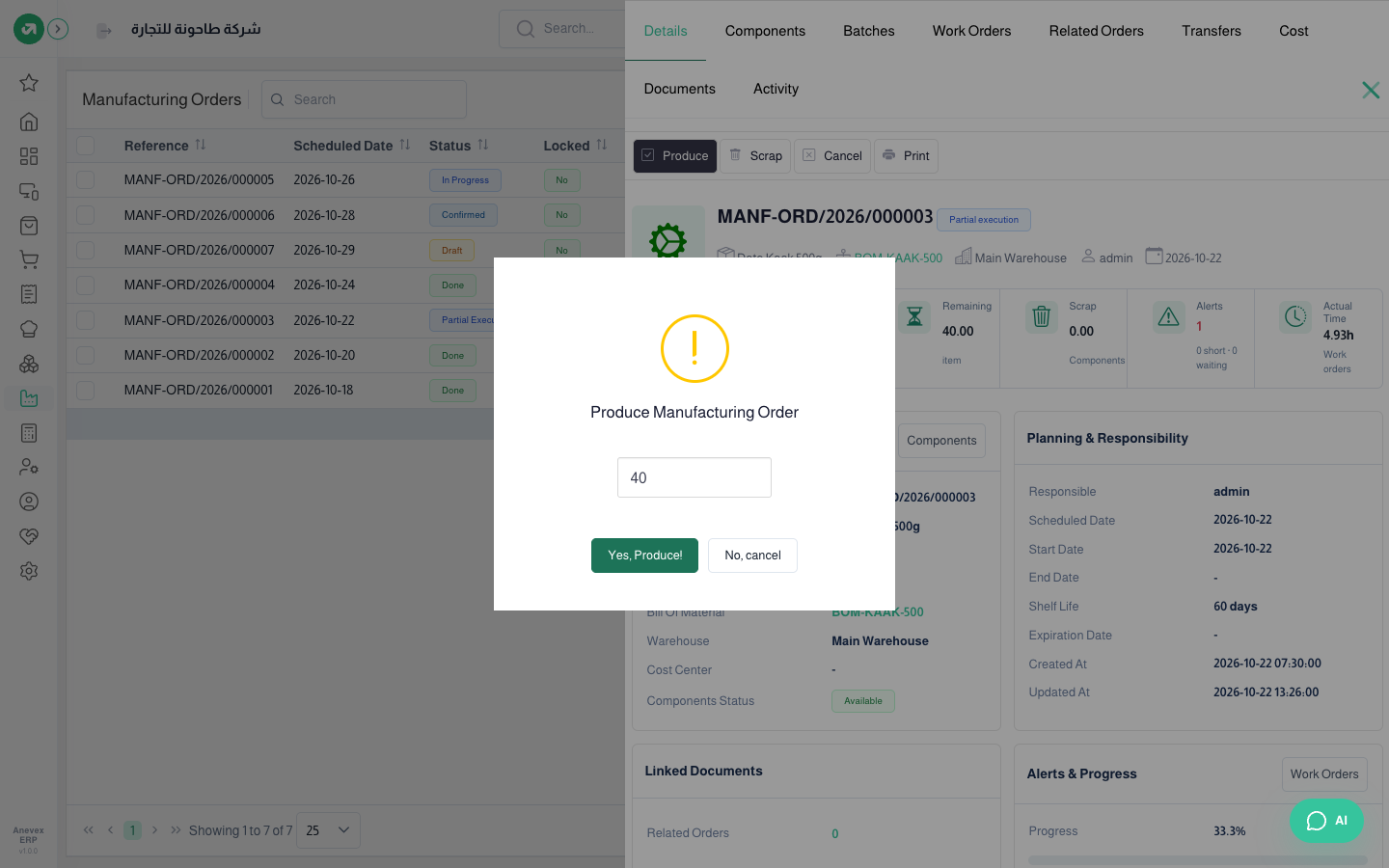
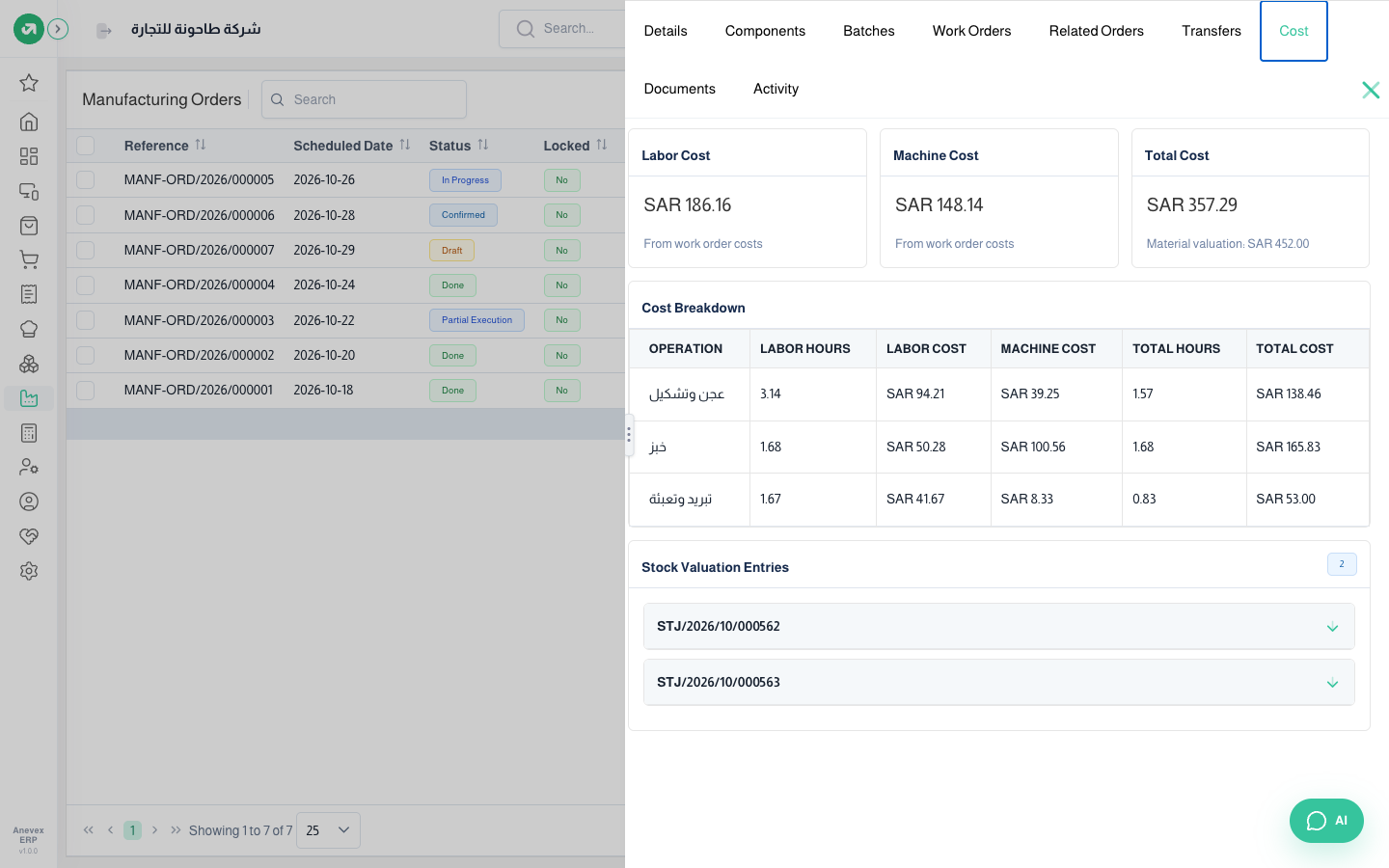
When you produce, the system issues the components in proportion to the quantity made and adds the finished product to the warehouse. Both movements are on the Transfers tab (manufacturing consumption and production), and the entries on the Cost tab.
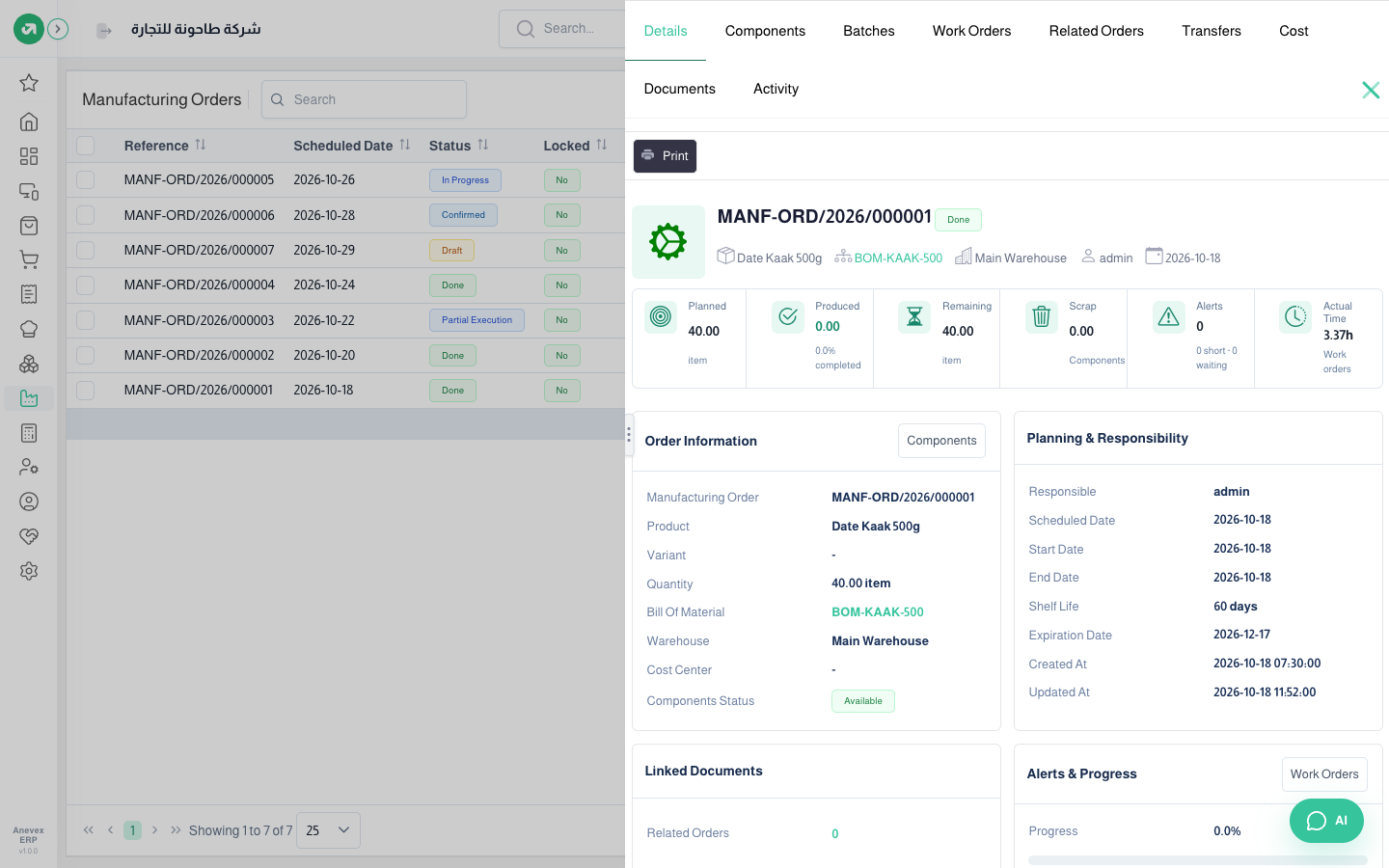
- Components: what the order needs of each component, and whether it is in stock.
- Work Orders: the order’s steps and the status of each. You start, pause or finish a step from here (see Work Orders).
- Batches: each partial production: date, quantity and what is left.
- Related Orders: orders linked to this one, such as sub-orders for manufactured components.
- Transfers: the stock movements. Cost: component and work center cost. Documents and Activity: attachments and the change log.
Notes
- On save the system prepares the component issue as a draft; nothing leaves stock until you produce.
- If a component is itself manufactured and its stock is short, the system creates a sub-order for it (when making missing components is on).
- The finished product’s stock cost comes from the components’ cost. The work center cost shows on the Cost tab and the Manufacturing Cost Breakdown report.