
Production Operation Dashboard
Today’s production plan: for each manufactured product, how much is needed, how much is in stock, and how much the system suggests making. From it you approve the quantity and create the production order.
Overview
Where to find itManufacturingDashboardProduction Operation Dashboard
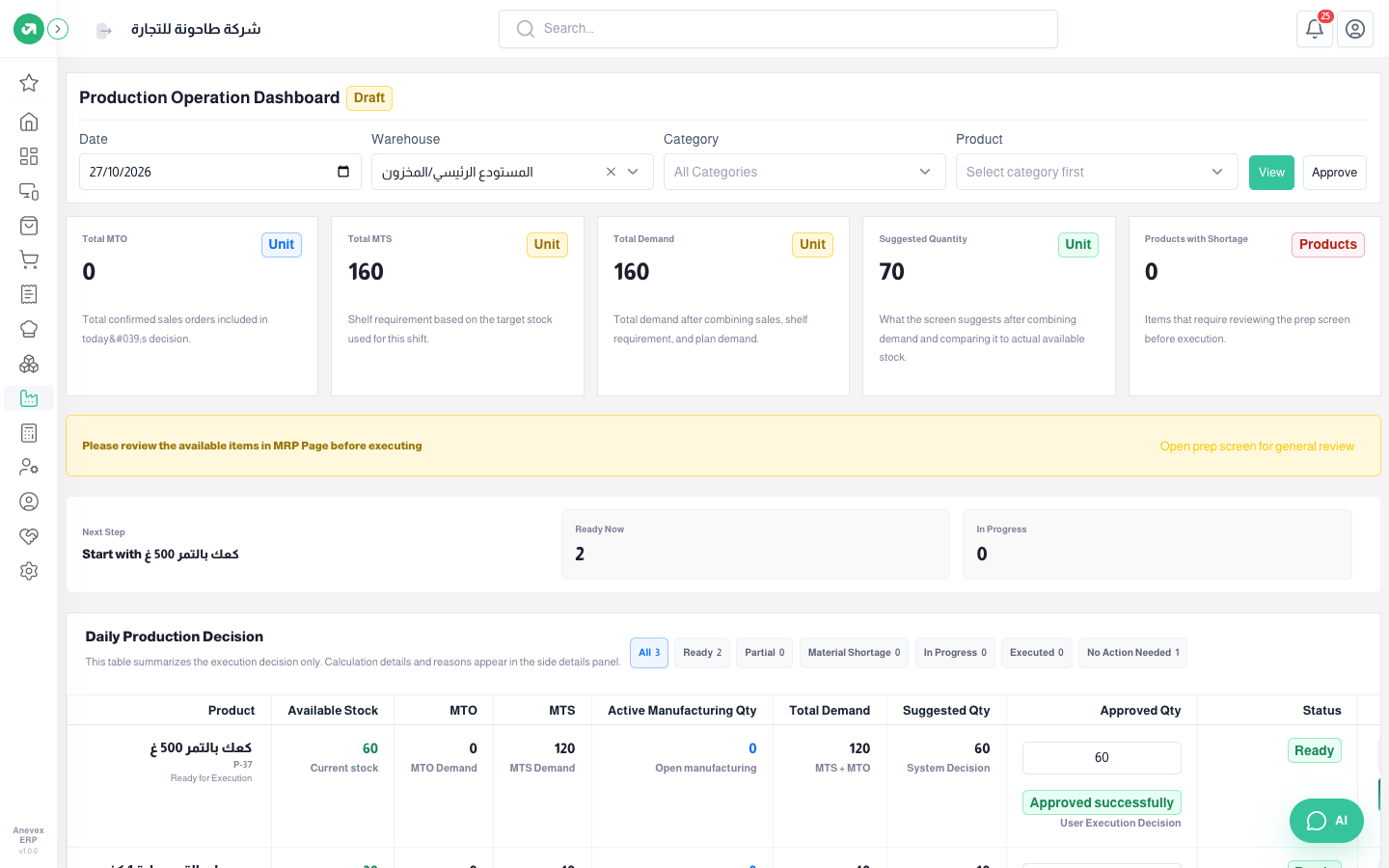
- MTO (make to order): quantities on sales orders due for delivery that day.
- MTS (make to stock): the product’s minimum from the Stock Levels screen.
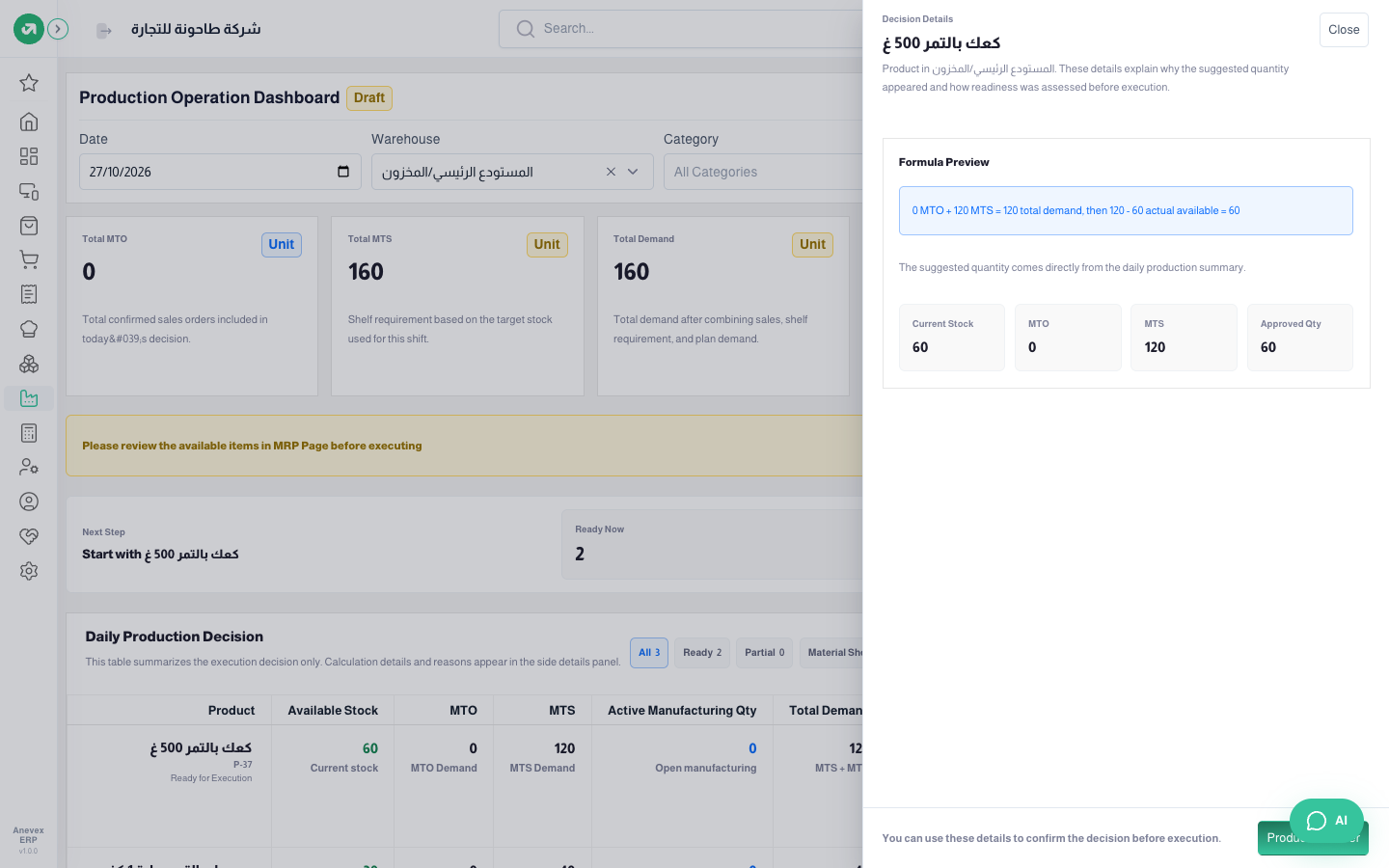
- Suggested Quantity = total demand (MTO + MTS) − current stock − the quantity already in that day’s open orders.
- The cards at the top add these up, and Products With Shortage counts products whose components are not enough.
Steps
- Choose the Date and Warehouse, narrow by category and product if you like, then click Show.
- In the Daily Production Decision table check the suggested quantity, and enter an Approved Qty if you want a different one.
- Click Details to see how the quantity was worked out.
- Click Production Order to create a manufacturing order for the approved quantity on that date.
Notes
- Only products of type Manufactured in warehouses with Manufacturing ticked on the warehouse screen are shown.
- A production order from this dashboard does not fill in the work orders yet (work center and duration). Until that is fixed, create the order from the Manufacturing Orders screen.