
Attendance Kiosk
Employees record their own check-in and check-out without a fingerprint device, in two ways: an icon at the top of the screen for employees who have a system account, or a kiosk screen on a device at the entrance where employees scan their badge.
Overview
| Way | Suits whom |
|---|---|
| Top bar icon | Staff who work in the system every day: accountant, storekeeper, cashier |
| Badge kiosk screen | Every employee, even those without a system account: warehouse, bakery and drivers |
Way 1: the attendance icon in the top bar
The icon shows next to the company name when the HR module is on and the user is linked to an employee (edit the employee → HR Settings tab → Related User). It turns green while the employee is checked in and has not checked out.
Steps
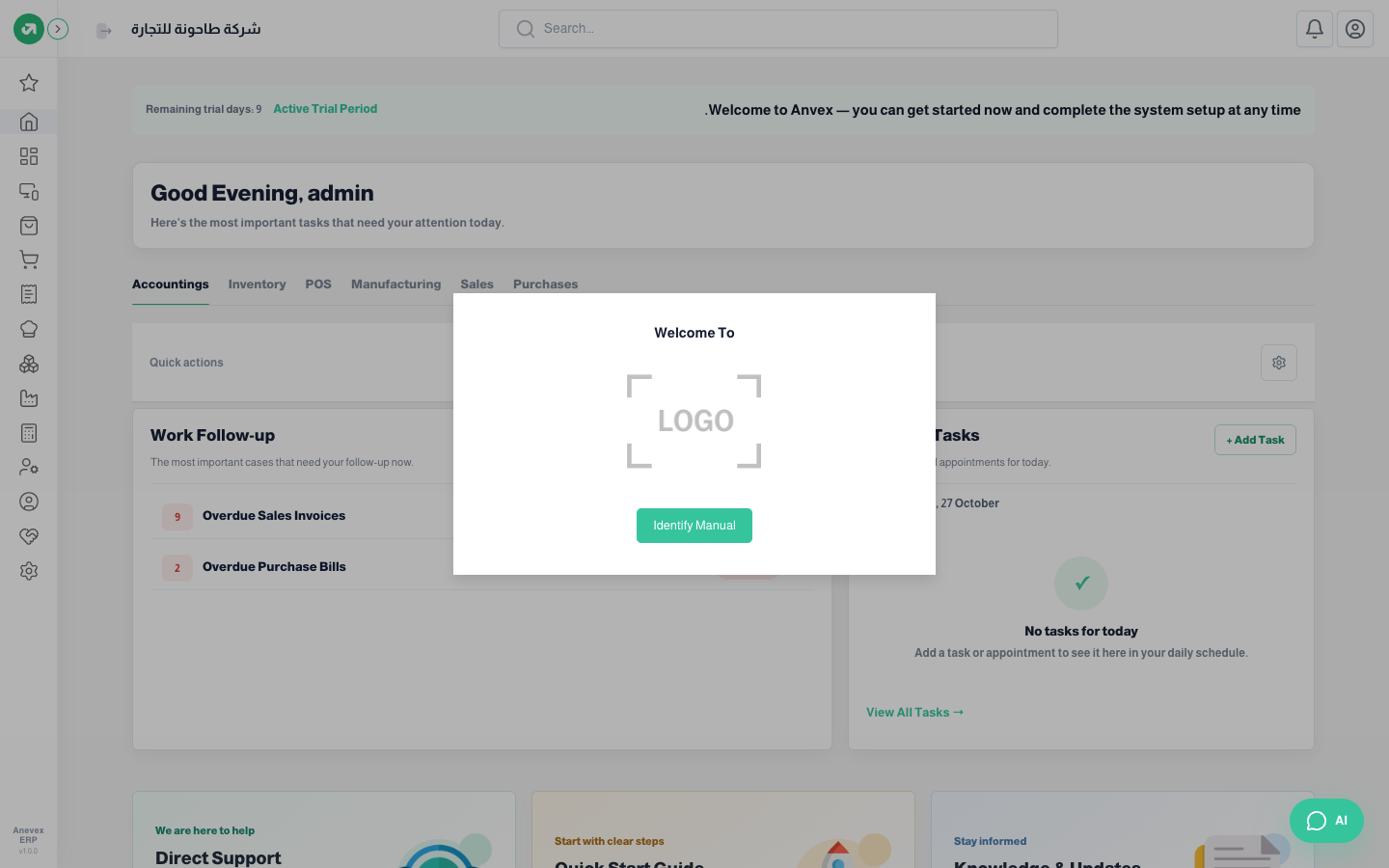
- Click the attendance icon. A Welcome To window opens with the company logo.
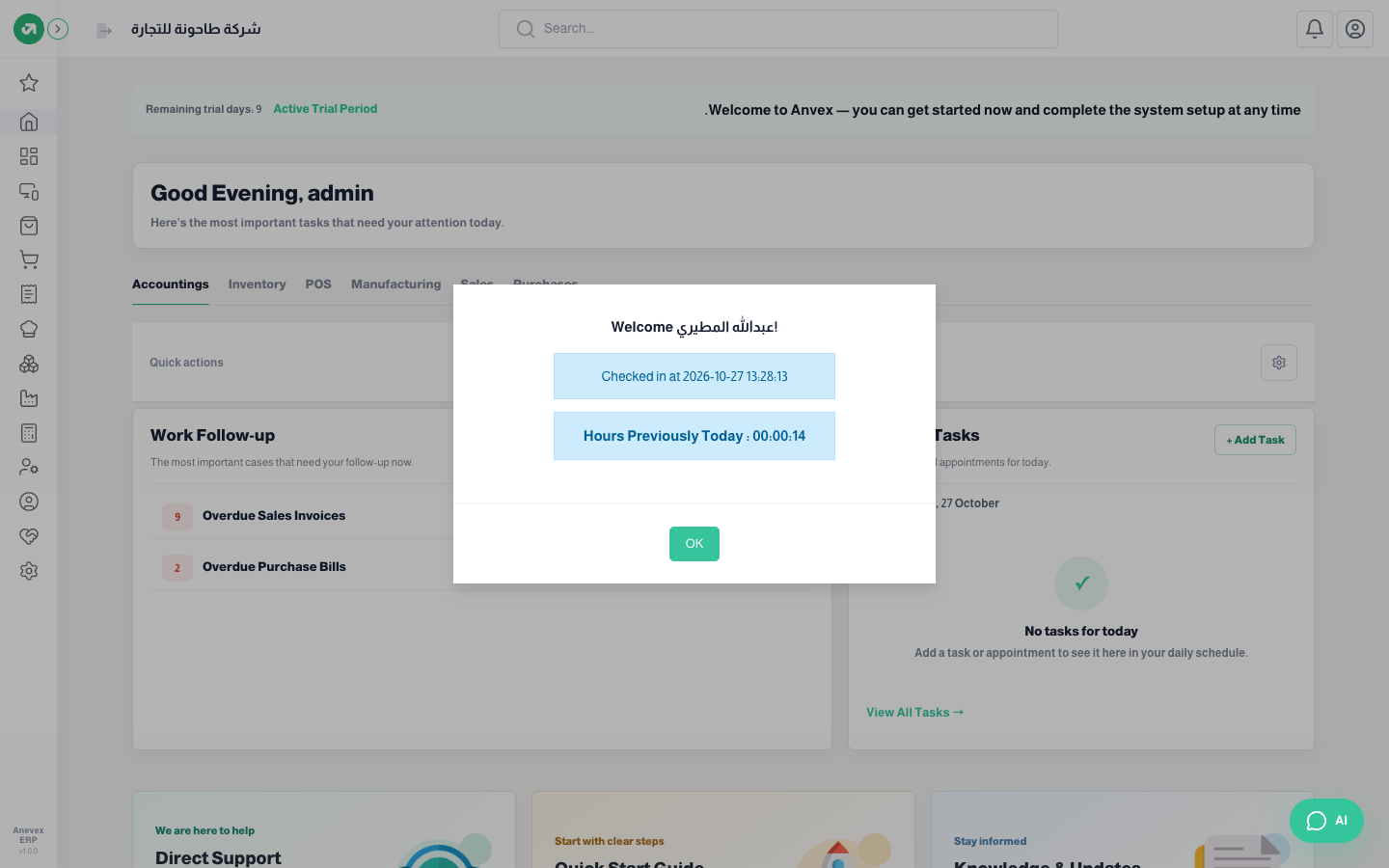
- Click Identify Manual. If you have no open check-in today, a check-in is recorded now, with the time and the Hours Previously Today.
- Click OK.
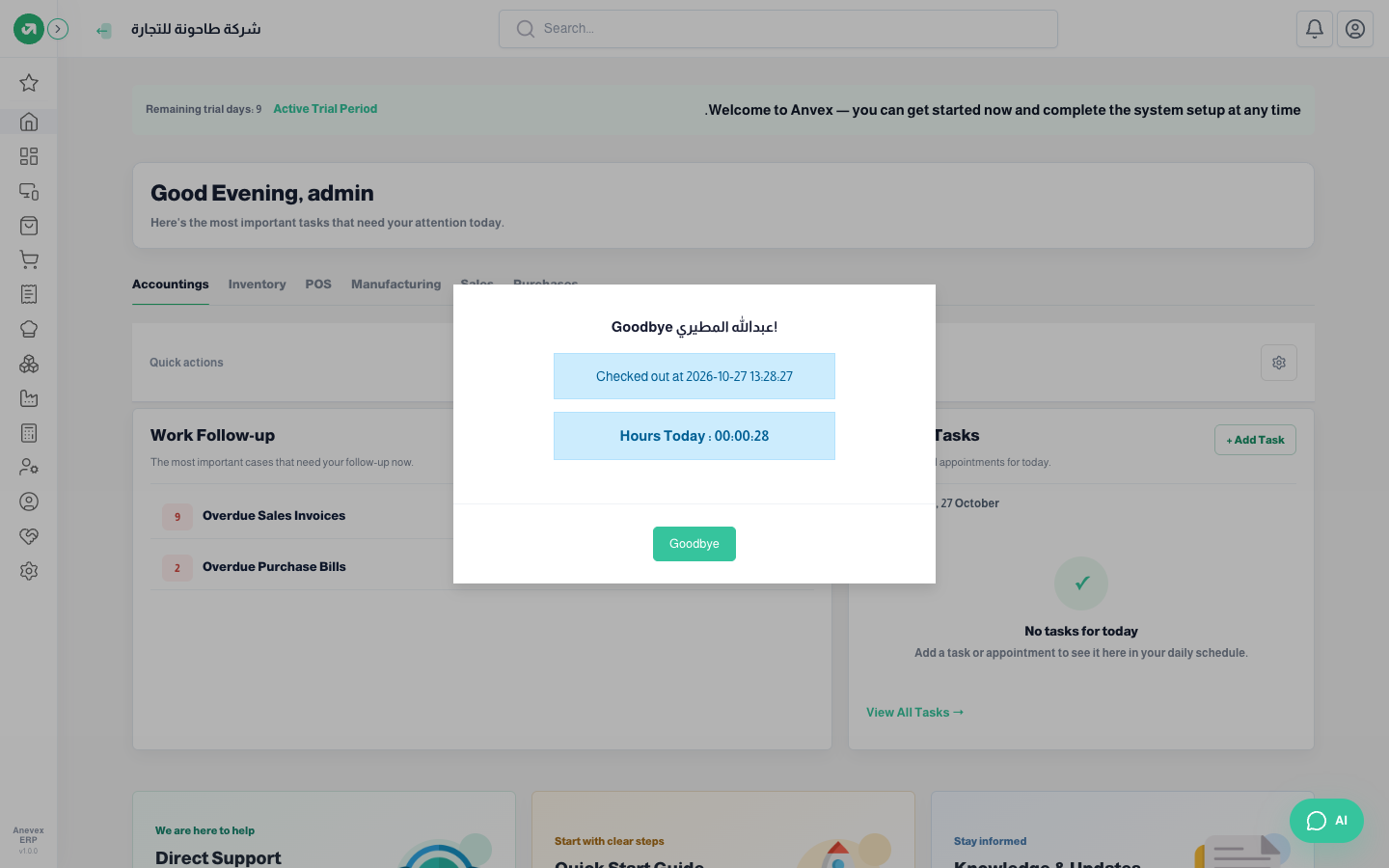
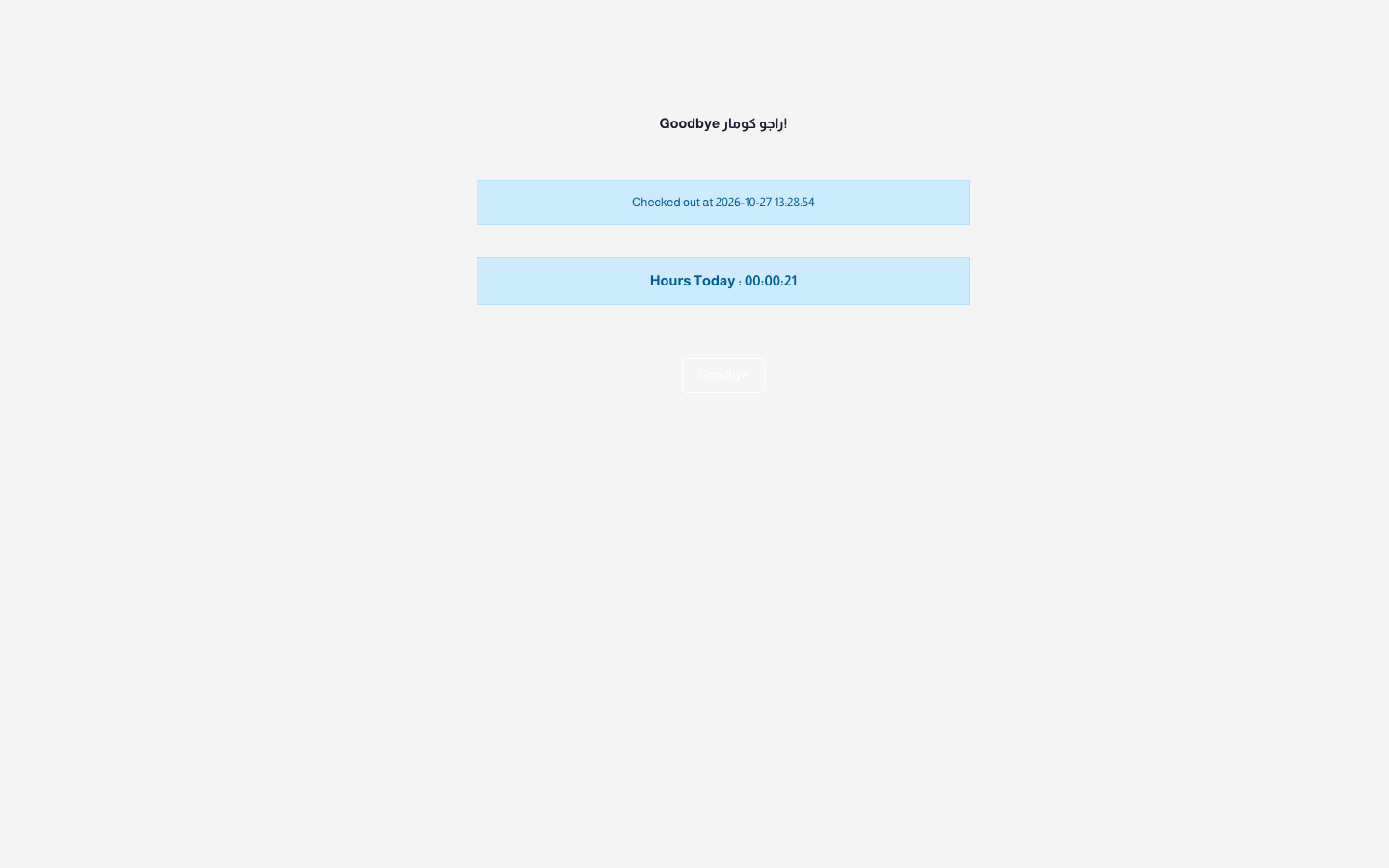
- When you leave, repeat the same steps: a check-out is recorded with its time and the Hours Today. Click Goodbye.
Way 2: the badge kiosk screen
A tablet or small PC at the entrance with a barcode reader, open at /kiosk-all-attendances after the system address (for example tahona.anevex.com/kiosk-all-attendances). Each employee has a badge number in their file (edit the employee → HR Settings tab → Badge ID), printed on their card as a barcode.
Steps
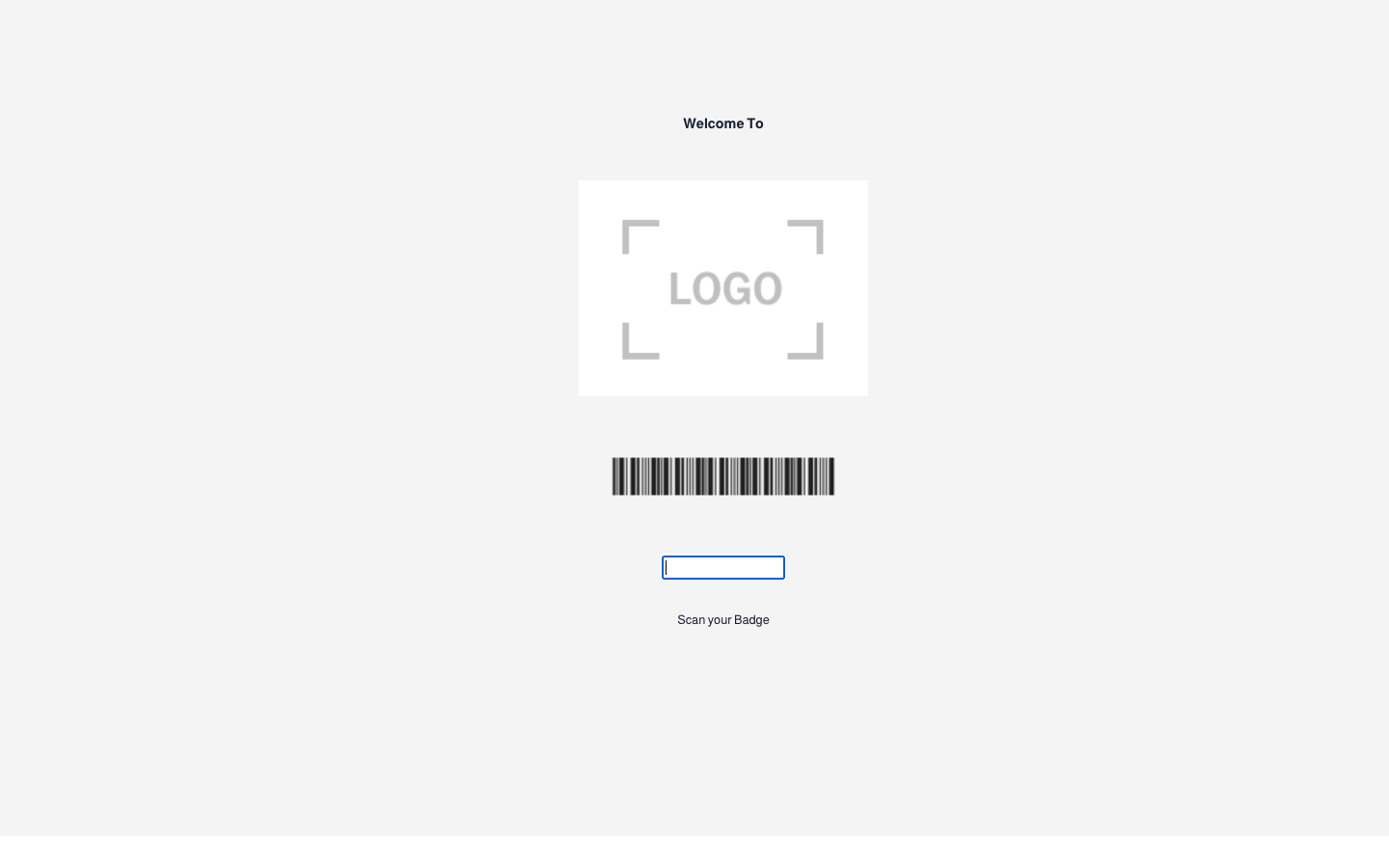
- Set up the device once: sign in with an account for the kiosk, then open the kiosk link. The Welcome To screen shows with the scan box ready.
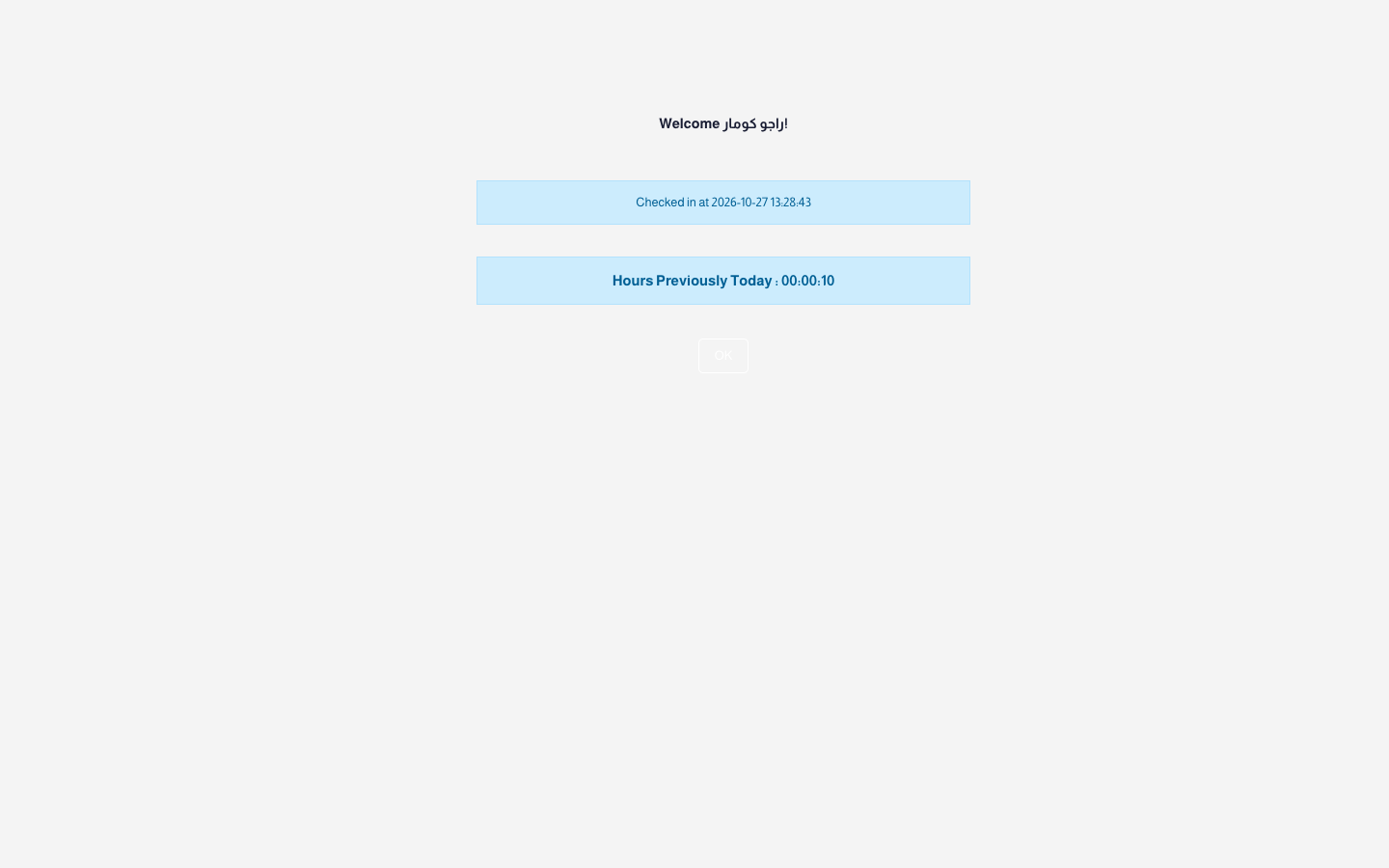
- The employee scans the badge. Welcome shows with the name and check-in time.
- After 10 seconds the screen is ready for the next employee, or click OK.
- On the way out the employee scans again; the check-out is recorded and Hours Today shows.
How the system decides: check-in or check-out?
- It looks for the employee’s last check-in today: if it is open (no check-out) it closes it now, otherwise it opens a new one. So each click or scan alternates: in, out, in…
- Several periods a day: going out for lunch and coming back records two periods, and Hours Previously Today adds up the earlier ones.
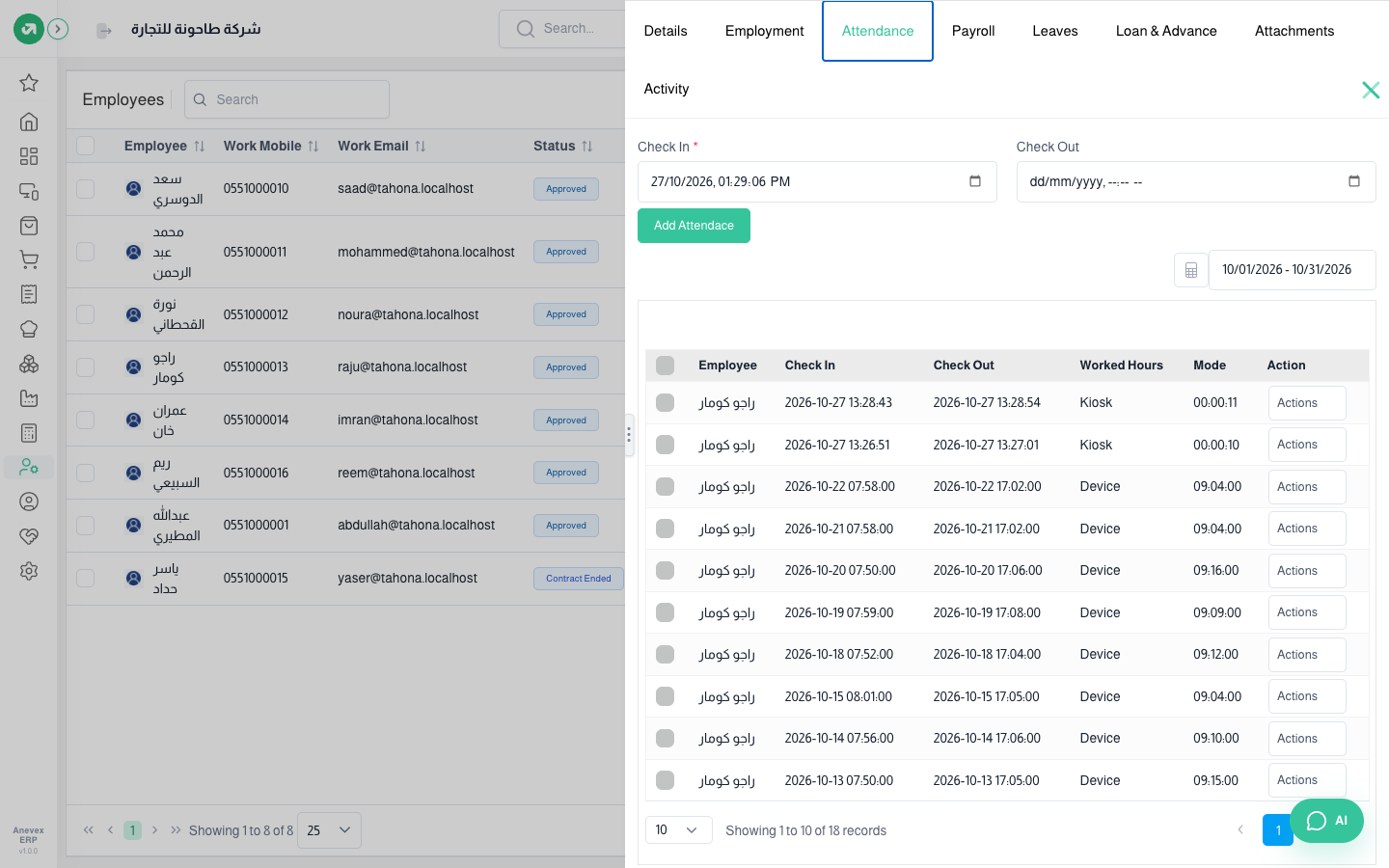
- Where the punches show: employee file → Attendance tab, with method Kiosk next to the fingerprint device punches (Device). They count in Attendance Evaluation and payroll the same way.
Notes
- The kiosk does not ask for the PIN for now: whoever holds the card can punch with it. Keep cards with their owners.
- If an employee forgets to check out, the check-in stays open and the next day starts a new one. Fix the missing check-out from the Attendance tab in their file.
- Night shifts ending after midnight: a check-out after 12 am is recorded as a new check-in for the next day. Correct it by hand.
- The kiosk device must stay signed in. If the session ends, scans record nothing; sign in again.
- In the Attendance tab the Worked Hours and Mode columns are swapped for now (the mode shows under worked hours).