
Payslips
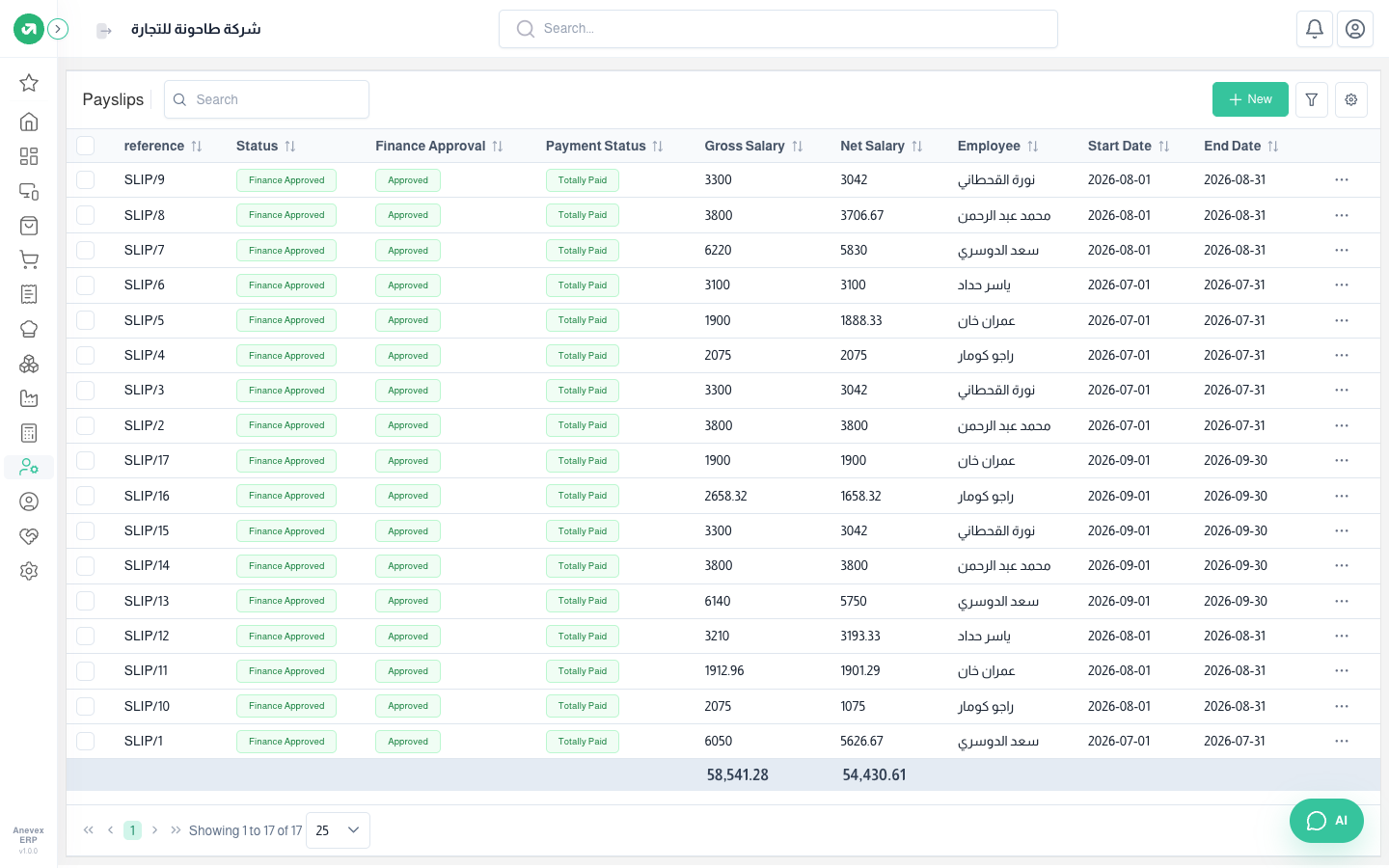
One payslip per employee per period: fixed rules, custom lines, loan instalments, and attendance deductions and additions. Status goes Draft → Approved → Finance Approved.
Overview
Where to find itHR & PayrollPayrollPayslips
Steps
- Make sure the month’s attendance is evaluated for every department.
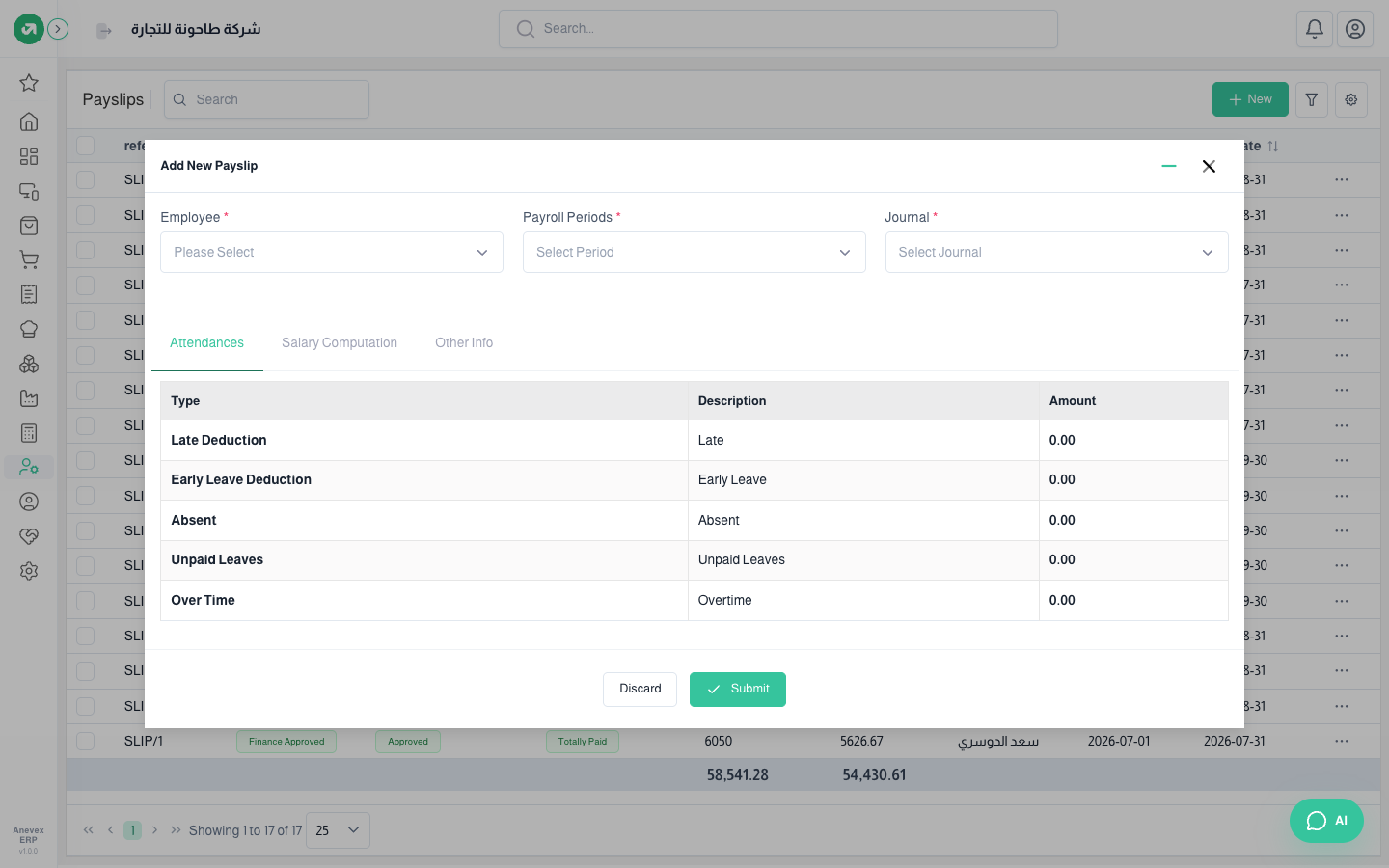
- Click New, choose the employee, then the payroll period and a Miscellaneous journal. The system fills the Attendance, Salary Rules and Other Information tabs.
- Check the amounts and click Submit. The payslip is saved with a draft entry on the pay date.
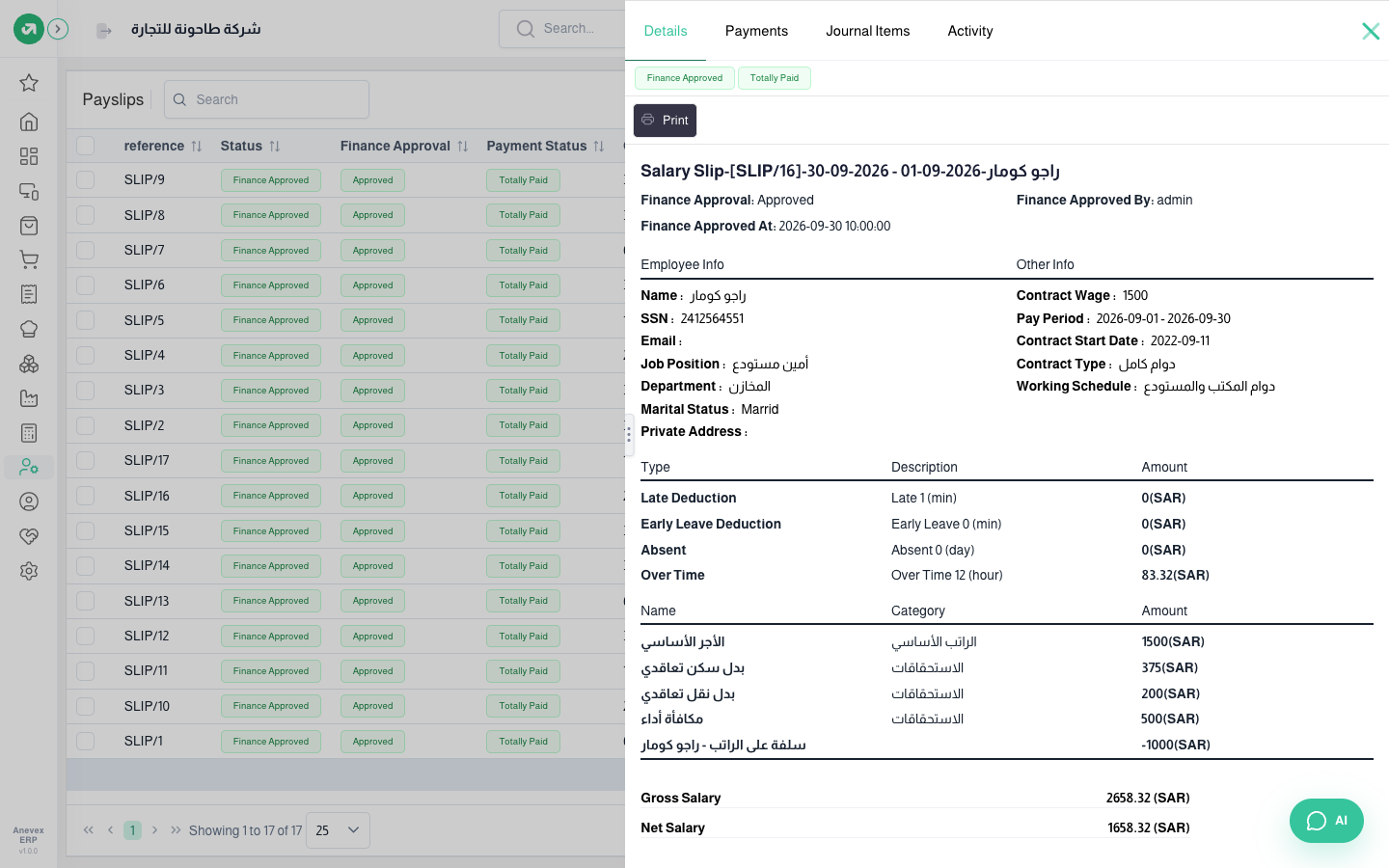
- Select payslips and click Approve, then Finance Approval on each. Finance approval marks loan instalments paid and lowers the balance.
- Post the payslip entry from Journal Entries, then click Payment on the payslip to record the transfer.
Notes
- The window only offers periods whose pay date is still ahead and that have no payslip for the employee.
- The payslip entry is saved as a draft and approval does not post it; post it so salaries show in the reports.
- Unpaid leave days show on the payslip but are not deducted (two days for Imran in September in the example). Deduct them with a custom line.
- The payslip entry does not carry the employee’s cost center, so salaries do not appear in the cost centers report.