
Inventory Adjustments
Correct stock after a physical count. You enter the quantity you counted, and the system works out the difference and fixes stock.
Overview
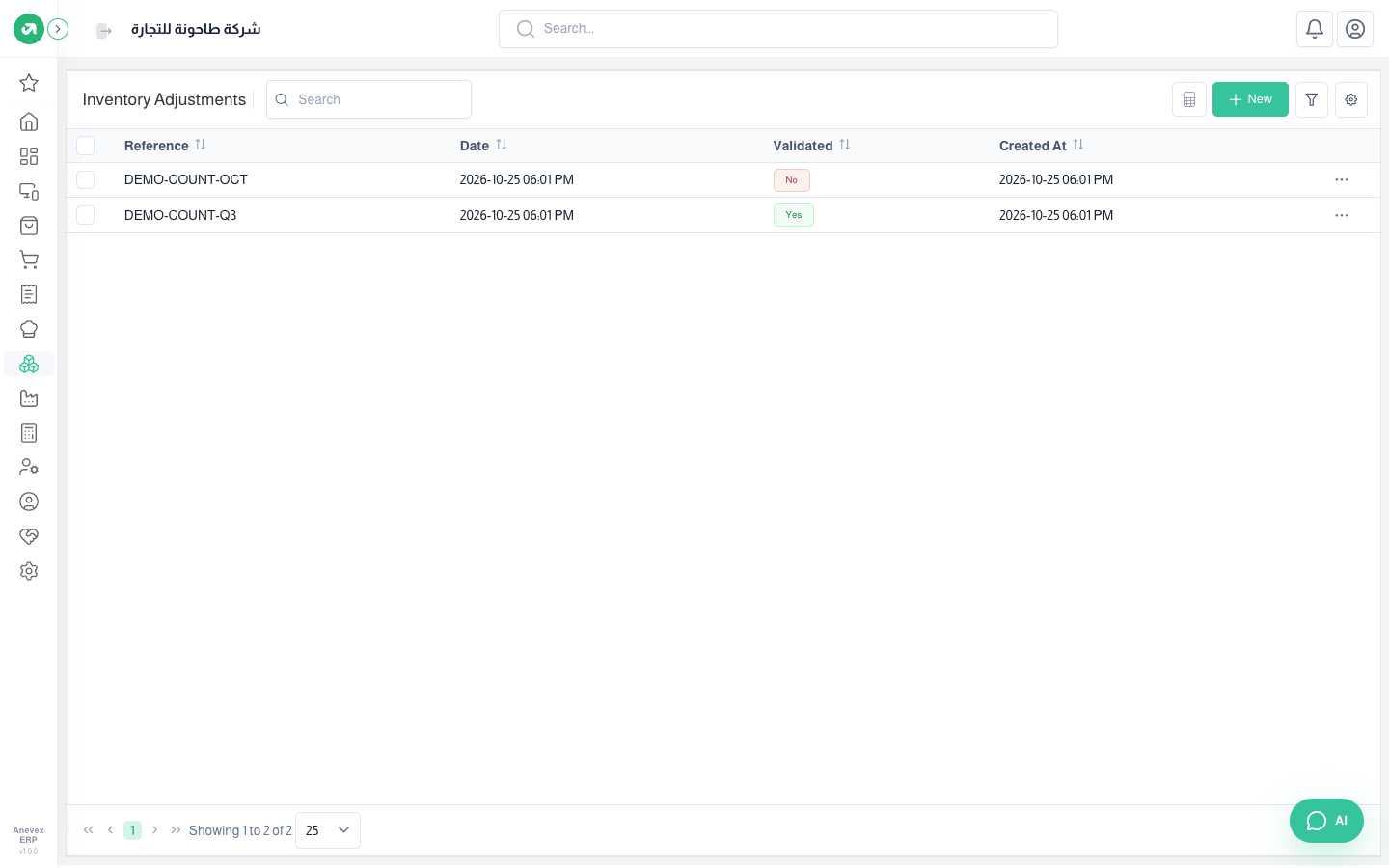
Where to find itInventory & WarehousesInventory operationsInventory Adjustments
Steps
- Click Add Inventory Adjustment.
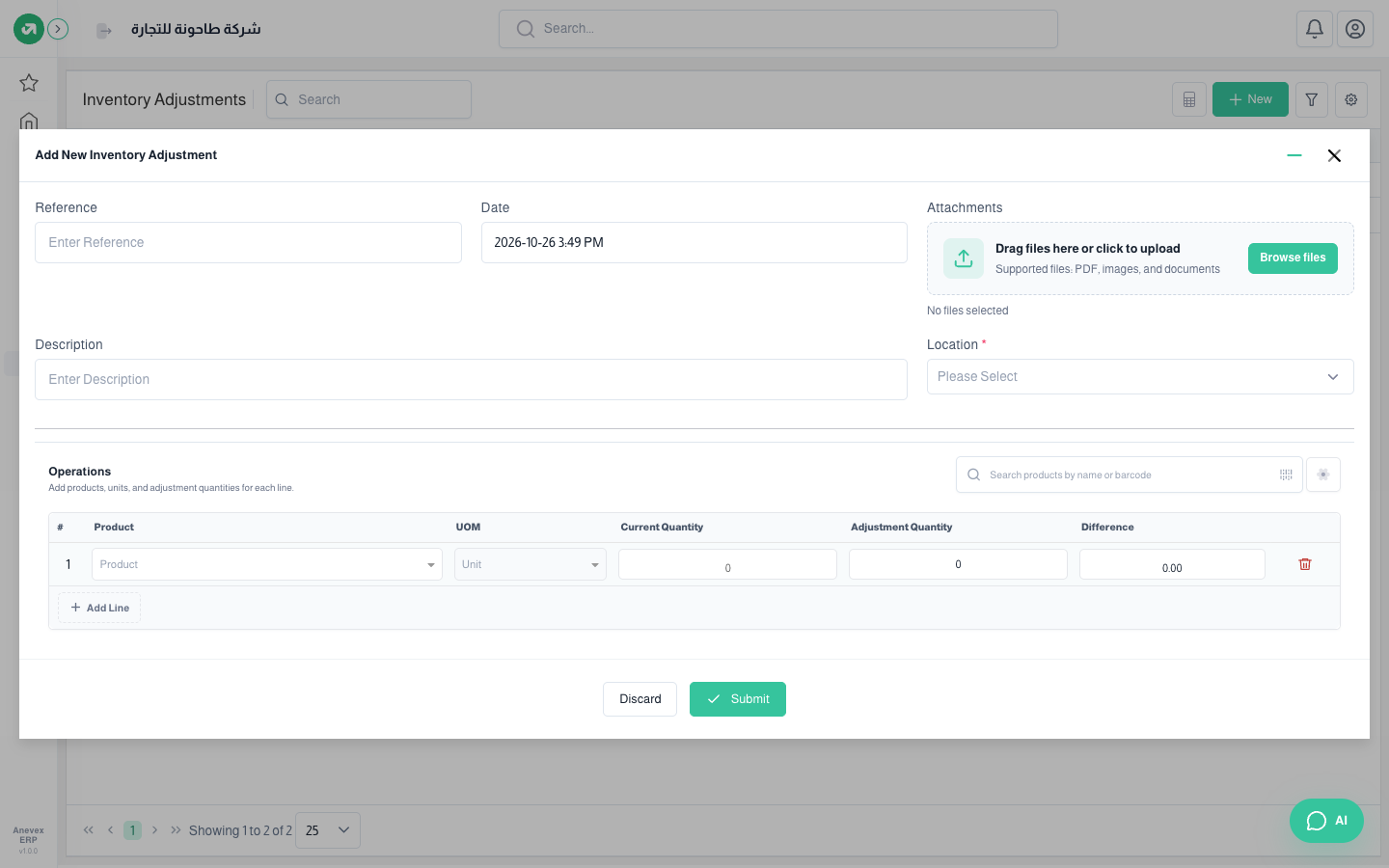
- Choose the Date and Location (the warehouse or place you counted).
- Under Operations, add the products. The system shows the Current Quantity for each.
- Type the quantity you counted in Adjustment Quantity. The Difference fills in by itself.
- Click Submit, then open the adjustment and click Validate to apply it to stock.
Notes
- A positive difference increases stock; a negative one decreases it.
- An adjustment dated inside a closed financial period cannot be validated.
- For a large count use Import Excel: download the template, fill in the quantities, then upload it.
- The filter can show Validated or Not Validated adjustments.