
Stock Levels
Here you set the minimum you do not want each product’s stock to fall below, in each warehouse. Nothing is bought or moved from this screen, but every planning screen reads it: MRP suggests buying when stock drops under the minimum, the Production Operation Dashboard suggests making manufactured products, and the inventory cards on the home page count the low products.
Overview
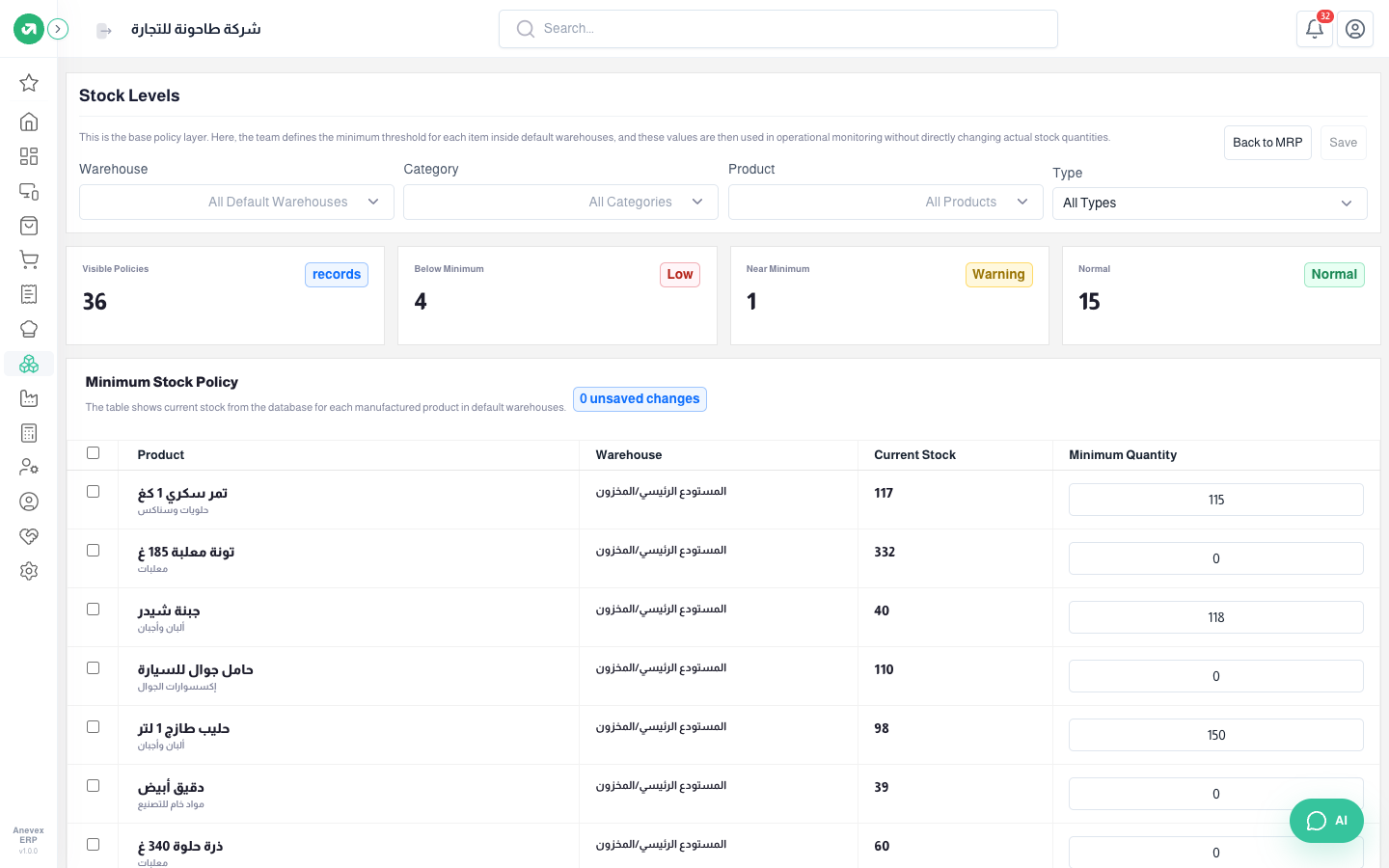
| Status | When it shows |
|---|---|
| Low | Stock is under the minimum. The product shows as a shortage in MRP |
| Warning (near minimum) | Stock is at the minimum or no more than 20% above it. For example a minimum of 115 with 117 in stock |
| Normal | Stock is more than 20% above the minimum |
Steps
- Choose the Warehouse. You can filter by Category, Product or Type (ready product, raw material, manufactured).
- Type the Minimum Quantity next to each product and compare it with the Current Stock beside it. A minimum of 0 means no minimum.
- Click Save. The unsaved changes counter shows how many rows you changed and have not saved yet.
- Back to MRP takes you to the planning screen to see the effect of the new minimums.
How do you choose the minimum?
Minimum = what you sell during the days the supplier takes to deliver + a safety quantity. Example: about 20 litres of fresh milk sell a day and the supplier delivers 5 days after you order, so you need 100 litres while you wait. Add 50 litres of safety for busy days and the minimum is 150 litres. When stock falls to 98 litres the milk shows as Low and MRP suggests buying 52 litres (150 − 98).
Notes
- The minimum is per warehouse: the same product may need a higher one at the busier branch.
- A manufactured product’s minimum is not shown in MRP as a purchase. The Production Operation Dashboard uses it to suggest how much to make, and MRP’s Production Components Shortage source uses it to work out the raw materials.
- Review the minimums every season: the Ramadan minimum is not the summer one.