
Products
Everything you sell, buy or make: goods, services and raw materials. Products drive invoices, stock and the POS.
Where to find itInventory & WarehousesProducts & master dataProducts
Product list
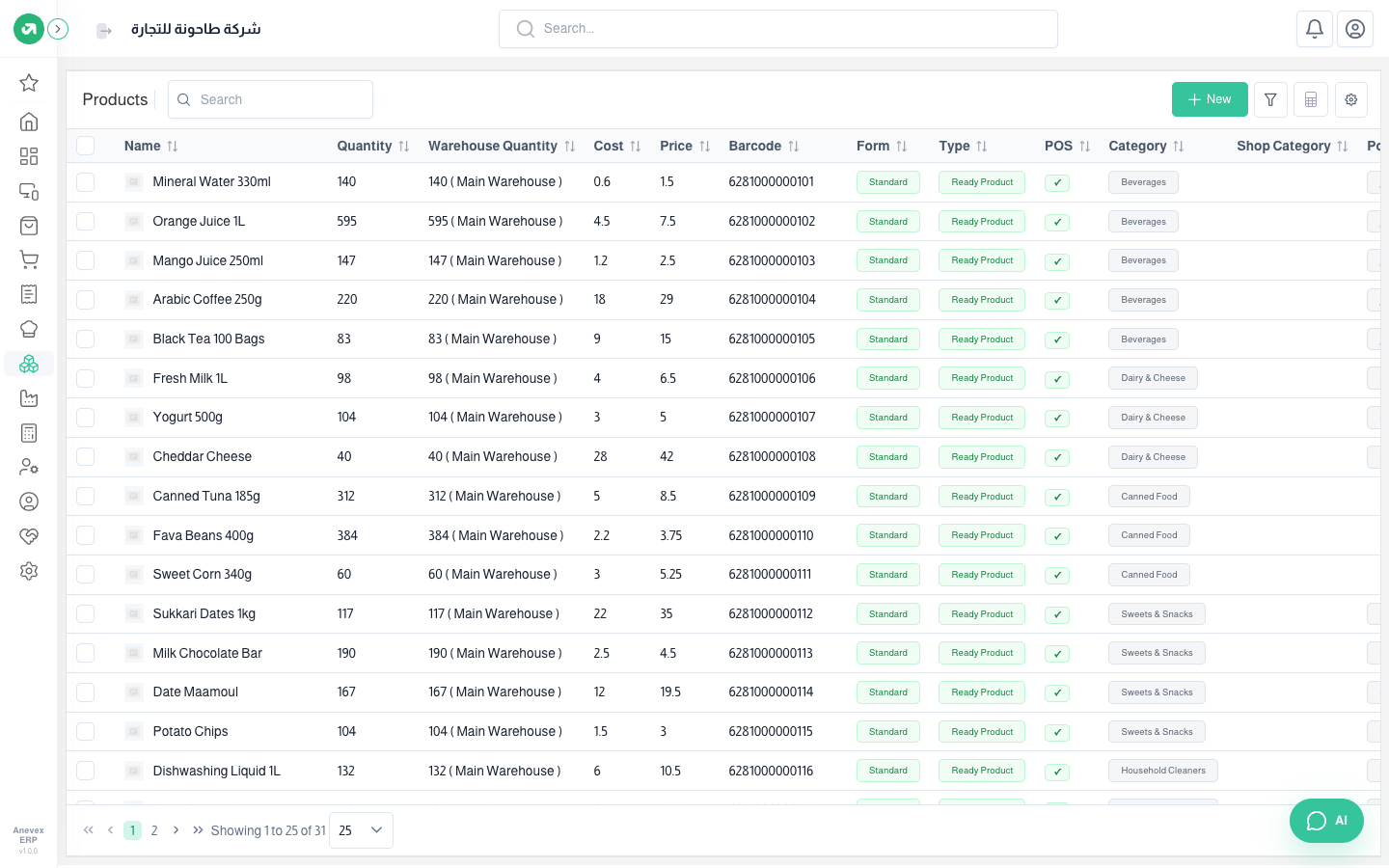
- Quantity is stock across all warehouses; Warehouse Quantity is stock in the current warehouse.
- You can edit Name, Barcode, Cost and Price directly in the table without opening the product.
- The … menu at the end of a row has Duplicate, a quick way to create a similar product.
- The filter narrows the list by creation date and category.
Adding a product: general data
Steps
- Click Add Product.
- Enter the Product Name and choose a Type and Category.
- Choose the product Form: Standard, Variant or Group.
- Open the other sections (Prices, Inventory, Purchases, Other) and fill them in.
- Click Submit.
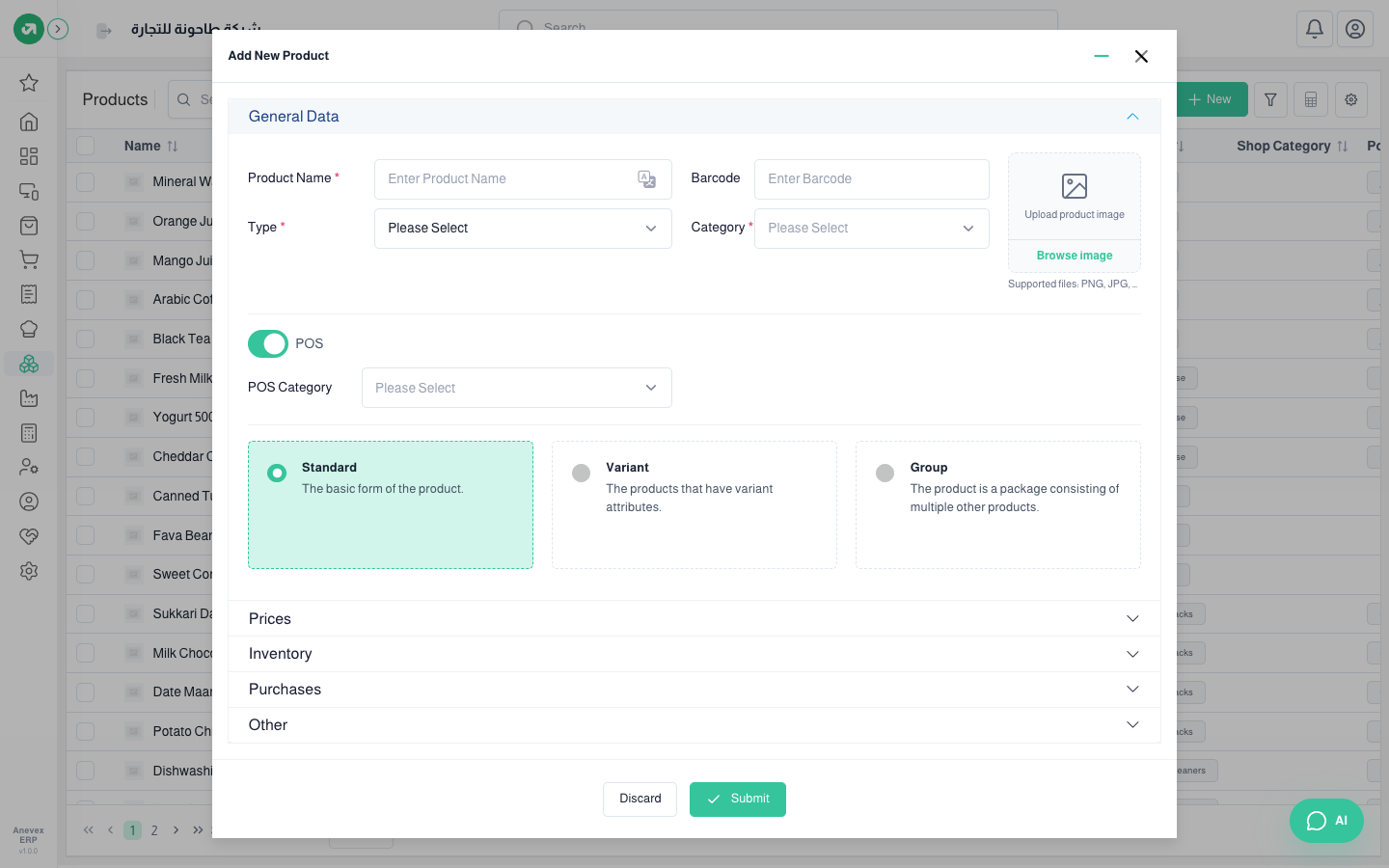
Fields
| Field | Required? | Description |
|---|---|---|
| Product Name | Required | 3 to 100 characters, not used by another product |
| Barcode | Optional | Must not belong to another product |
| Type | Required | Ready Product, Service, Raw Material or Manufactured |
| Category | Required | From the Categories screen |
| Product image | Optional | PNG, JPG or JPEG |
| POS | Optional | Show the product on the cashier screen |
| Type | Use it for |
|---|---|
| Ready Product | Goods you buy and sell as they are |
| Service | Something with no stock (cleaning, repair, a session) |
| Raw Material | Materials used in manufacturing or in meal ingredients |
| Manufactured | A product you make from raw materials. It has a Prohibited from sale option |
| Form | Meaning |
|---|---|
| Standard | One product with one price |
| Variant | A product with versions by attribute (size, colour). Needs at least two variants, each with its own barcode and price |
| Group | A bundle of other products. Needs at least one product inside |
Prices
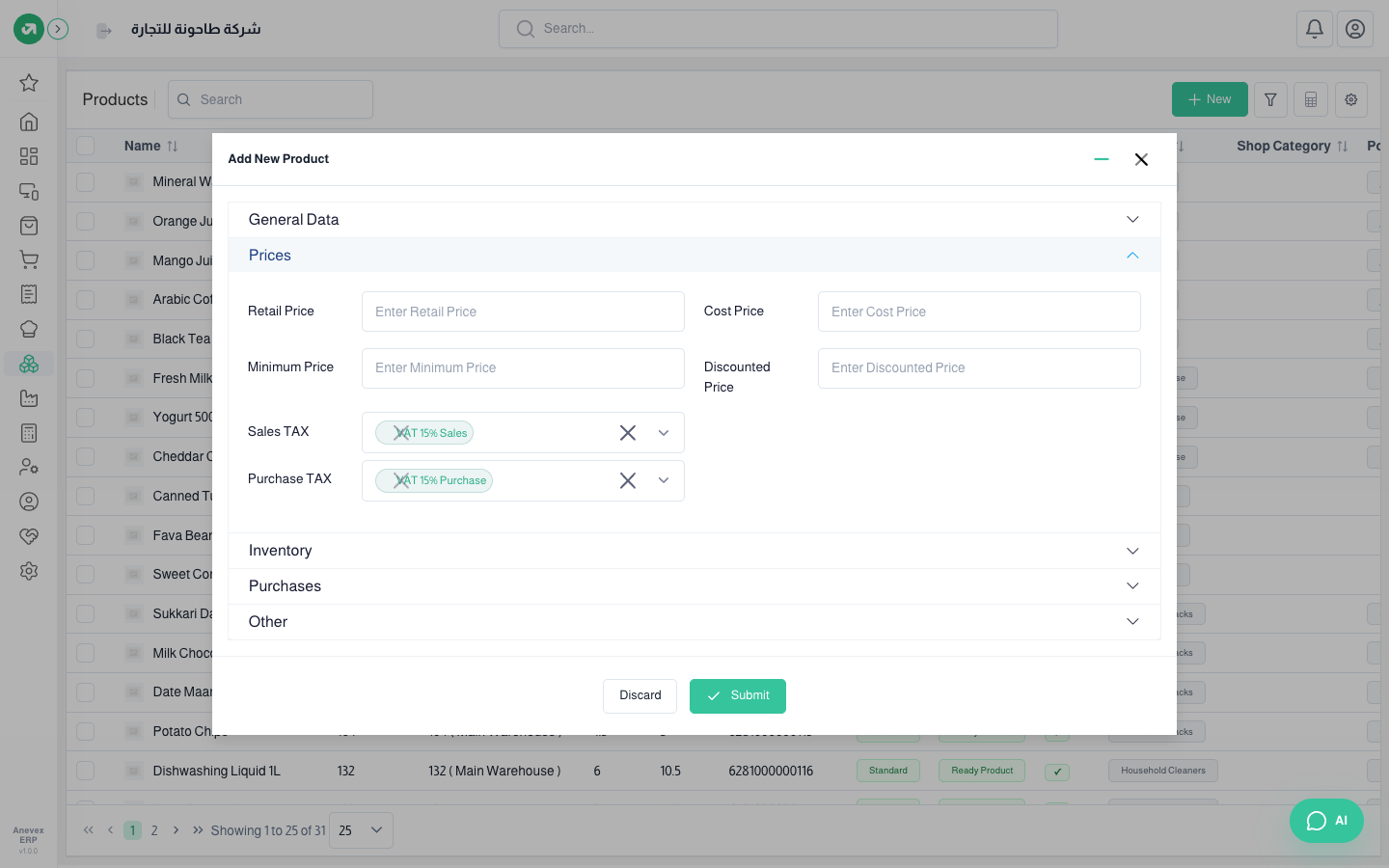
- Retail Price and Cost Price are the main ones. If you enter both, the retail price must be higher than the cost.
- Minimum Price and Discounted Price must be above the cost and no higher than the retail price. Both appear depending on Product settings.
- When per-product taxes are on in settings, Sales TAX and Purchase TAX appear here.
Inventory
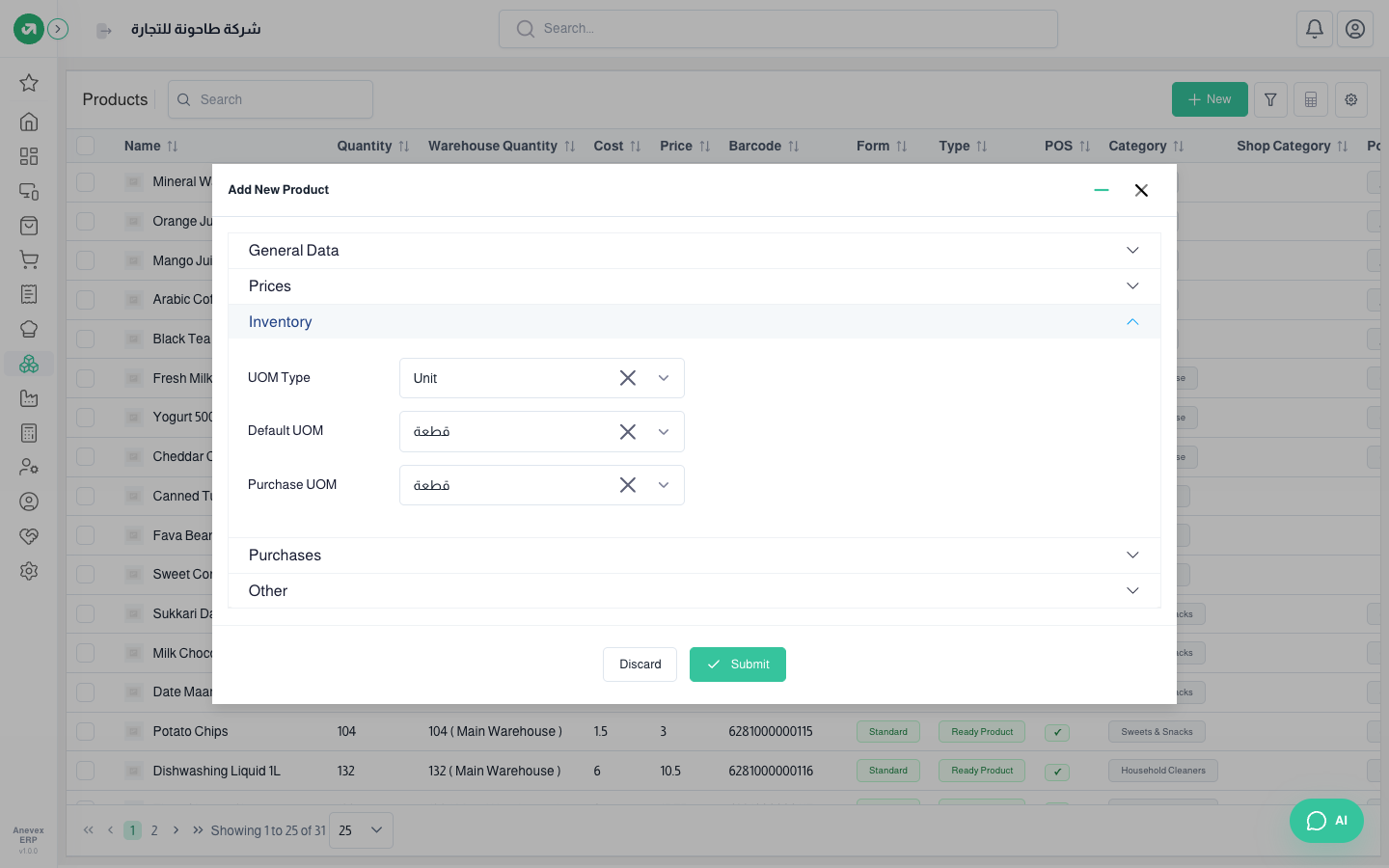
- UOM Type: the kind of unit (weight, volume, unit…).
- Default UOM: the unit you sell and store in.
- Purchase UOM: the unit you buy in. It can differ from the selling unit (buy by the box, sell by the piece).
Purchases and Other
- Purchases: the default supplier and the suppliers you buy this product from.
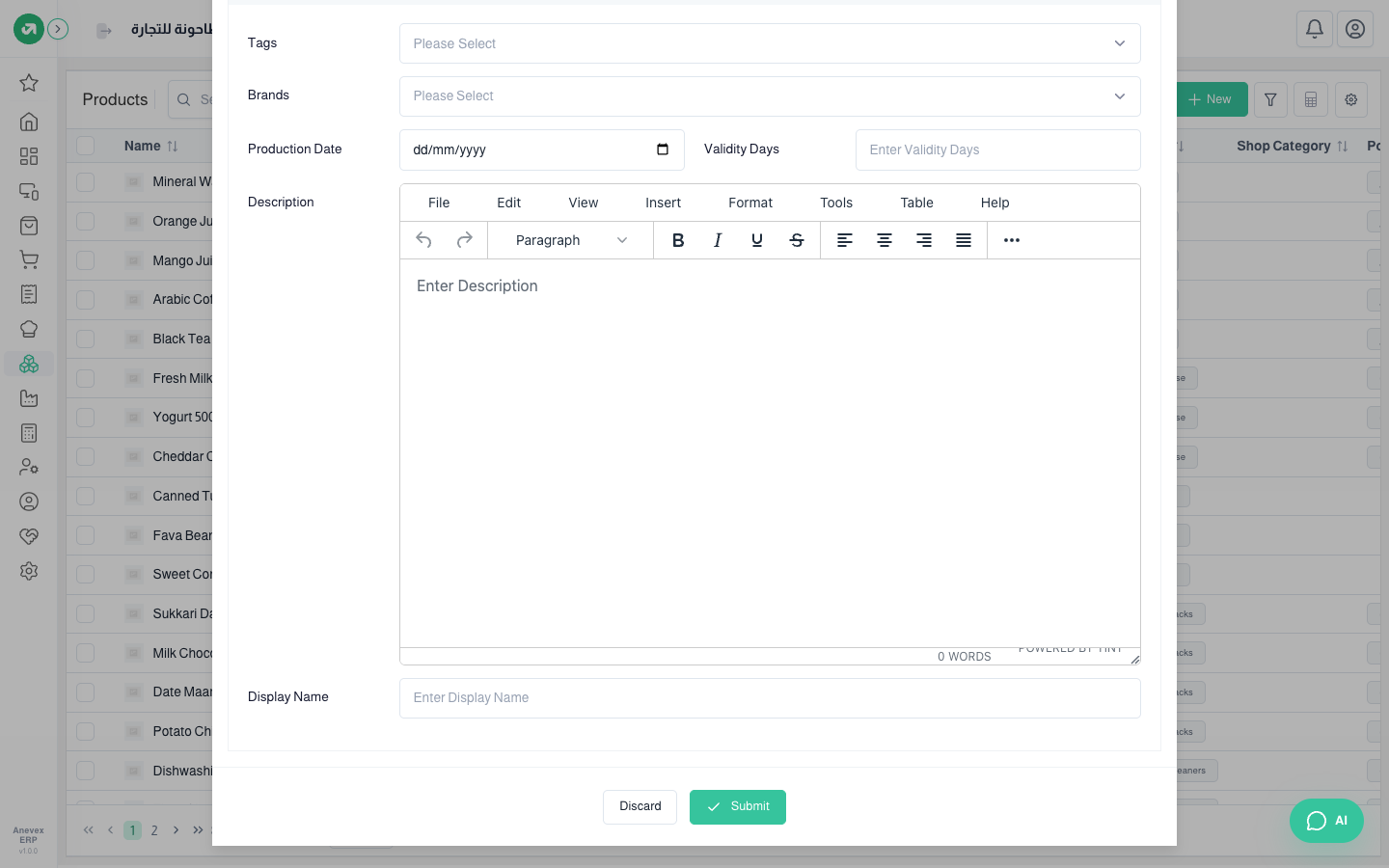
- Other: tags, brand, description and display name. Depending on settings, production date, validity days and ingredient group can also appear.
Notes
- Many parts of the form show or hide based on Settings → Products. If a field is missing, check those settings.