
Barcode & Label Printing
Print barcode labels for products to stick on goods or shelves.
Overview
Where to find itInventory & WarehousesProducts & master dataBarcode & Label Printing
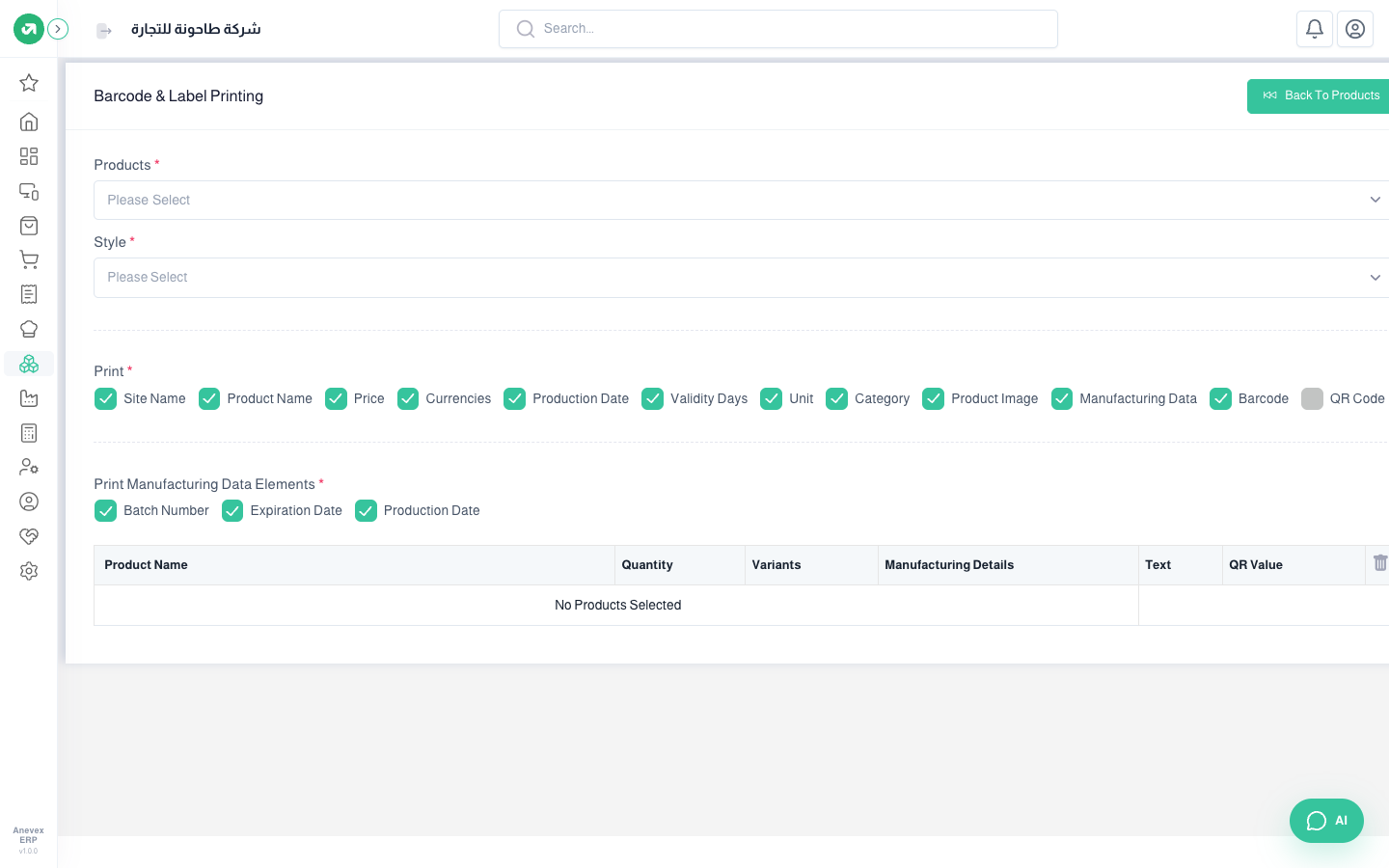
Steps
- Choose the Products to print for.
- Choose the Format: the sheet or label size (for example 40 labels per A4 sheet, a 50×25 mm label, or continuous feed).
- Under Print, tick what goes on the label: site name, product name, price, currency, unit, category, product image, barcode or QR code.
- In the table, set the Quantity (number of labels) for each product, then print.
Every movement that brings goods in, sends them out or moves them is recorded as a transfer. Receipts, deliveries, internal transfers and scrap all work the same way; only the operation type and the from/to locations change. The full walkthrough is under Receipts, then each type lists what is different.
| Status | Meaning |
|---|---|
| Draft | Created but not validated yet. Stock has not changed |
| Reserved | The quantity is reserved for this transfer |
| Waiting Another Operation | The transfer is waiting for a linked operation to finish |
| Completed | Validated; stock has actually moved |
| Canceled | The transfer was cancelled |