
Routes
A route says: "when this event happens to these products in this warehouse, run these rules in this order". Each rule creates a document, and each document waits for the one before it, so for example shipping cannot be validated before picking is done.
Overview
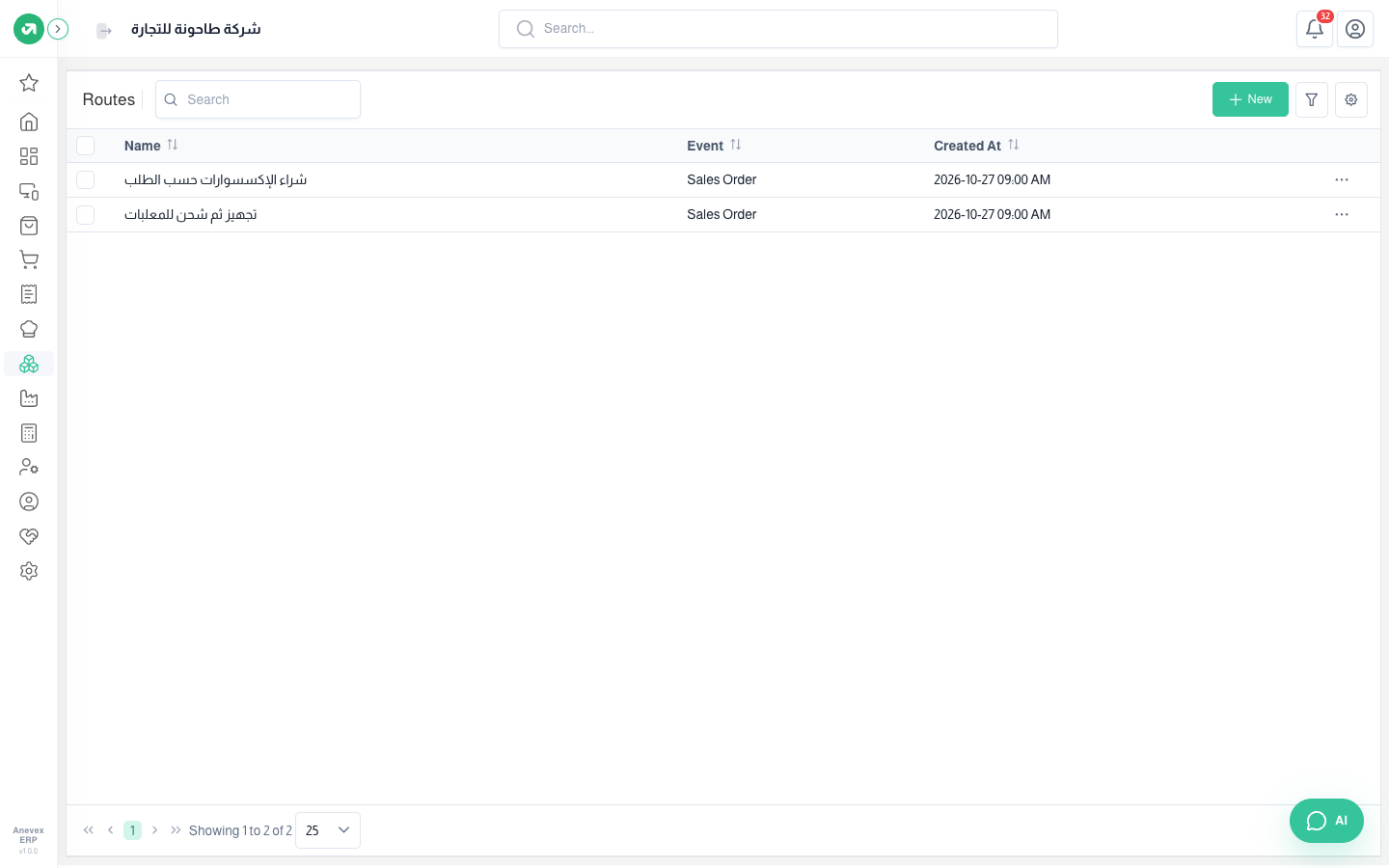
| Event | When the route runs |
|---|---|
| Sales Order | When a sales order is saved. The first document waits for the order to be confirmed |
| Purchase Order | When a purchase order is saved |
| Manufacturing Order | When a manufacturing order is saved |
| Pull From | When a transfer leaving the warehouse is validated |
| Push To | When a transfer entering the warehouse is validated |
Steps
- Click New, enter the Name and choose the Event.
- Under Applicable On set the scope: specific products, specific categories or specific warehouses. If you set nothing, the route applies to every product.
- Under Route Rules add the rules and enter the Sequence (1, 2, 3…). Rule 1 runs first.
- Click Submit. The route applies to new documents only.
Worked example 1: buying accessories on order
The company keeps little stock of mobile accessories and orders them from the supplier when a customer orders. The route Buy accessories on order: event Sales Order, Mobile Accessories category only, and one rule, Buy on order.
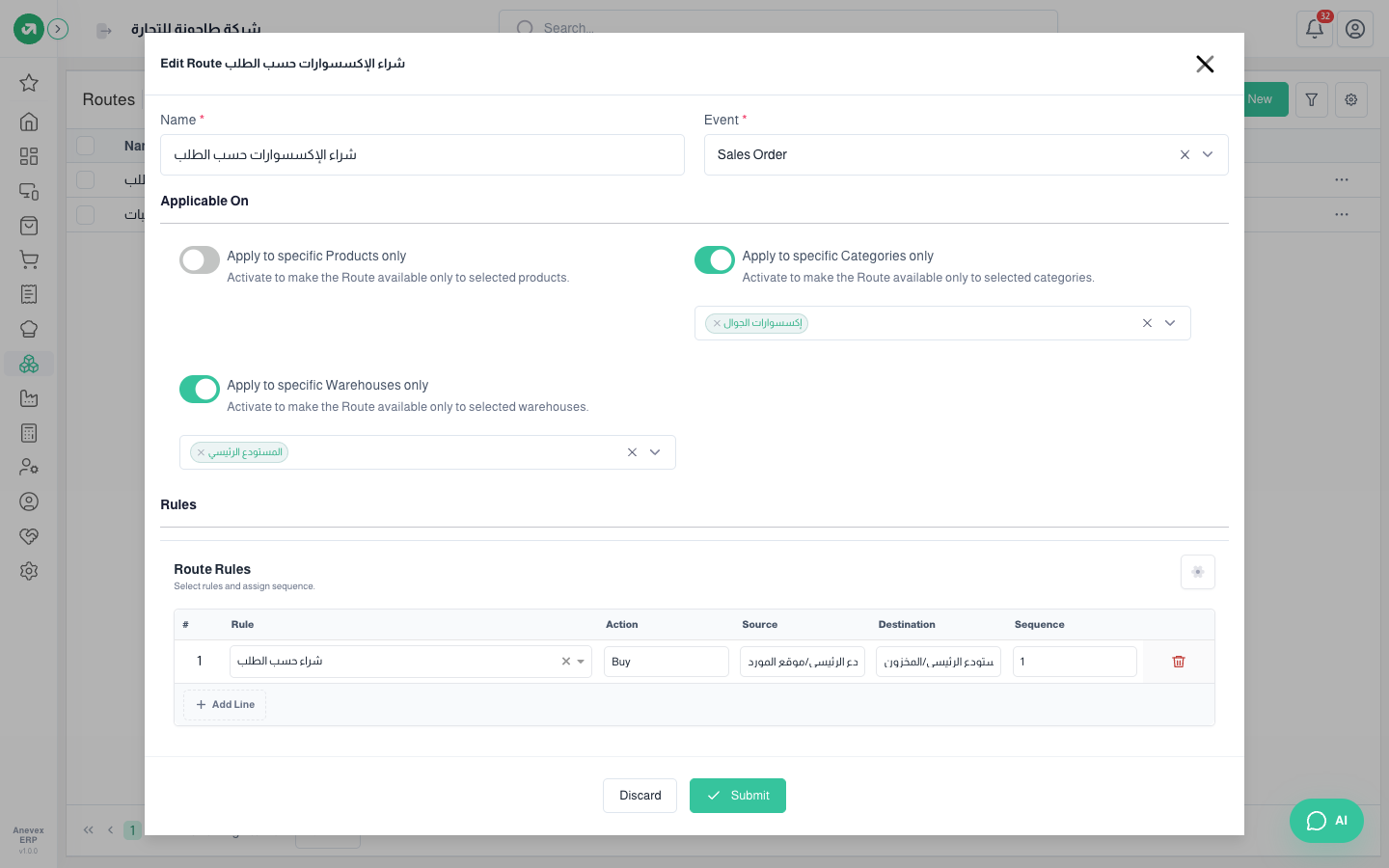
- Al Ajyal Schools ordered (SALRD/2026/000013): 30 Bluetooth earbuds, 20 fast chargers and 5 kg of Sukkari dates.
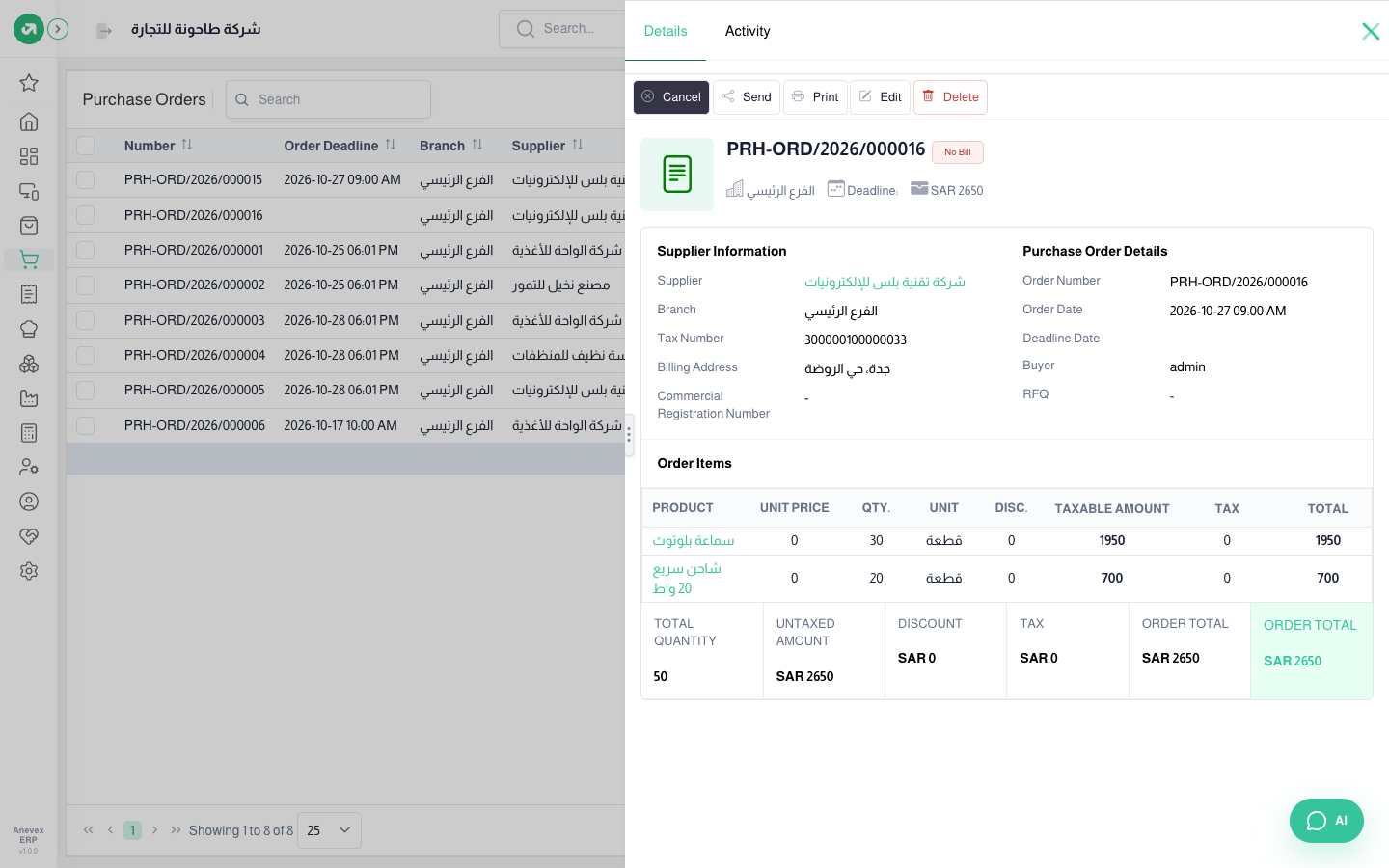
- As soon as the order was saved the system created purchase order PRH-ORD/2026/000016 to Tech Plus (the default supplier) for the earbuds and chargers only. The dates are not included because they are not accessories; they are delivered from stock as usual.
- The purchase order waits for the sales order to be confirmed, so the Confirm button does not show on it until the sales order is confirmed.
Worked example 2: pick, then ship canned food
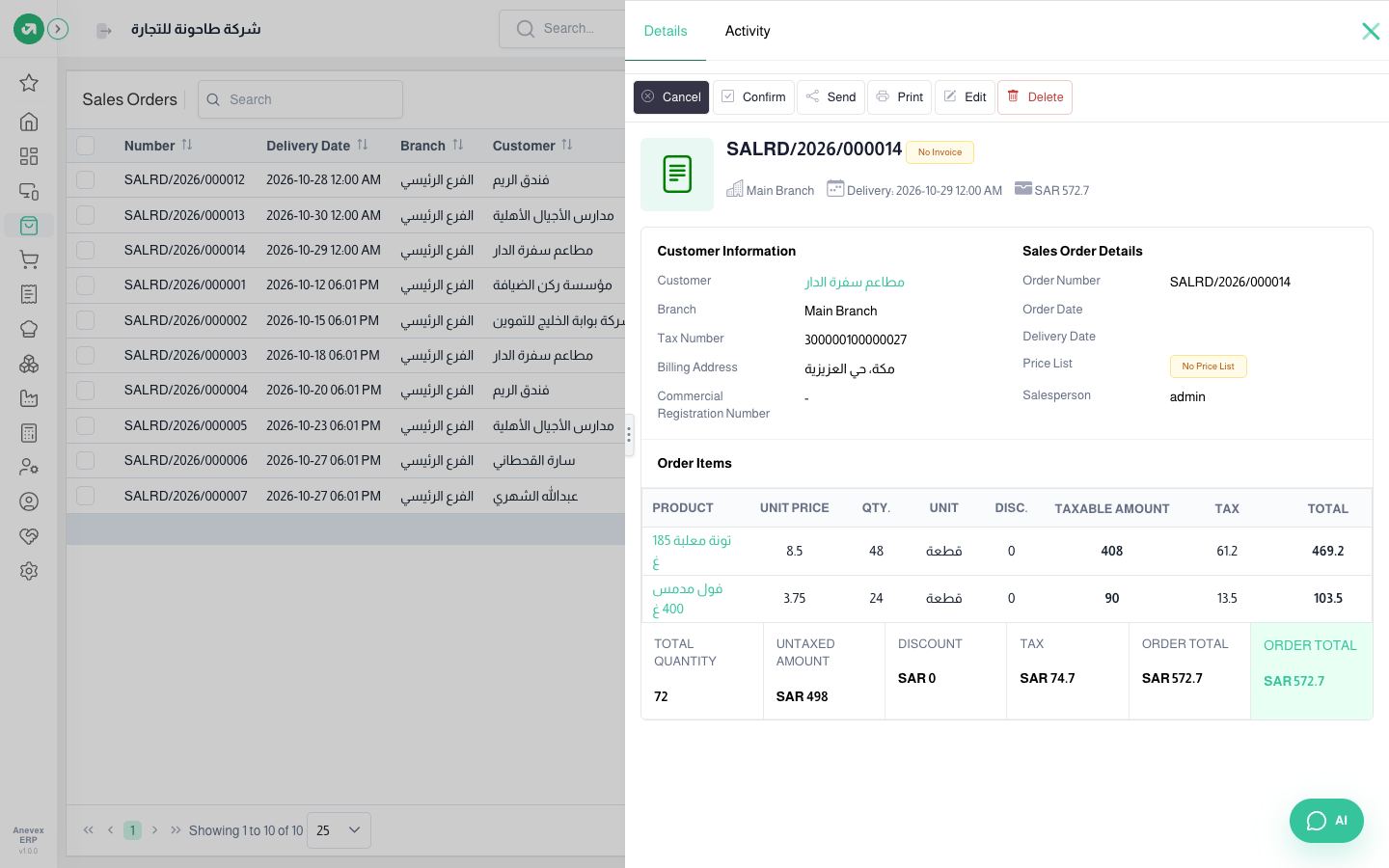
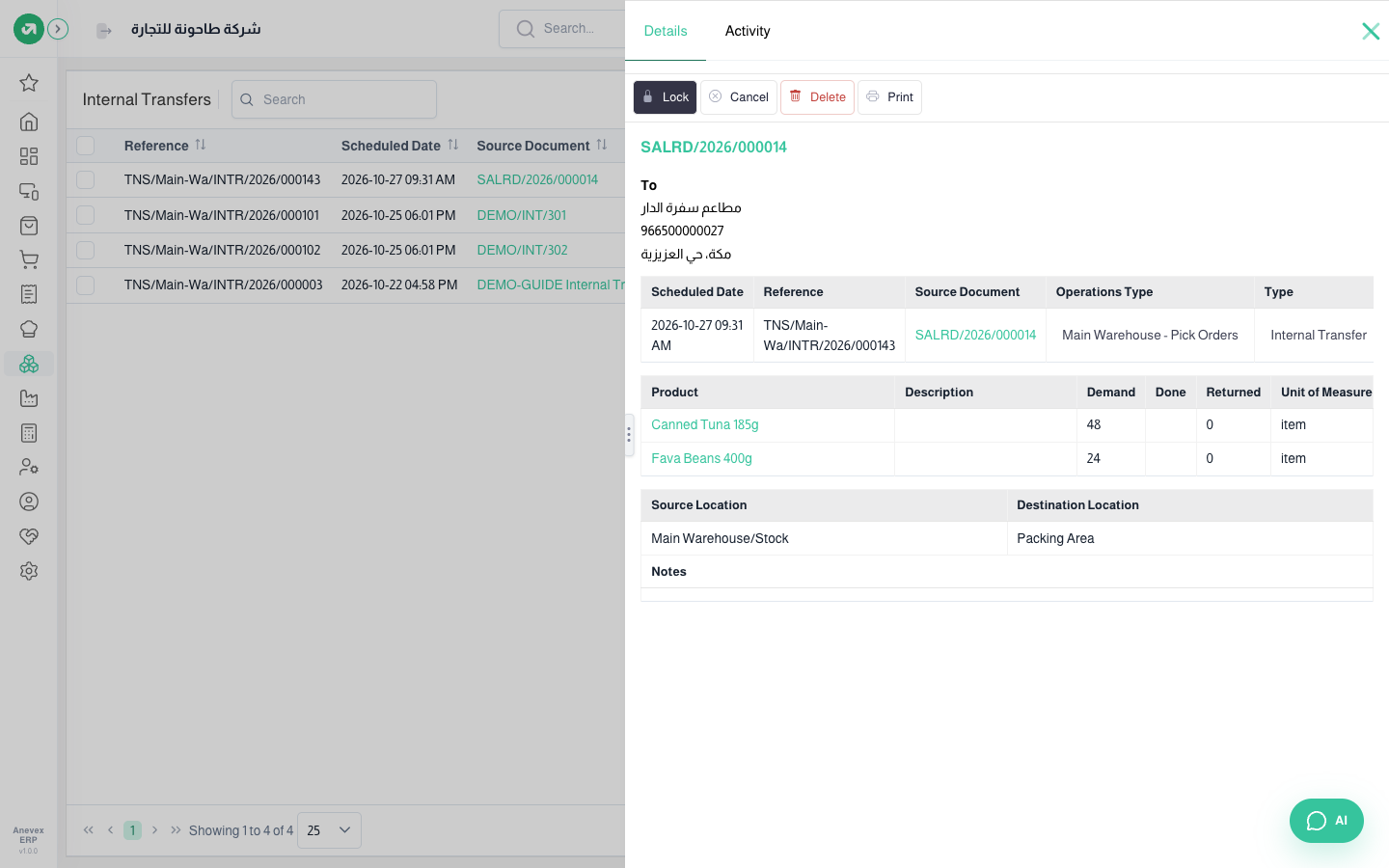
Restaurants order canned food in bulk, so orders are first picked to the packing area and checked, then shipped. The route Pick, then ship canned food: event Sales Order, Canned Food category, and two rules in order: (1) Pick the order from stock to the packing area, (2) Ship the order from the packing area to the customer.
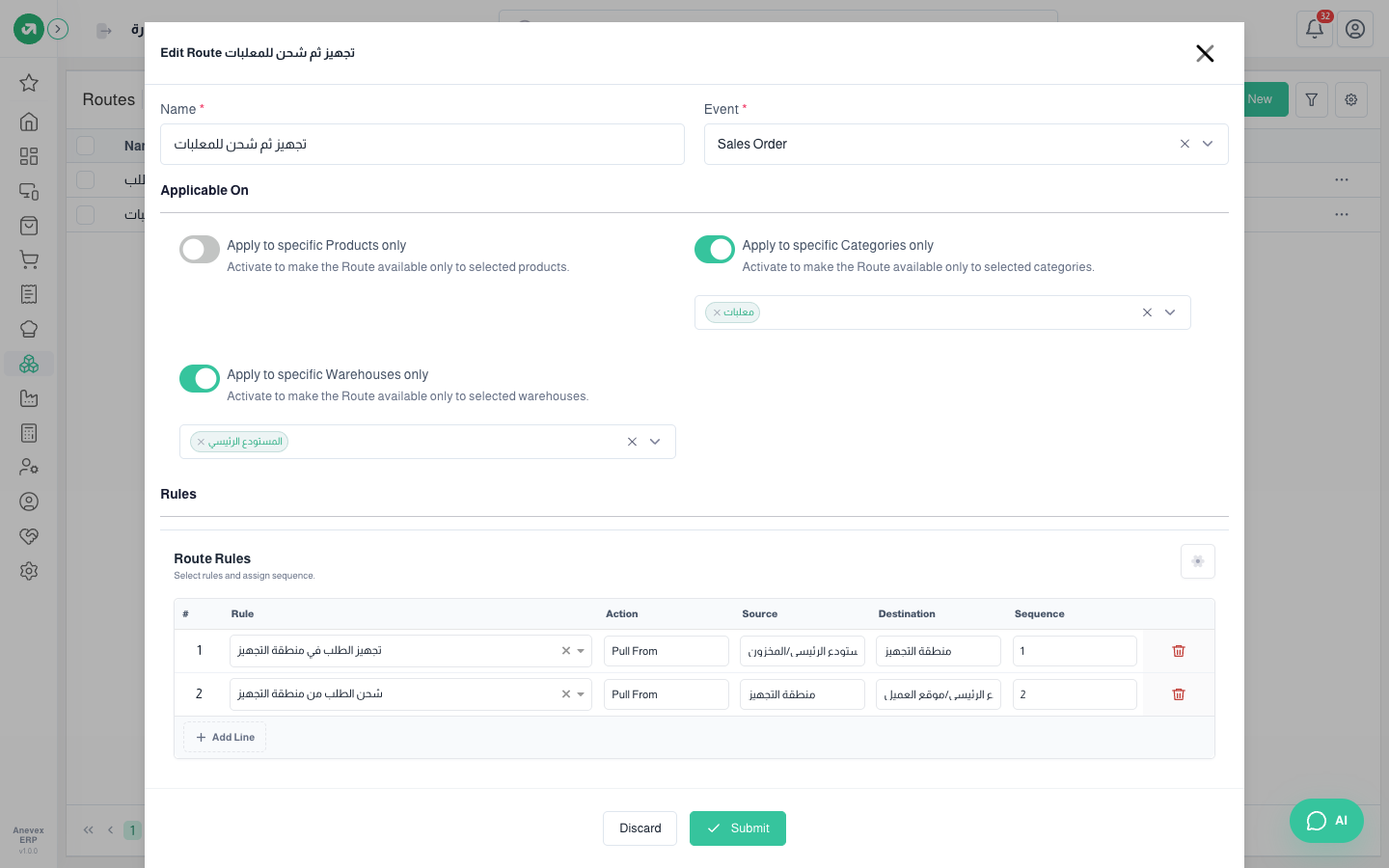
- Sufrat Al Dar Restaurants ordered (SALRD/2026/000014): 48 cans of tuna and 24 cans of fava beans.
- The system created two transfers: internal transfer INTR/2026/000143 from stock to the packing area, waiting for the sales order to be confirmed, and delivery DElV/2026/000144 from the packing area to the customer, waiting for the internal transfer.
- That is why the internal transfer shows no Validate button yet. After the sales order is confirmed the storekeeper validates the picking, and then the delivery is ready.
The make-to-order (MTO) route
When Active MTO is turned on in Manufacturing Settings, the system creates a route named MTO Route for each manufacturing warehouse: event Sales Order, one Manufacturing rule. From then on, every sales order with a manufactured product creates a manufacturing order for its quantity automatically, waiting for the sales order to be confirmed.
Notes
- If a product matches more than one route for the same event, only the first route applies to it.
- When a sales order with a pick-and-ship route is confirmed, the system also creates the invoice’s usual delivery straight from stock, so the order has two deliveries. Cancel the extra one and validate only the pick-and-ship transfers.
- A purchase order created by a Buy route takes the product’s cost price and adds no tax. Check the price and tax before confirming it.
- Manufacturing orders created by the MTO route may have component quantities larger than needed. Check the components before confirming the order.
- A route does not act on old documents, only on those saved after it was created.
Every report has filters at the top, a Print button and an Excel export button.