
Receipts
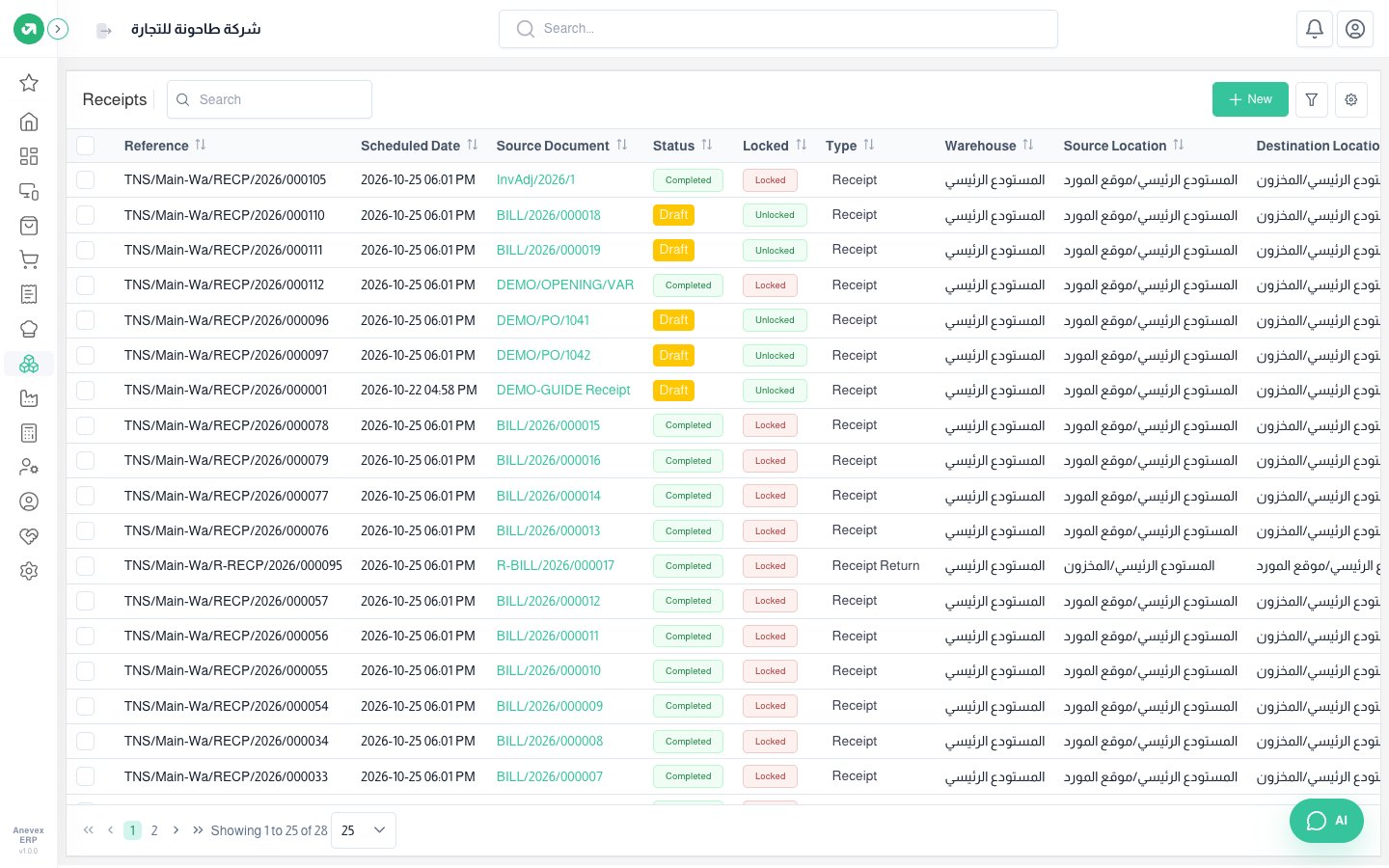
Record goods coming into the warehouse, for example from a supplier. The system can create them from purchase orders, or you can add them by hand.
Overview
Where to find itInventory & WarehousesInventory operationsReceipts
Adding a receipt
Steps
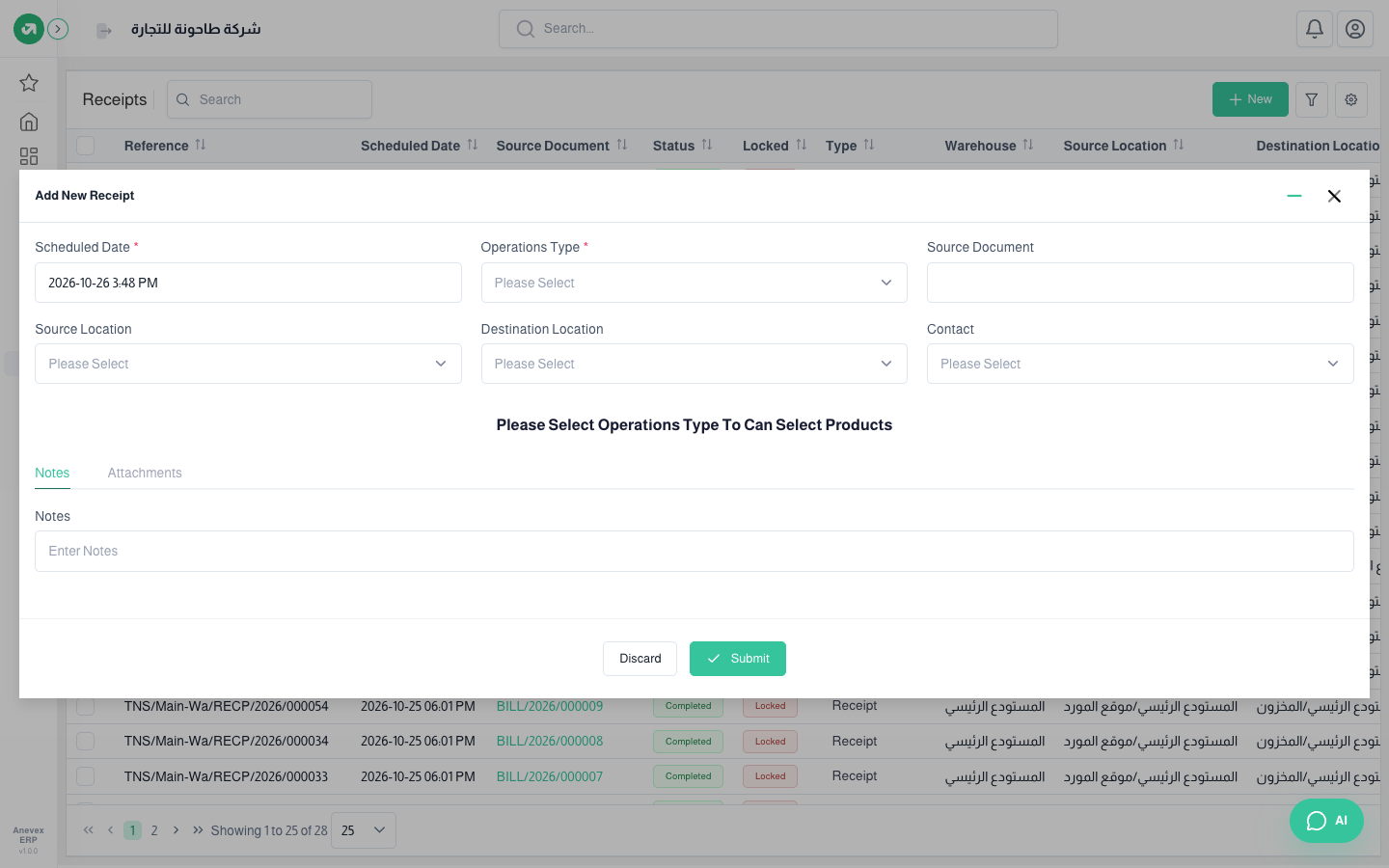
- Click Add Receipt.
- Choose the Operations Type first; the product lines only appear after that.
- Check the Source Location and Destination Location, and pick a Contact (the supplier) if you like.
- Add products under Transfer Lines with quantity and unit.
- Click Submit. The transfer is saved as Draft.
Fields
| Field | Required? | Description |
|---|---|---|
| Scheduled Date | Required | Expected receipt date |
| Operations Type | Required | For example "Main Warehouse - Receipt". Sets the warehouse and default locations |
| Source Document | Optional | Purchase order number or any outside reference |
| Source / Destination Location | Optional | Where the goods come from and where they are stored |
| Contact | Optional | The supplier or customer linked to the movement |
| Transfer Lines | Required | At least one product, each with a quantity above zero |
| Notes / Attachments | Optional | Any note, plus PDFs, images or documents |
Validating a receipt
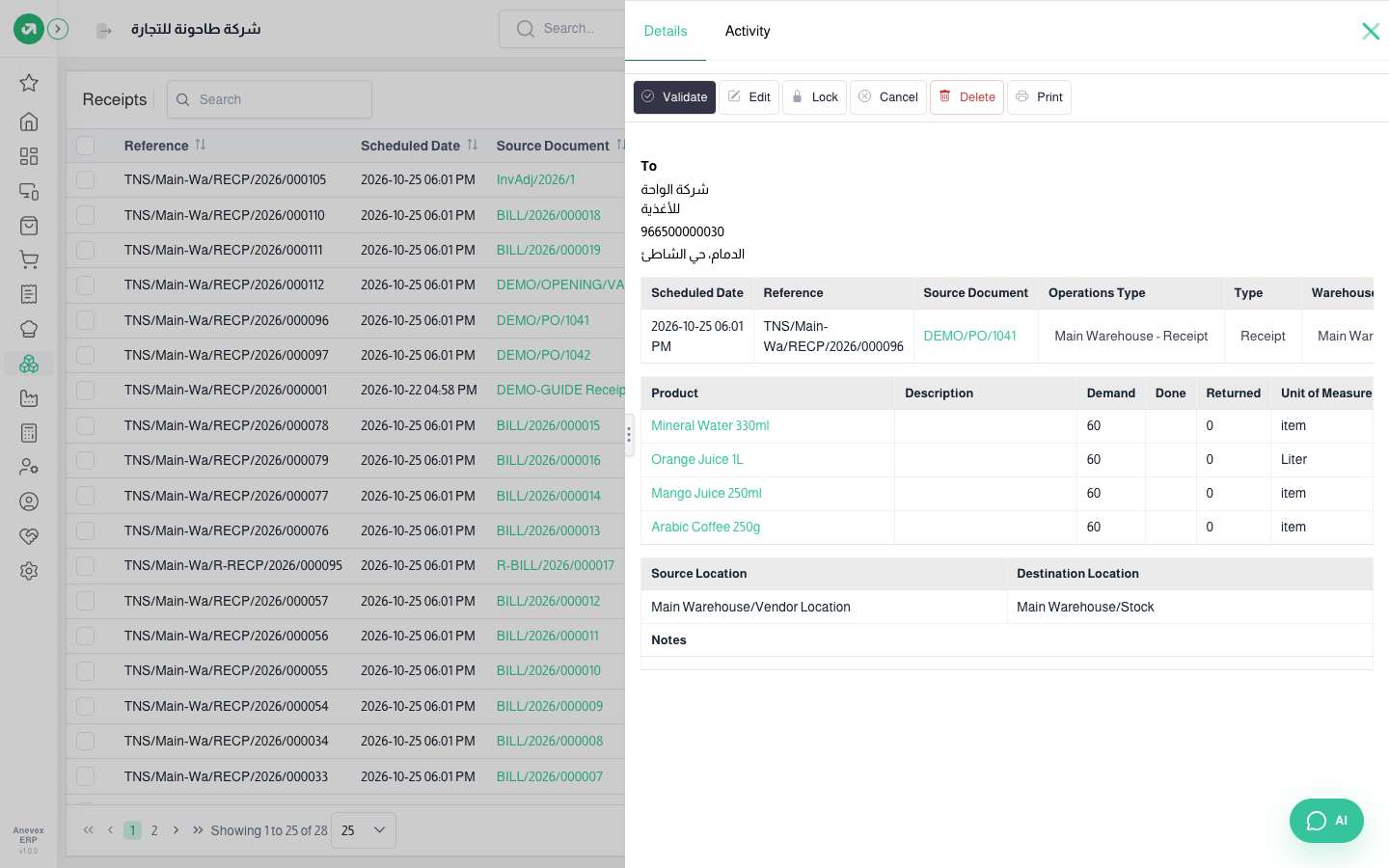
Stock only changes after you Validate. Click … on the transfer row to see the actions: Lock, Cancel, Validate, View, Edit, Delete.
Steps
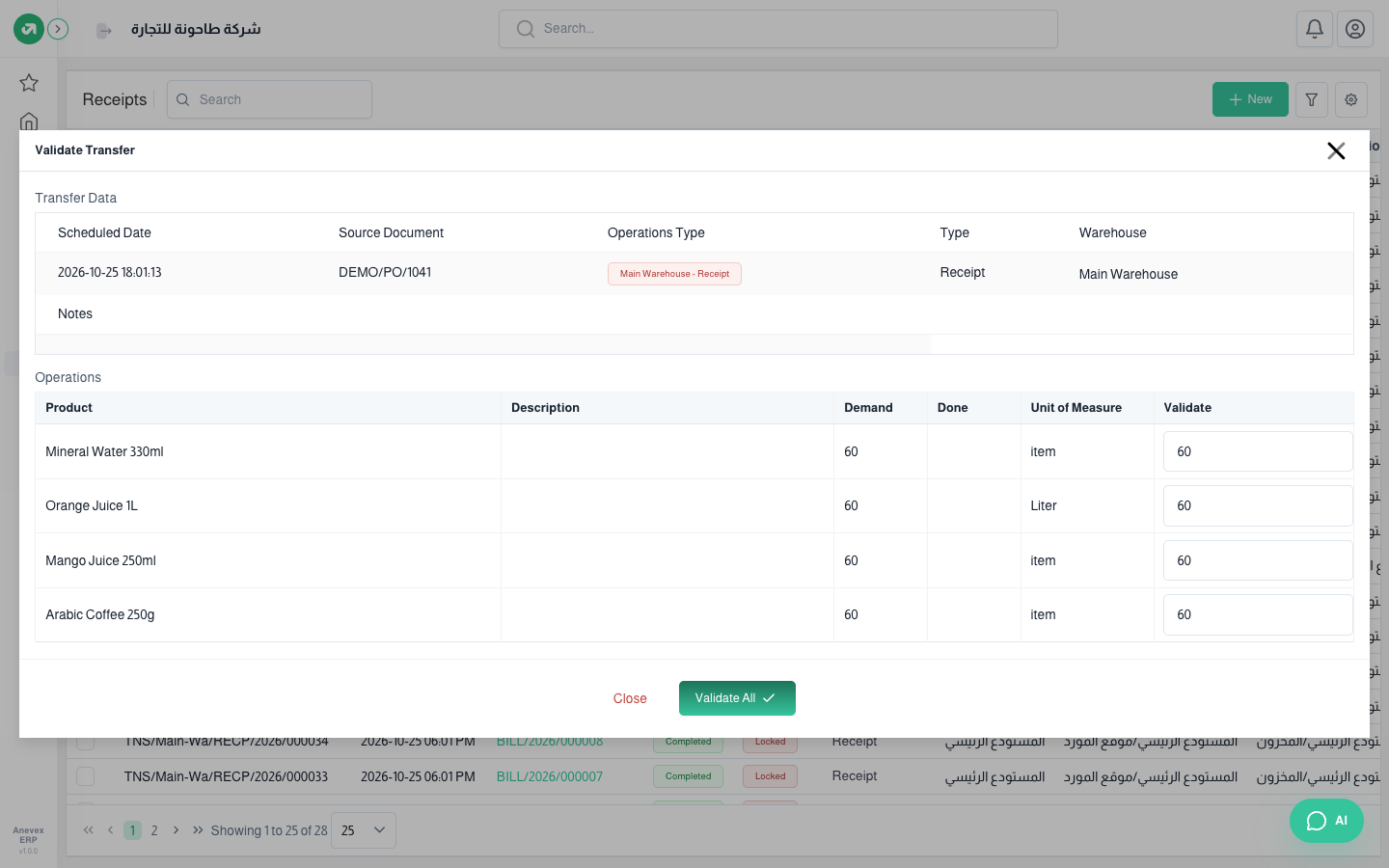
- Choose Validate from the … menu or from the top of the details page.
- In the Validate column, enter the quantity you actually received for each product. It is pre-filled with the requested quantity.
- Click Validate All. The status becomes Completed and stock increases.
Notes
- If you received less than requested, the system asks whether to create another transfer for the rest.
- Once a transfer is completed you can create a Return from its details page.
- Lock prevents changes to the transfer. You can unlock it later.
- Only Draft or Canceled transfers can be deleted.