
Adding products to the bill
There are four ways to add a product: tap it, search by name, scan its barcode, or scan a scale barcode.
Overview
Where to find itPOSCashier screen
- Tap the product: adds one piece. Each tap adds one more.
- Search by name: type part of the name in the search box (or press F2 to jump to it). Results replace the product grid. Clear the search to go back to the category.
- Barcode: scan into the search box. If it matches an available product, it is added straight away. Variant barcodes (a specific colour, for example) work too.
- Scale barcode: an 18-digit barcode starting with 00. Digits 3–7 are the product ID and digits 13–17 are the weight in grams. The product is added with that weight.
Products with variants
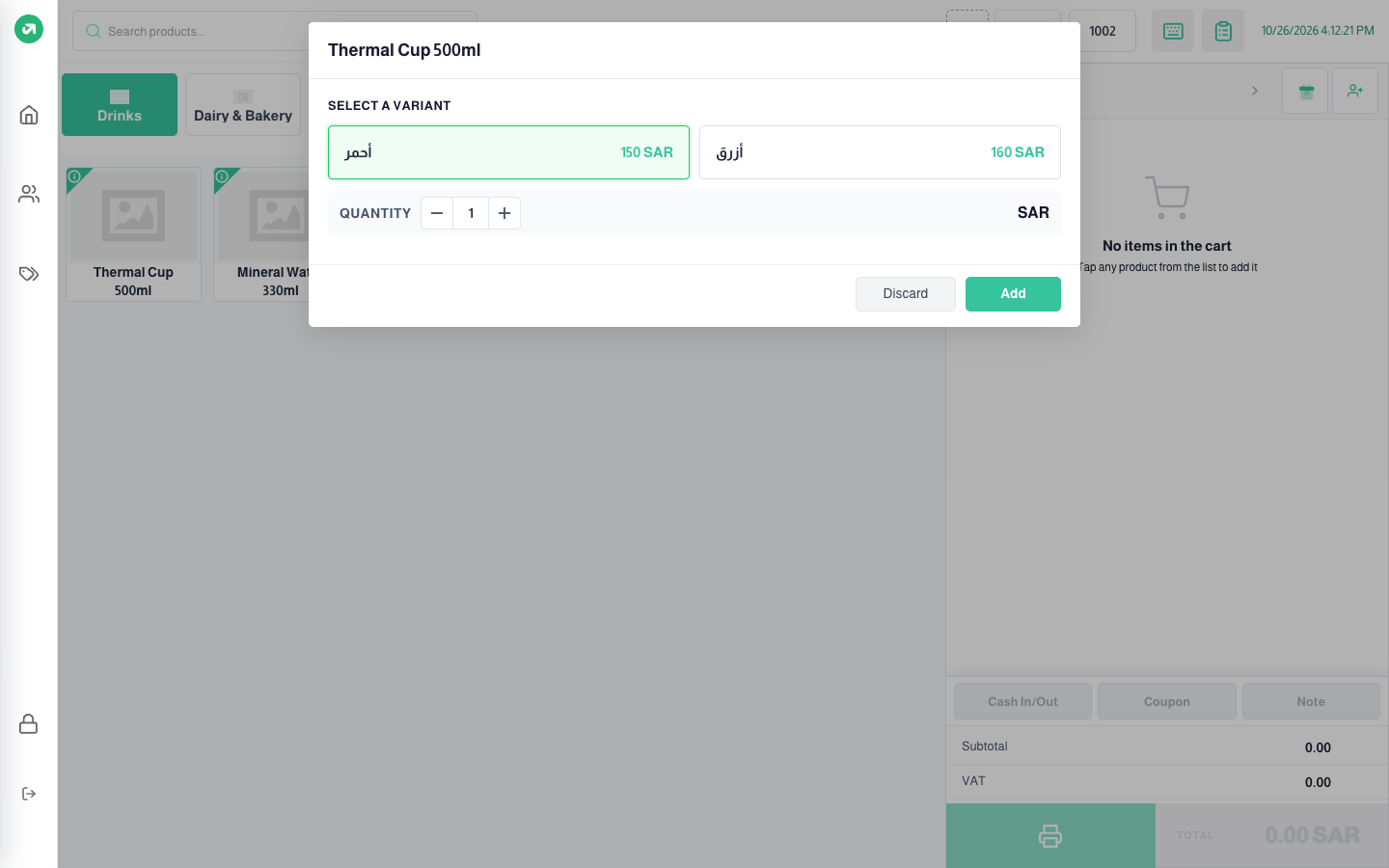
Tapping a product with variants (colours or sizes, for example) opens select a variant. Pick one, set the quantity with + and −, then press Add. A variant with no stock shows "Unavailable".
Modifiers
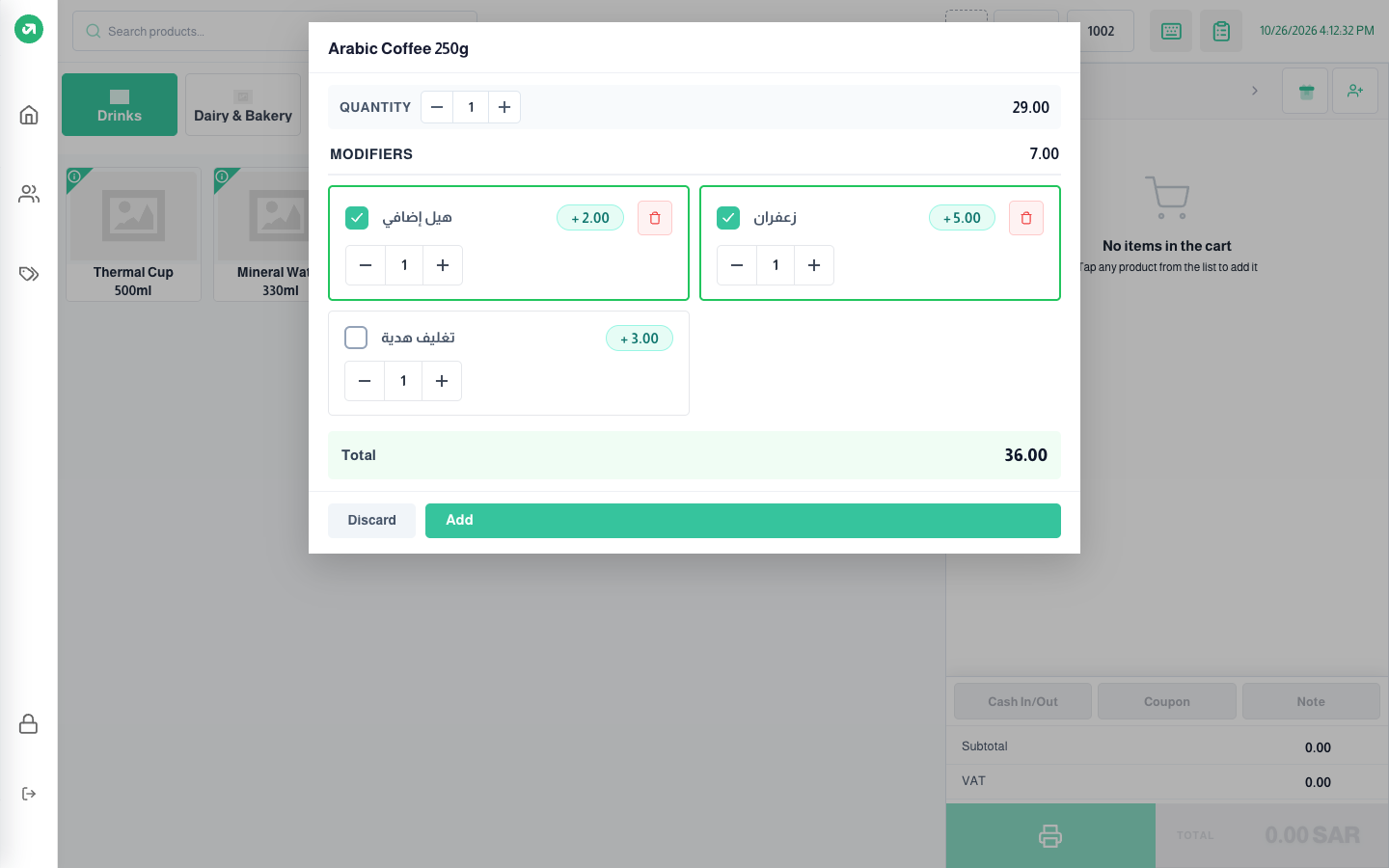
If the product has modifiers (extra cardamom or gift wrap, for example) and cart item duplication is on, the modifiers window opens. Set the quantity, tick the modifiers you want and the quantity of each. The modifiers price and the total show at the bottom. Press Add.
Product information
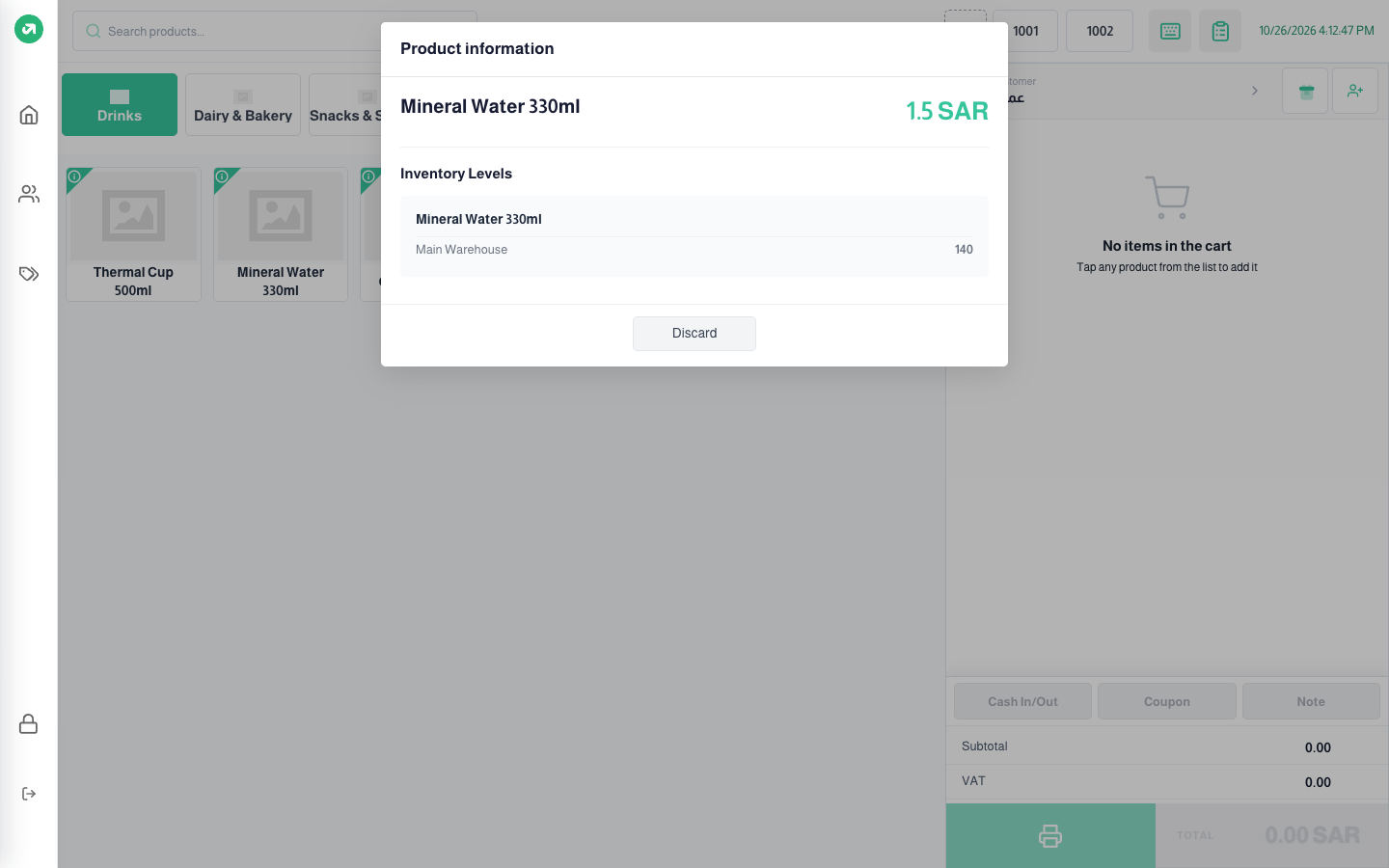
Tap the i icon on a product to see its price, tax and quantity in each warehouse without adding it. The icon shows when product info is on in the settings.
Notes
- When cart item duplication is on, each tap adds a new line with quantity 1 instead of raising the quantity on the same line. Useful in restaurants where each item can have different modifiers.
- If there are custom fields for POS, or the product has no price, the Add To Cart window asks for them before adding.