
Past orders and returns
From Orders in the side menu (or F9) you find any order to view, reprint or return.
Overview
Where to find itPOSCashier screenOrders
Steps
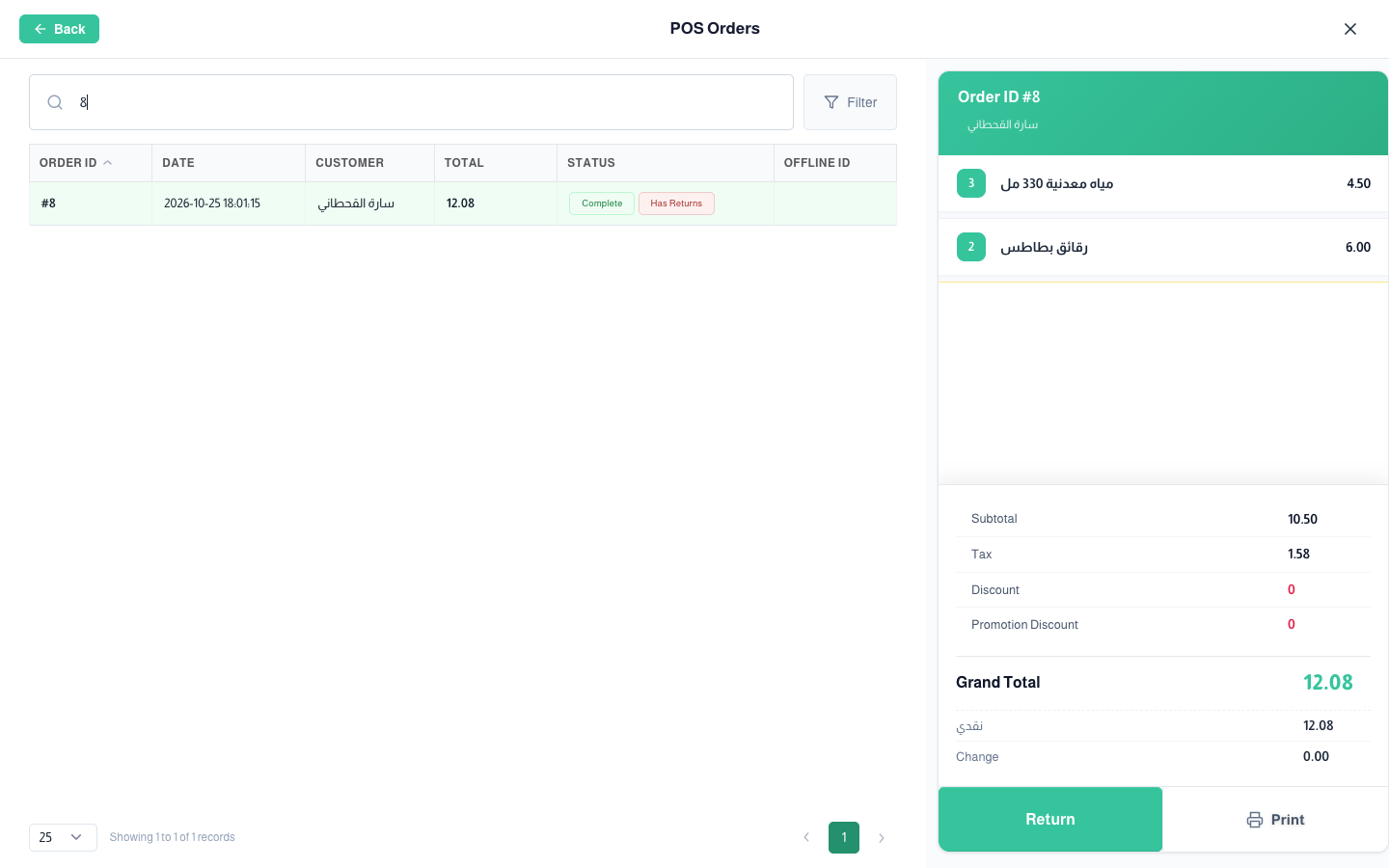
- Type the order number or scan the barcode on the receipt. Use Filter to limit by date range.
- Tap the order to see its lines, subtotal, tax, discounts and payments.
- Press Print to reprint the receipt.
Making a return
Steps
- Open the order and press Return.
- Set the returned quantity of each line with + and −, or exclude the line. You can adjust the price and discount and add a note.
- Press Confirm Return.
- When restrict order returns is on, choose the user, enter their PIN code and Save. Without a correct PIN the return is refused.
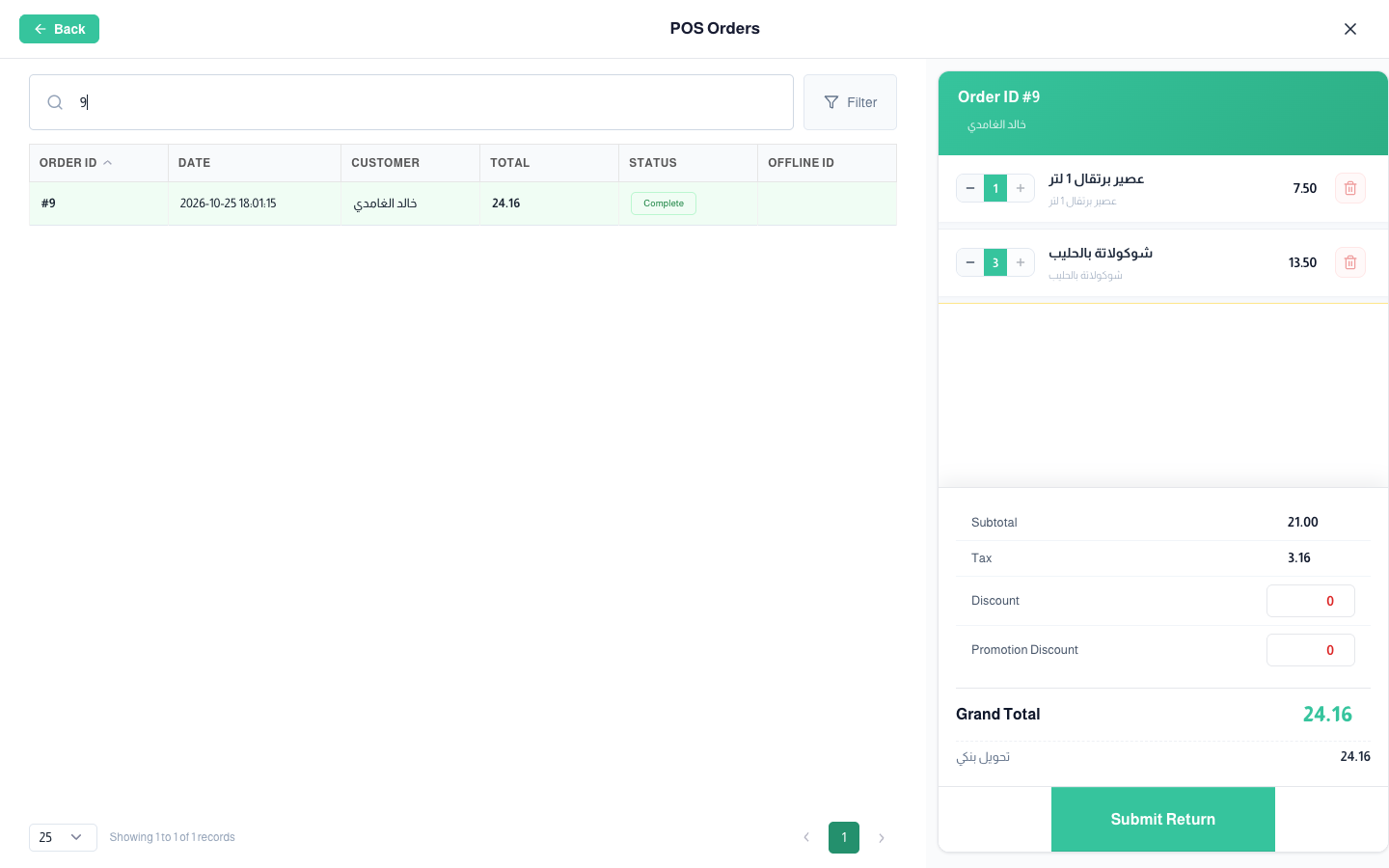
- The money goes back by the original method, or by the method set in return payment method. Wallet payments go back to the customer’s wallet.
- The return is saved as a new order linked to the original; the original shows a Return badge and its return button is disabled.
- The return reduces the current session’s sales and puts the quantity back in stock.