
Screen layout
The screen has four parts: the top bar, categories and products, the bill, and the side menu.
Overview
Where to find itPOSOpen POS
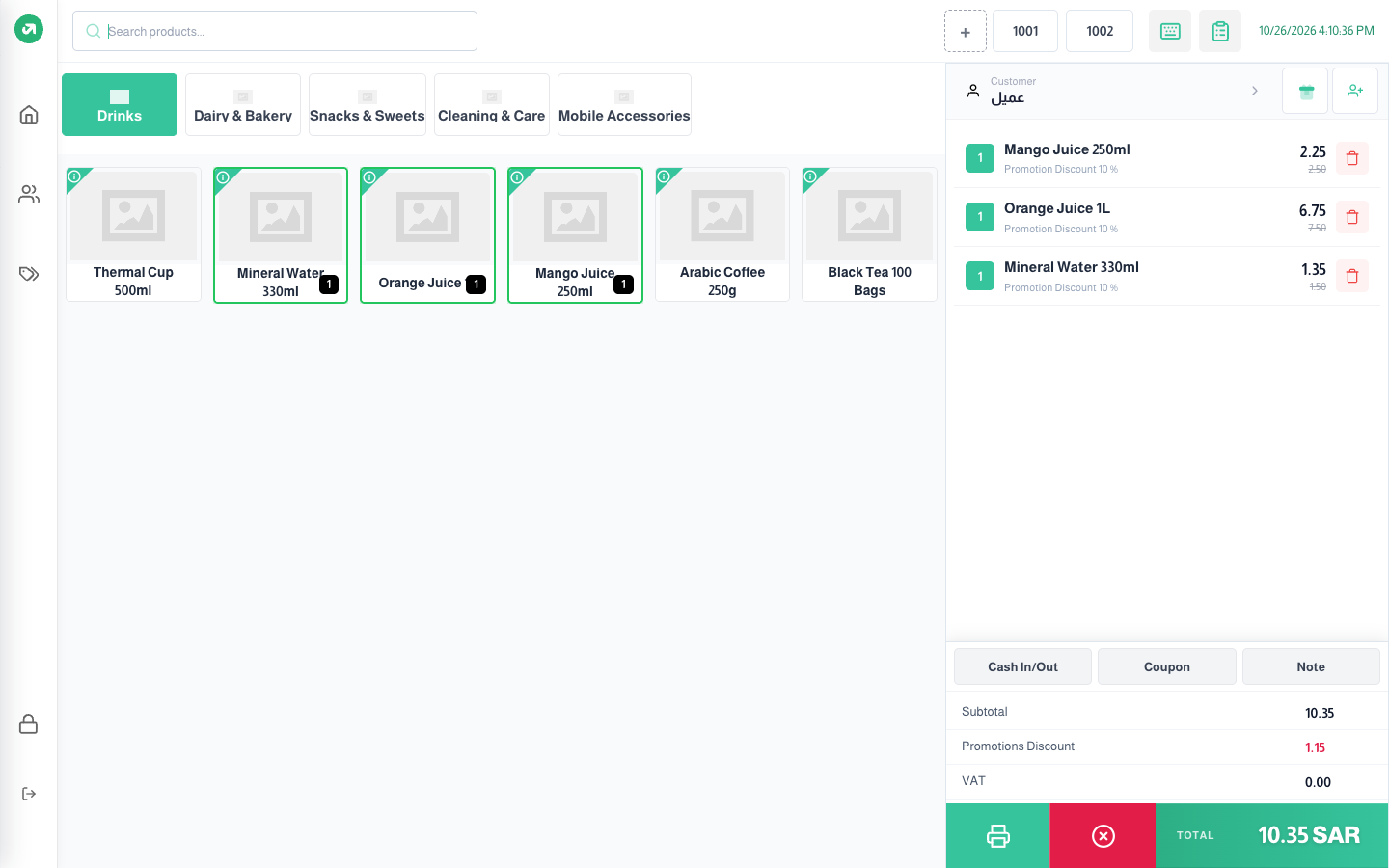
Top bar
- Search products: type a name or scan a barcode.
- + button and the held order numbers (1001, 1002...): start a new order and switch between held orders. Shown when pause orders is on.
- Shortcuts (keyboard icon): the list of keyboard shortcuts.
- Order Type (list icon): takeaway, delivery, dine-in. Shown when the Restaurant module is on.
- Date and time: shown when display time is on.
Categories and products
- Categories show as tabs above the products. Tap a category to show its products.
- A product already in the bill has a green border and a quantity badge.
- A product with no stock in the branch warehouse shows Unavailable and cannot be added (unless overselling is allowed for it). Services are always available.
- The i icon in the corner of a product opens Product information.
The bill
- At the top: the customer and the new customer button.
- In the middle: the bill lines. Tap a line to edit it, or the bin to delete it.
- Buttons: Cash In/Out, Total Discount, Coupon, Note. They work only after a product is added.
- Summary: subtotal, discount, promotions discount, VAT.
- At the bottom: Print quotation (printer icon), Discard bill (the red button), and Total, which opens the payment screen.
Side menu
- Home: back to the dashboard (the session stays open).
- Customers: the customer list and adding a customer.
- Orders: past orders, reprinting and returns.
- Lock screen (lock icon) and Close session (exit icon) at the bottom.