
Payment and completing the order
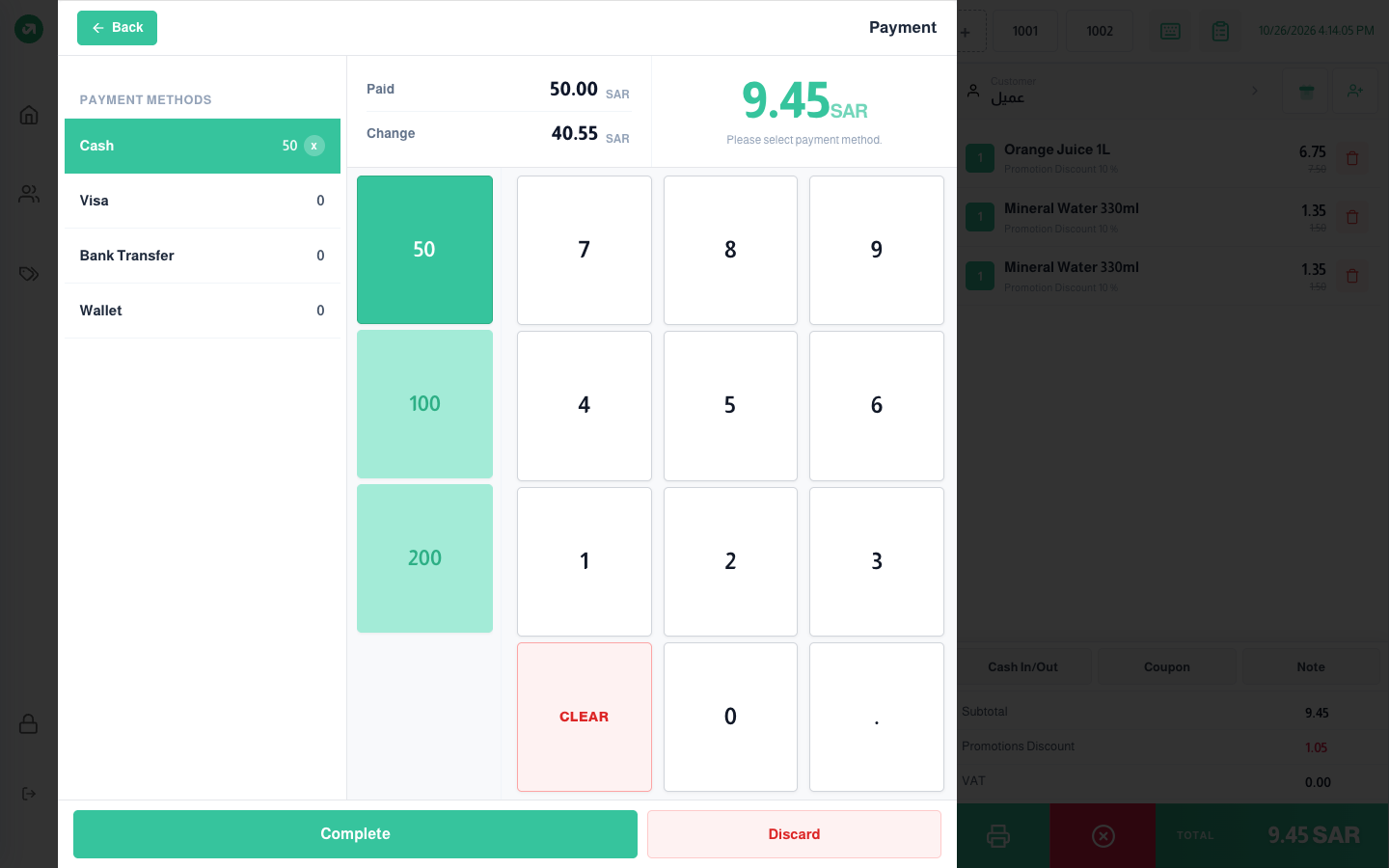
Press Total under the bill to open the payment screen. It shows the payment methods, the amount paid and the change, a number pad and Quick Cash buttons.
Overview
Where to find itPOSCashier screen
Steps
- Choose the payment method (cash, card, bank transfer...).
- Enter the amount on the number pad, or press a Quick Cash button: the first is the exact amount left, the rest are the notes set in the settings (50, 100, 200).
- To split: choose another method and enter its amount. Each method shows its amount, with an x to clear it.
- Press Complete. The order is saved, the receipt prints and a new bill starts.
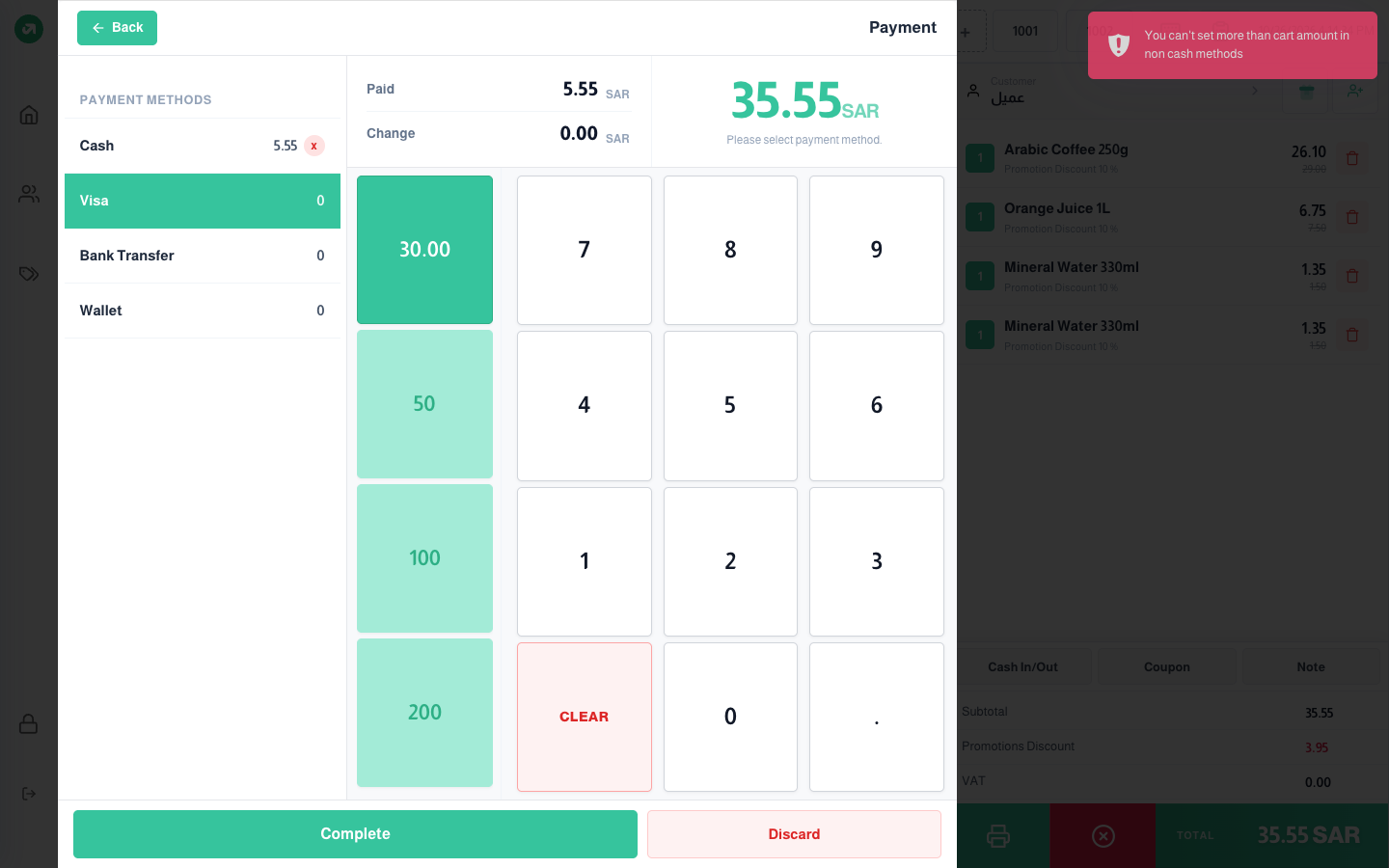
- Only cash accepts more than the amount due; the difference is the customer’s change. Other methods cannot exceed what is left.
- Clear clears the selected method, Discard clears all payments, and Back returns to the bill without clearing.
- Any change to the bill total clears the entered payments.
The order is refused if no customer is selected, the bill is empty, or the amount paid is less than the total. On completing, the system also checks stock (when overselling is off).
Working offline
The screen checks the connection every 8 seconds. If the internet drops, Your internet connection is lost appears and the screen switches to offline mode: orders are saved on the device with an ID starting "offline-" and their receipts print. When the connection returns, the saved orders are sent automatically. Do not clear the browser data before the connection returns.
Notes
- If the session is closed elsewhere (from the POS sessions screen, for example), POS Session Closed appears and selling stops until the page is reloaded and a new session opened.
- If POS printers are set up, the receipt goes straight to them through the print server, and each category’s lines go to its kitchen printer. Without printers, the browser print window opens.