
Choosing or adding a customer
Every bill starts with the default customer set in the POS settings. Change it to record the sale under a specific customer.
Overview
Where to find itPOSCashier screen
Steps
- Tap the customer name at the top of the bill (or F11).
- Type part of the name or mobile number.
- Pick the customer from the results.
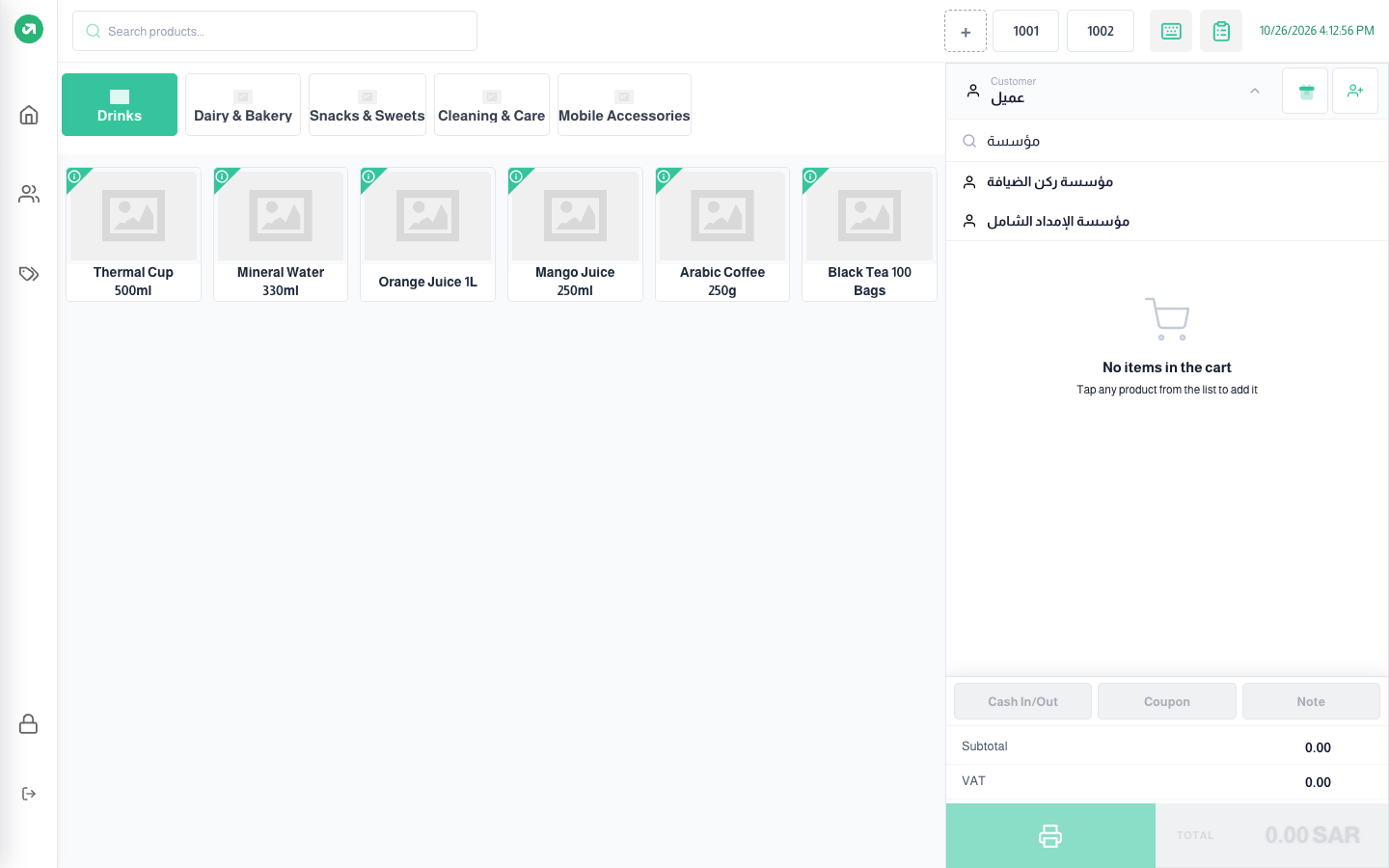
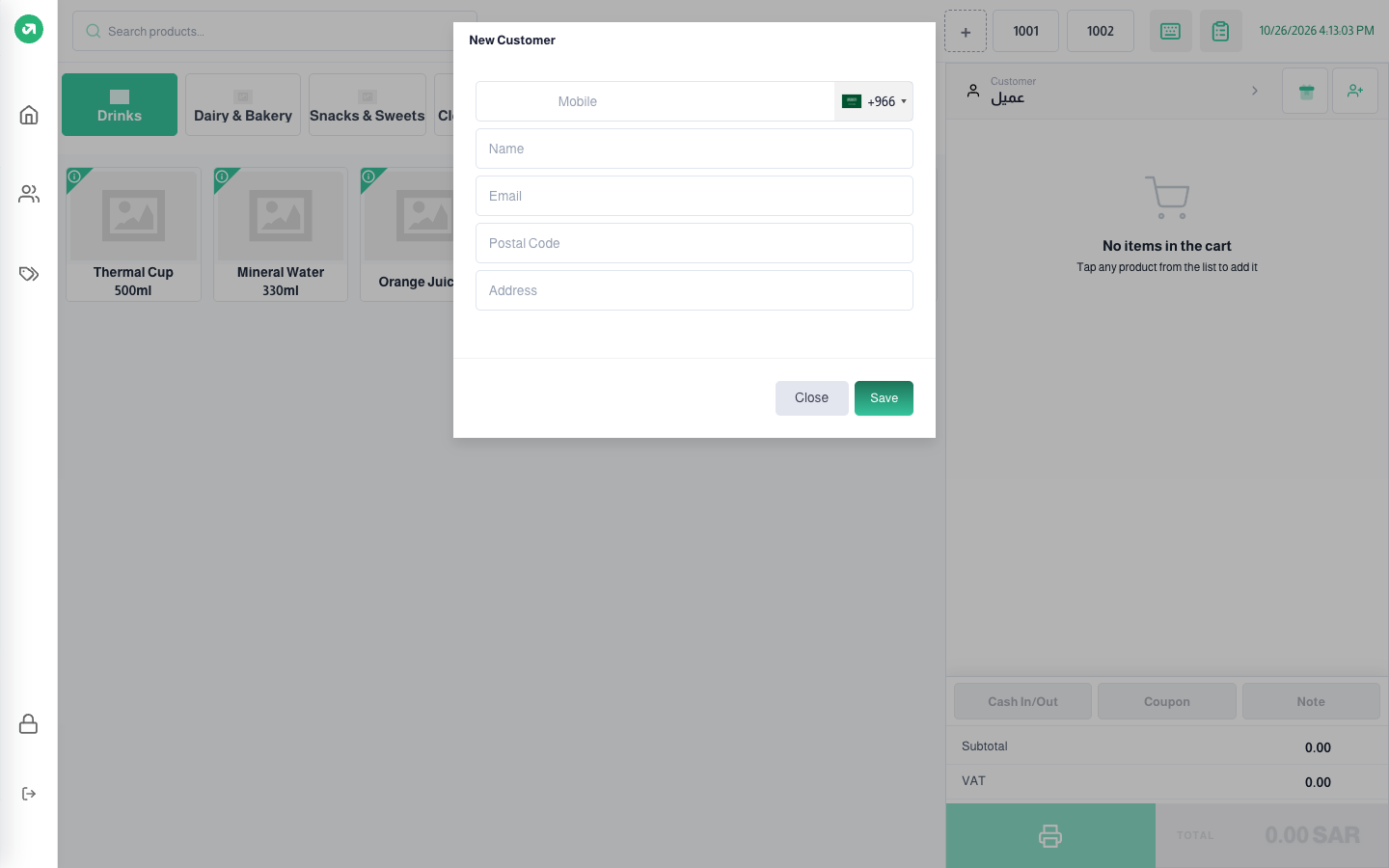
To add a new customer quickly, press New customer next to the name (or F3), enter the mobile and name, optionally the email, postal code and address, then Save. The new customer is selected on the bill straight away. The button shows when create customer modal is on in the settings.
Notes
- Changing the customer clears the entered payments, coupon and gift card. If price lists are active, the bill is emptied because prices can differ per customer.
- A user who is not a super admin only finds customers of their own branch.
- When the Loyalty module is on and the user can view loyalty transactions, an icon next to the customer shows their points balance.