
Branches
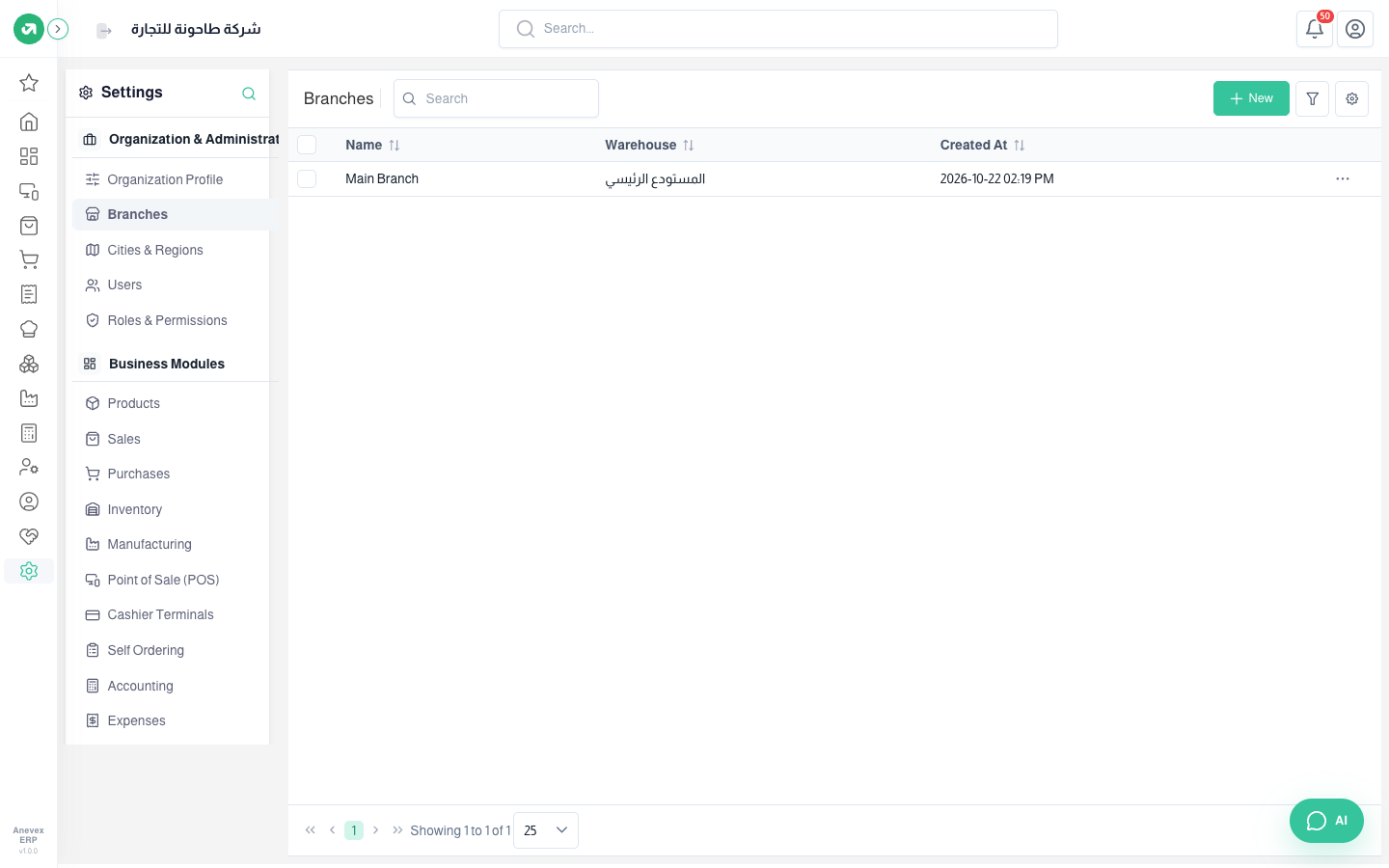
The company’s branches. Each branch is linked to a warehouse and has its own cash registers, and each user belongs to a branch.
Overview
Where to find itSettingsOrganization & AdministrationBranches
Steps
- Click New, or … → Edit on an existing branch.
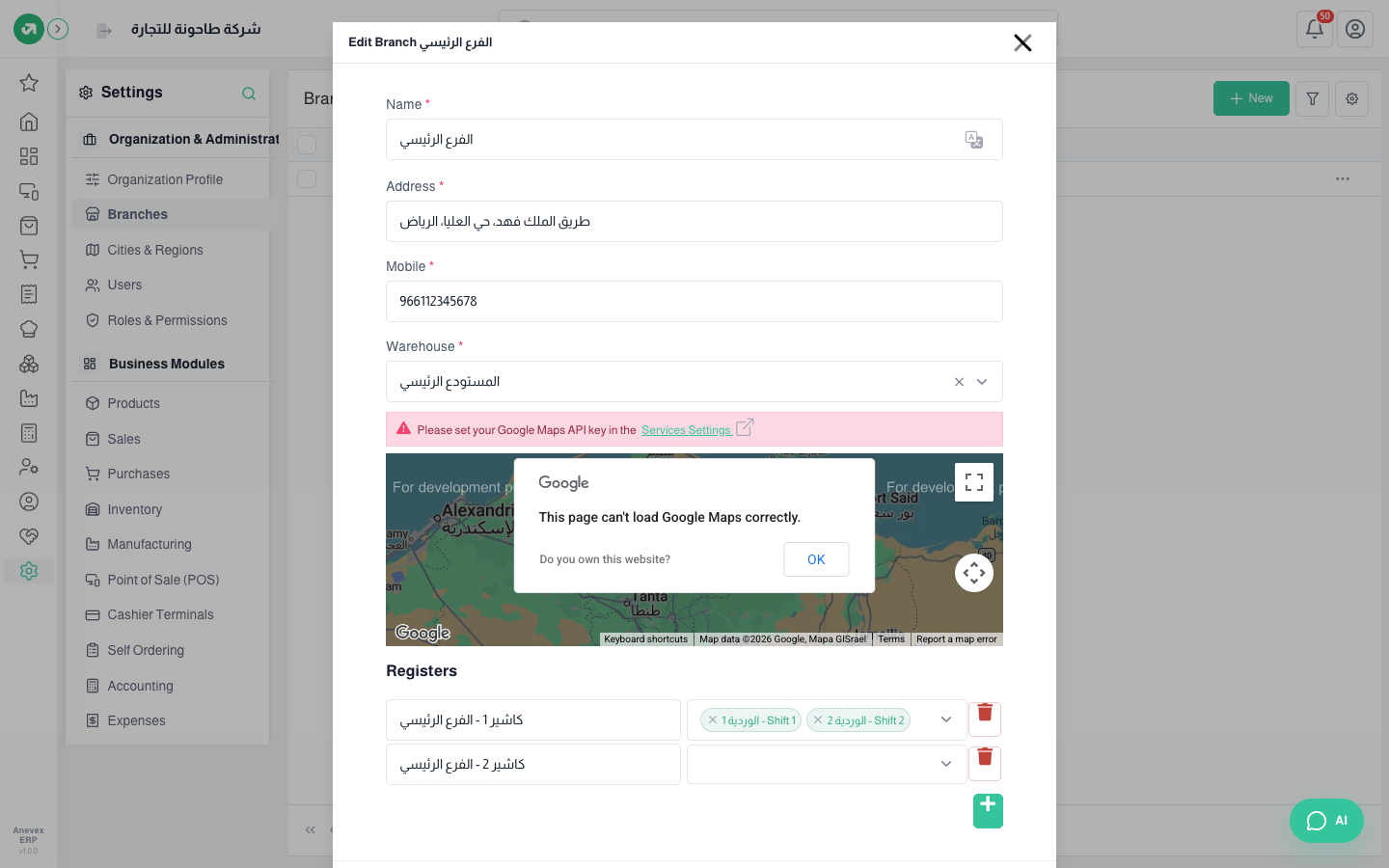
- Enter the name, address and mobile, and choose the warehouse.
- Mark the branch on the map (optional).
- Under Registers you see the branch’s cash registers and the shifts allowed on each. Click + to add a line.
- Click Submit.
Fields
| Field | Required? | Description |
|---|---|---|
| Name / Address / Mobile | Required | None of them can repeat between branches |
| Warehouse | Required | The warehouse the branch sells from |
Notes
- The number of branches depends on your plan. At the limit a "subscription limit reached" message appears.
- The map needs a Google Maps key from Services & Integrations. Without it an error shows where the map should be; you can still save.