Custom Fields
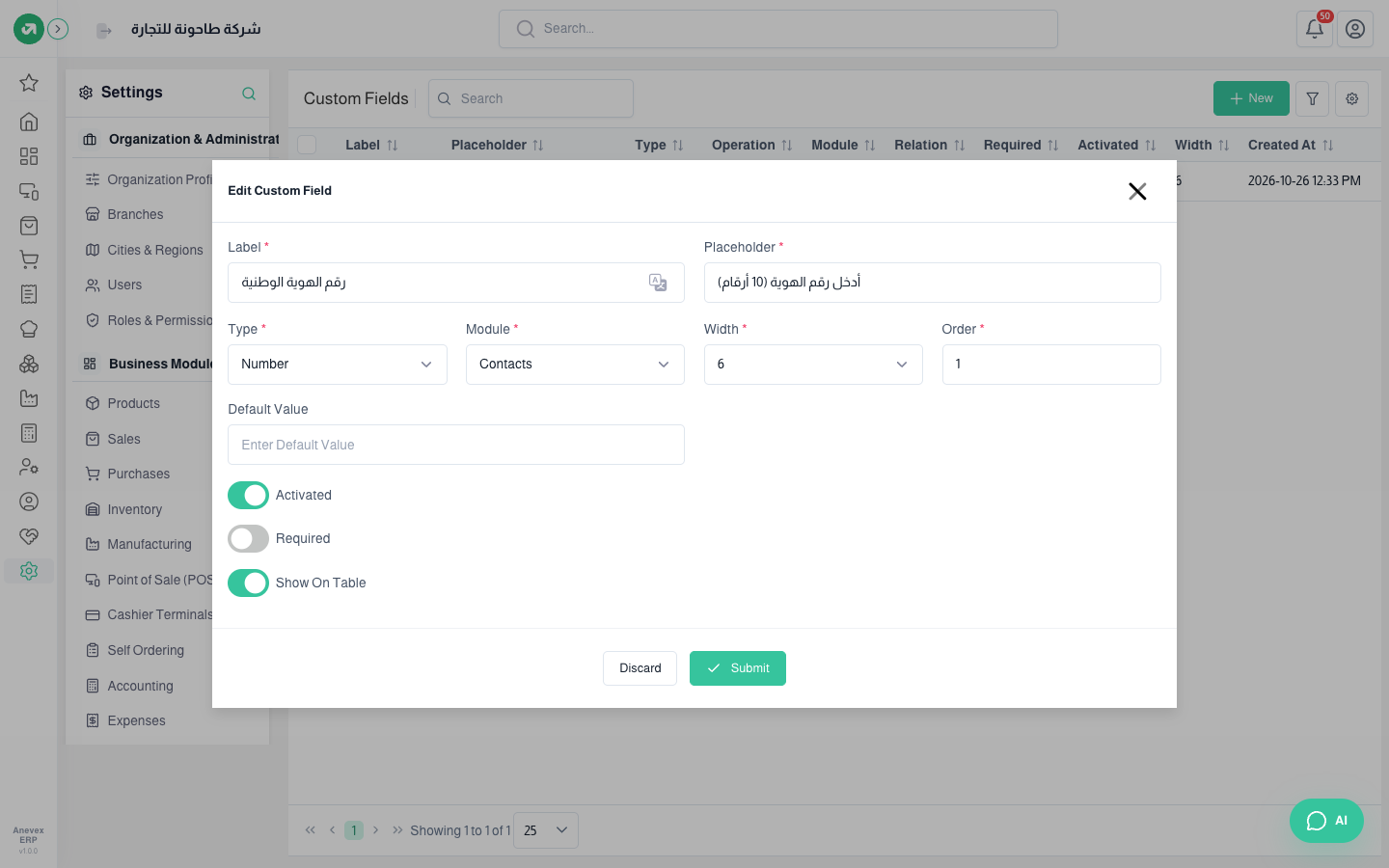
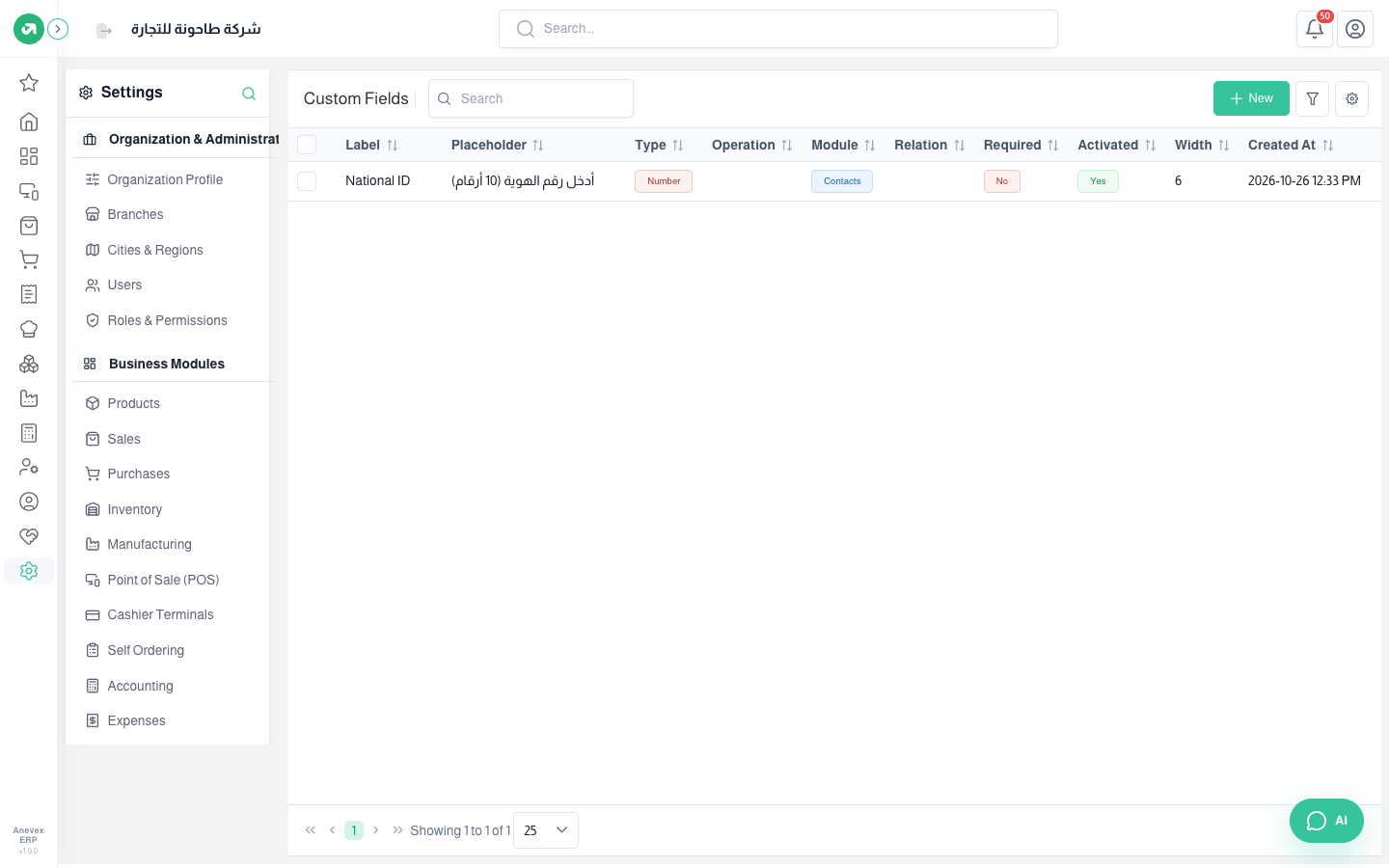
Adds a field the system does not have to a given form, like the national ID on the customer form.
Overview
Where to find itSettingsCustomization & CommunicationCustom Fields
Steps
- Click New.
- Enter the Label (the field name) and the Placeholder (the hint text in the empty box).
- Choose the Type: text, number, date, time, select, multi-select, textarea, checkbox, switch, email, hyperlink, color.
- Choose the Module (Products, Contacts, Users, Employees, Sales Invoice, Purchases Bill, Payments…).
- Set the Width (2 to 12; 12 = the full row) and the Order.
- For a select, add the Options. Then turn on Activated, Required if it is mandatory, and Show on table to show it as a list column.
- Click Submit. The field shows on the chosen module’s form.