
POS Settings
What shows on the cashier screen and what the cashier is allowed to do. The screen has six tabs.
Where to find itSettingsBusiness ModulesPoint of Sale (POS)
POS Interface
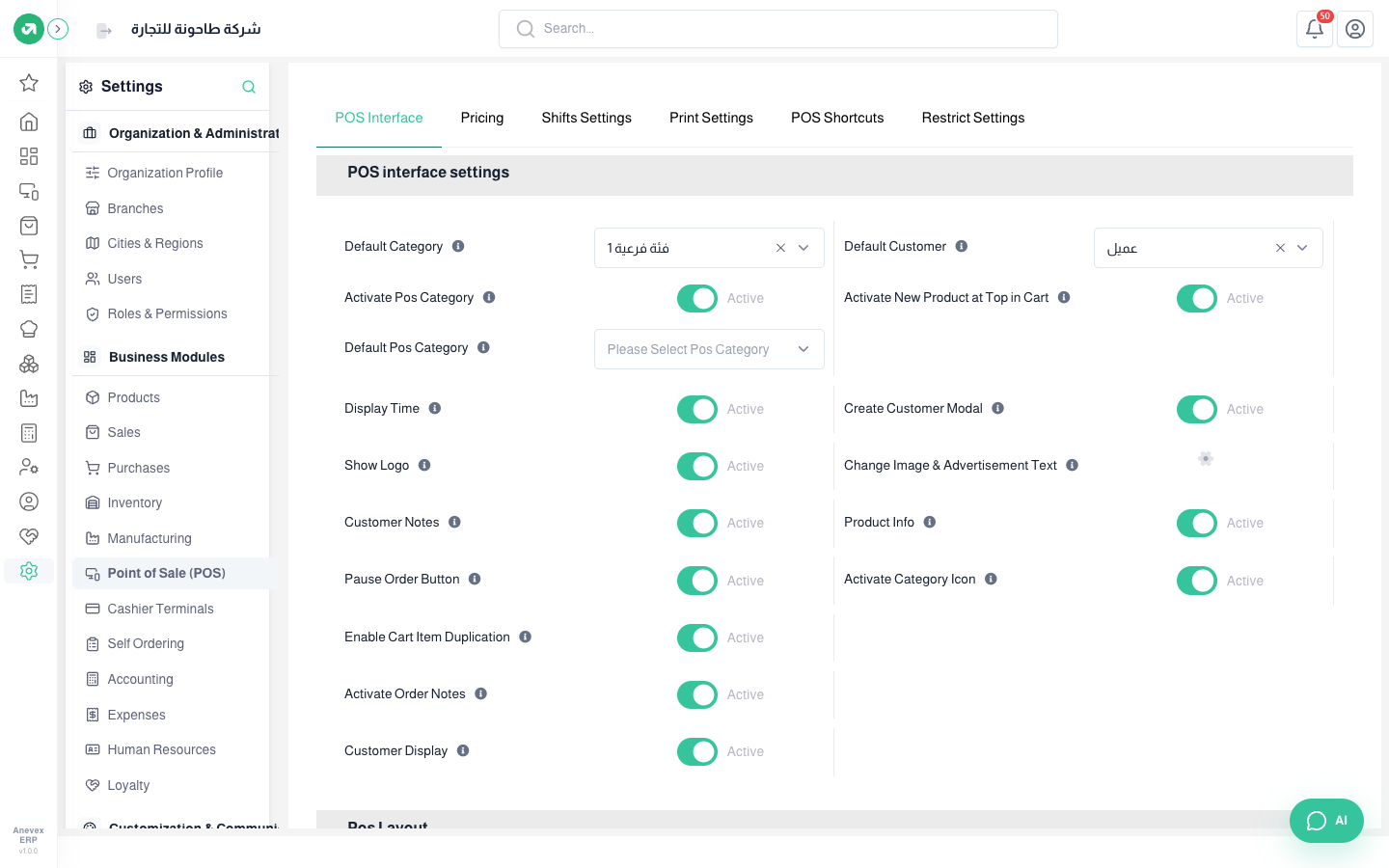
- Default Category and Default Customer: filled in on every new bill. The default customer is used when the cashier does not pick one.
- Activate Pos Category: categories just for the cashier screen, separate from stock categories, and the Default Pos Category the screen opens on.
- Activate New Product at Top in Cart, Display Time and Create Customer Modal.
- Customer Notes, Order Notes, Pause Order Button and Cart Item Duplication: buttons shown or hidden on the screen.
- Customer Display: a second screen where the customer sees the bill. With Show Logo and Change Image & Advertisement Text for what it shows while idle.
- Product Info and Category Icon.
- At the bottom: POS layout (Basic, Drawer, Toggler, Market), Server Side Processing for stores with more than 7000 products, and Hide Products Images for a faster screen.
Pricing
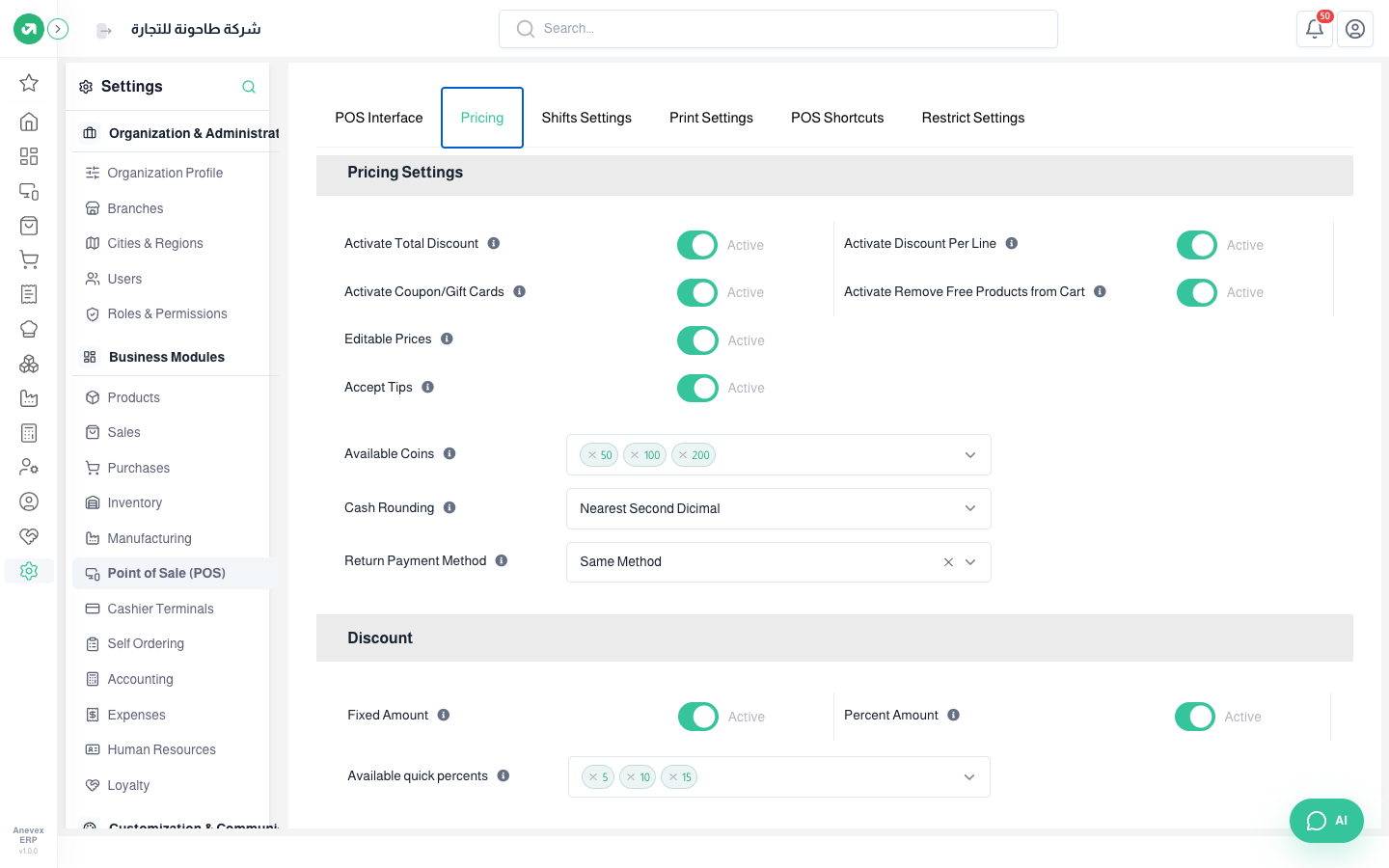
- Total Discount and Discount Per Line: shown to the cashier. Fixed Amount and Percent Amount set the allowed kind, and Available quick percents are quick buttons (5%, 10%, 15%).
- Coupon/Gift Cards: allow paying with them.
- Remove Free Products from Cart: removes zero-price lines.
- Editable Prices: the cashier changes prices without a special permission. Keep it off unless you need it.
- Accept Tips, Available Coins (cash denominations in the drawer, for change) and Cash Rounding (to the nearest riyal or decimal).
- Return Payment Method: how money is refunded on returns.
Shifts Settings
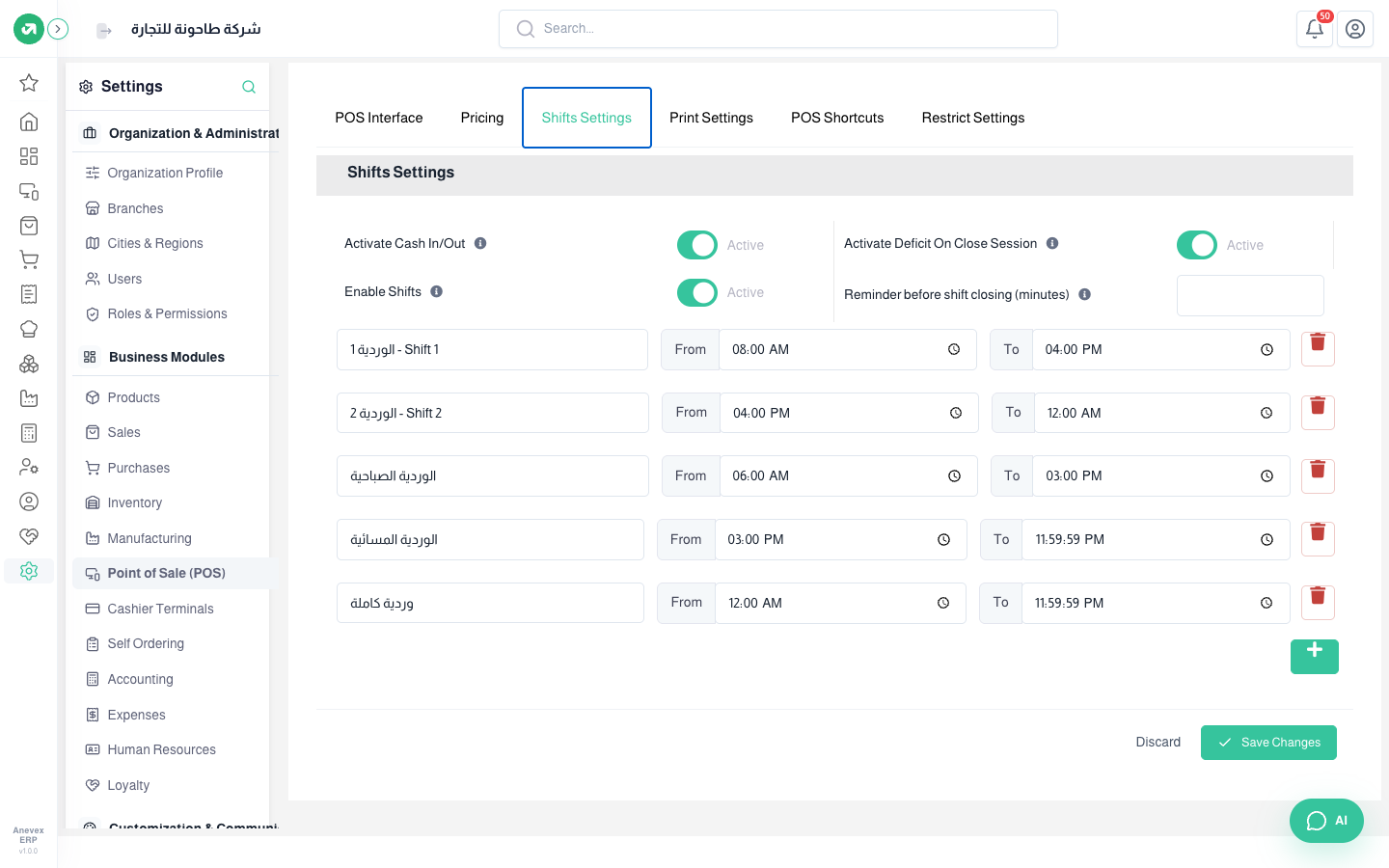
- Activate Cash In/Out: the cash in/out button in a session.
- Activate Deficit On Close Session: warns the cashier when the cash is short.
- Enable Shifts: cashiers work set shifts. Each shift has a name, a start and an end, plus a Reminder before shift closing in minutes. Add one with +, then link shifts to registers on the Branches screen and to cashiers on the Users screen.
Print Settings
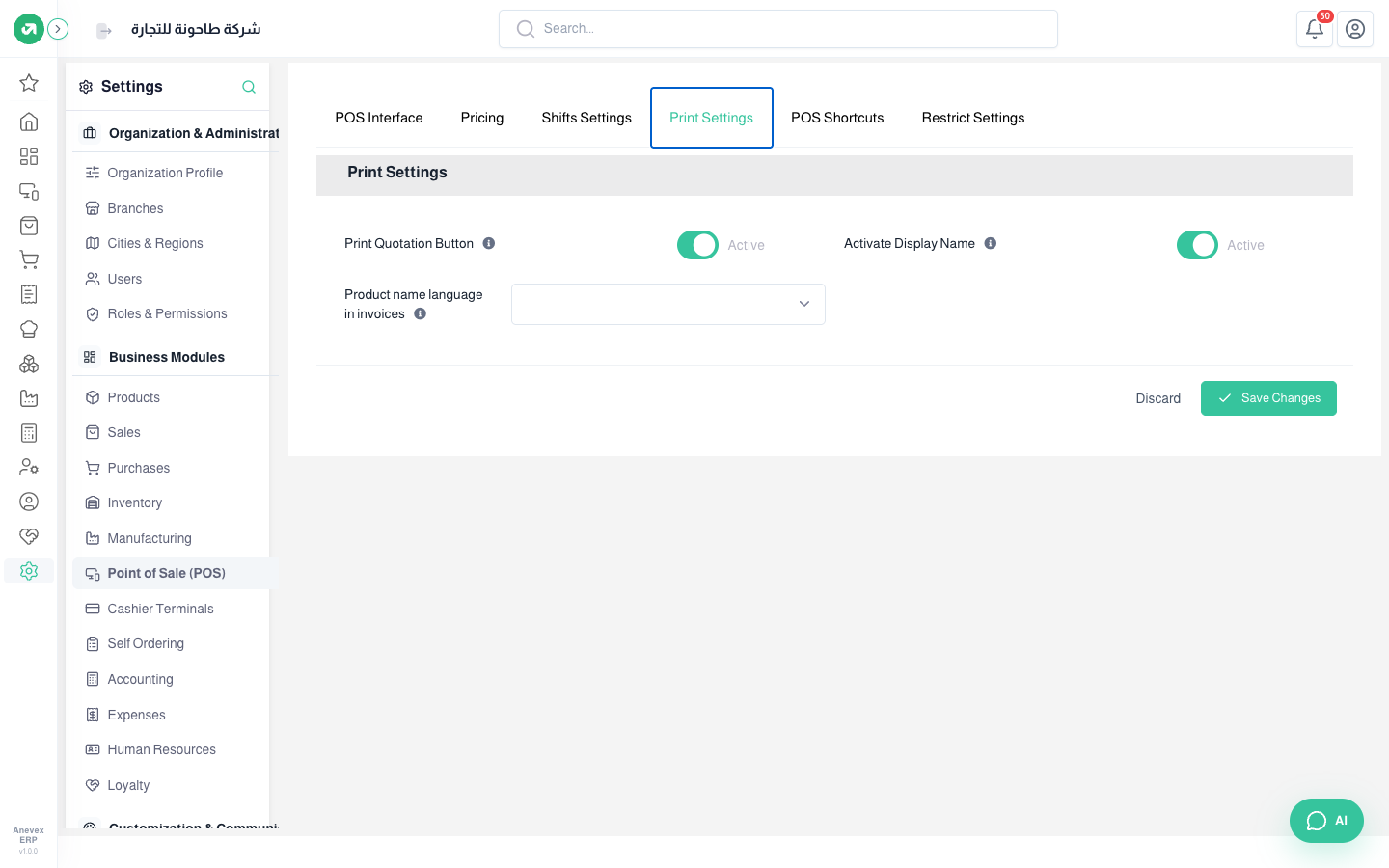
- Print Quotation Button: prints a quotation instead of an invoice.
- Activate Display Name: a custom product name on invoices, and the Product name language in invoices.
POS Shortcuts
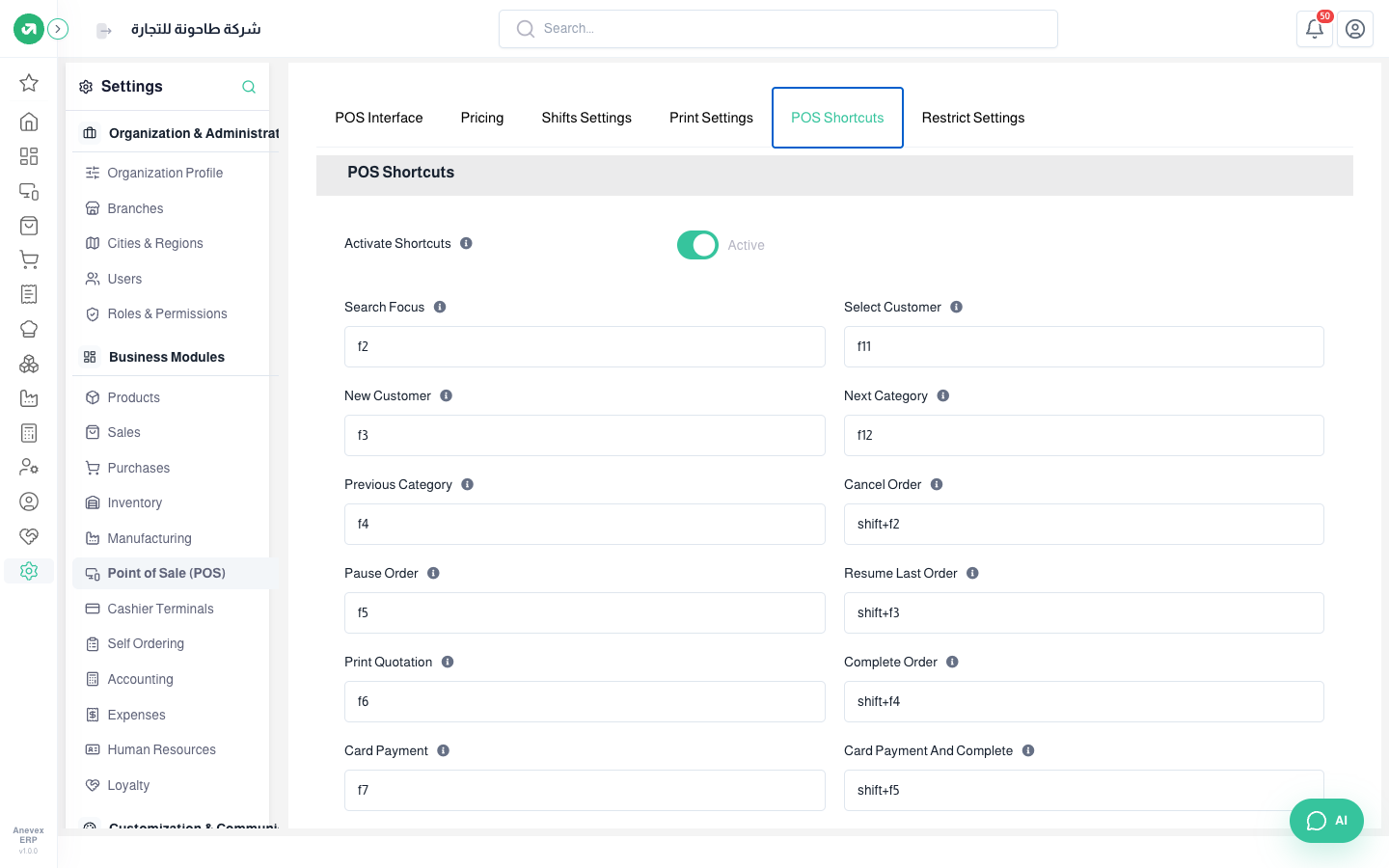
Turn on Activate Shortcuts, then click in an action’s box and press the new key or combination, like F2 for search, F5 to pause the order and Shift+F4 to complete it. If the key is already used for another action, a warning appears.
Restrict Settings
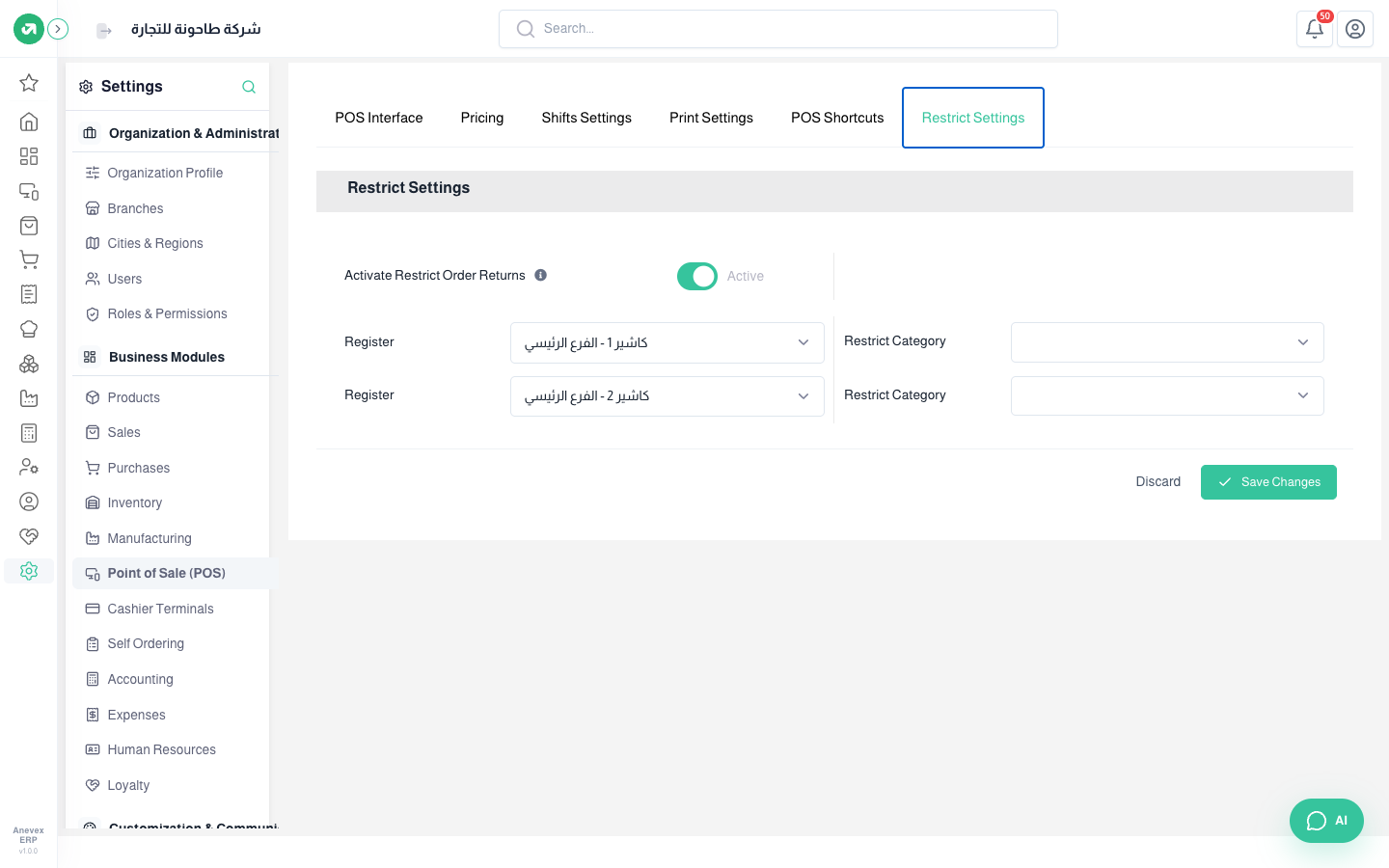
- Activate Restrict Order Returns: returns need a permission.
- Restrict Category: for each register, choose the only categories shown on it (say one register for bakery and one for drinks).