
Saudi E-Invoicing (ZATCA)
Connects the system to ZATCA’s Fatoora platform (phase 2: integration). Once connected, every invoice is signed electronically and sent to ZATCA: simplified invoices (individuals and POS) are reported, and standard tax invoices (businesses) are cleared by ZATCA.
Where to find itSettingsIntegrations & ComplianceSaudi E-Invoicing
Before you start
- The Tax Number and address details (city, district, street, building number, postal code) are complete in Organization Settings.
- An account on the Fatoora portal (fatoora.zatca.gov.sa) to get the OTP. It is issued on the portal when you onboard a new "solution unit" and is valid for one hour only.
- Try it first on the Simulation environment with the simulation portal, then repeat the steps on Core (production).
Linking with ZATCA in four steps
Steps
- Generate CSR: fill in the business details and click Generate CSR. The system creates the request file and the private key and keeps them.
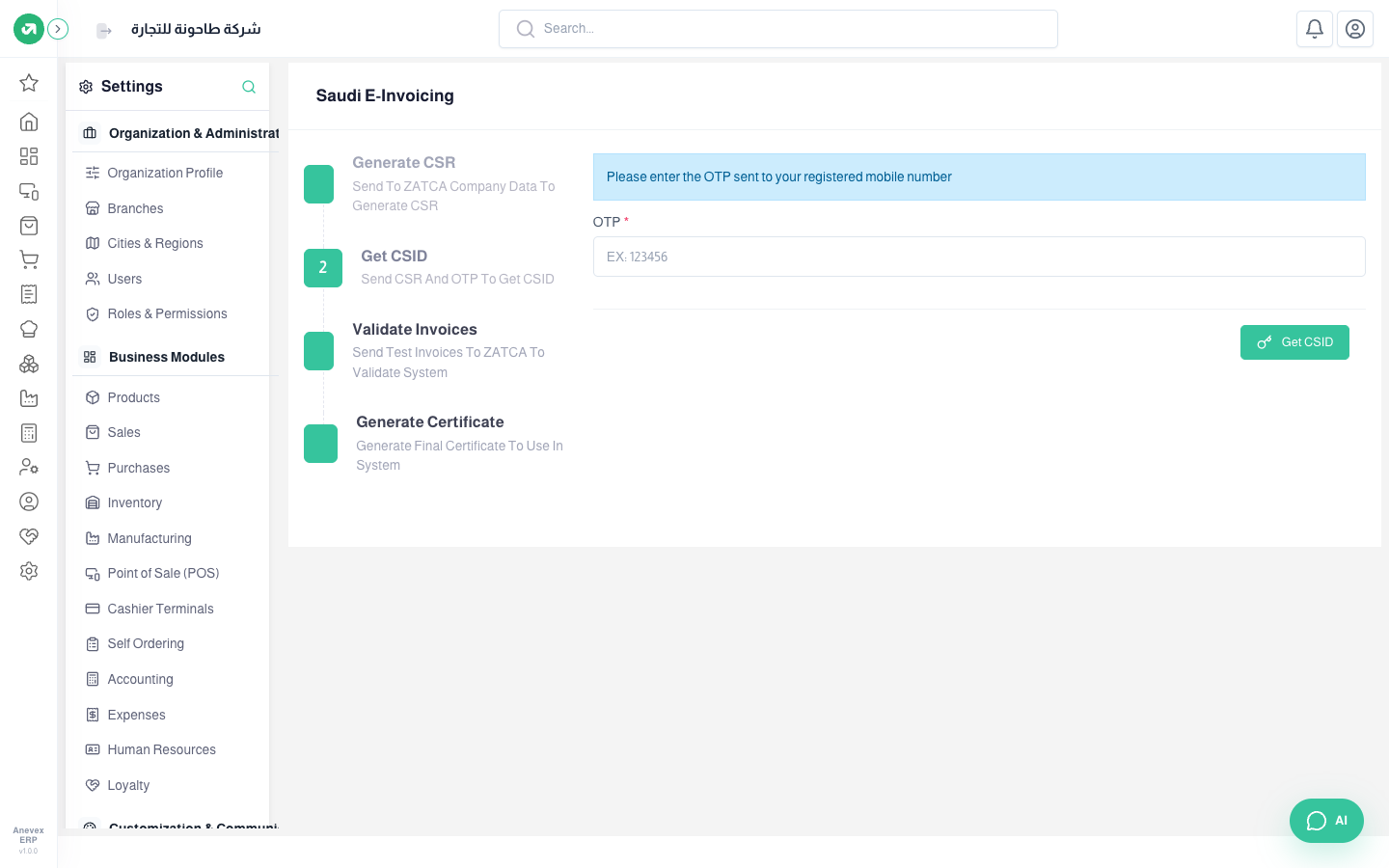
- Get CSID: get an OTP from the Fatoora portal, type it in OTP and click the button. The system sends the file and the code and receives the compliance certificate.
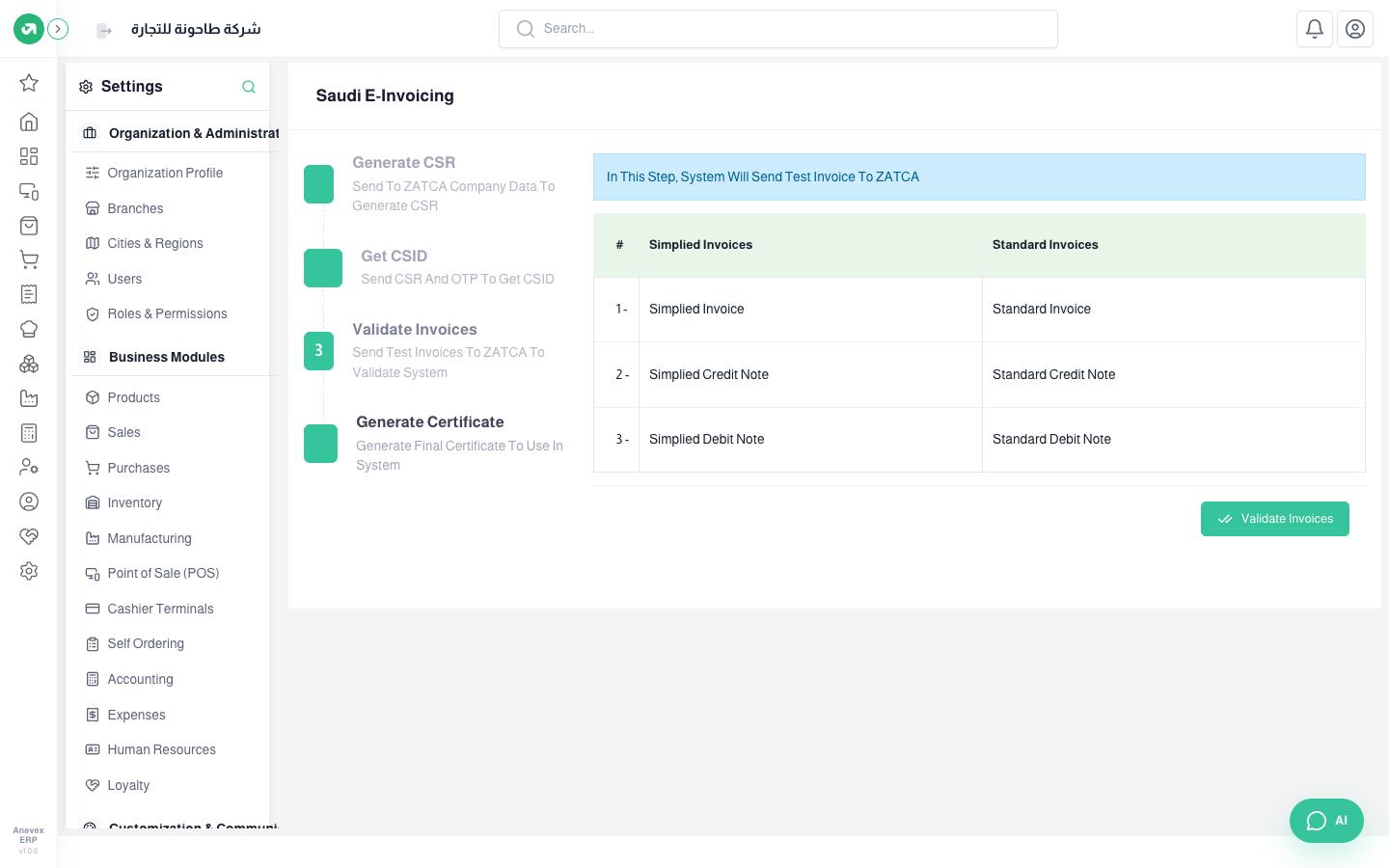
- Validate Invoices: click Validate Invoices. The system sends a test invoice of each kind (invoice, credit note and debit note, simplified and standard) so ZATCA can check the system issues them correctly.
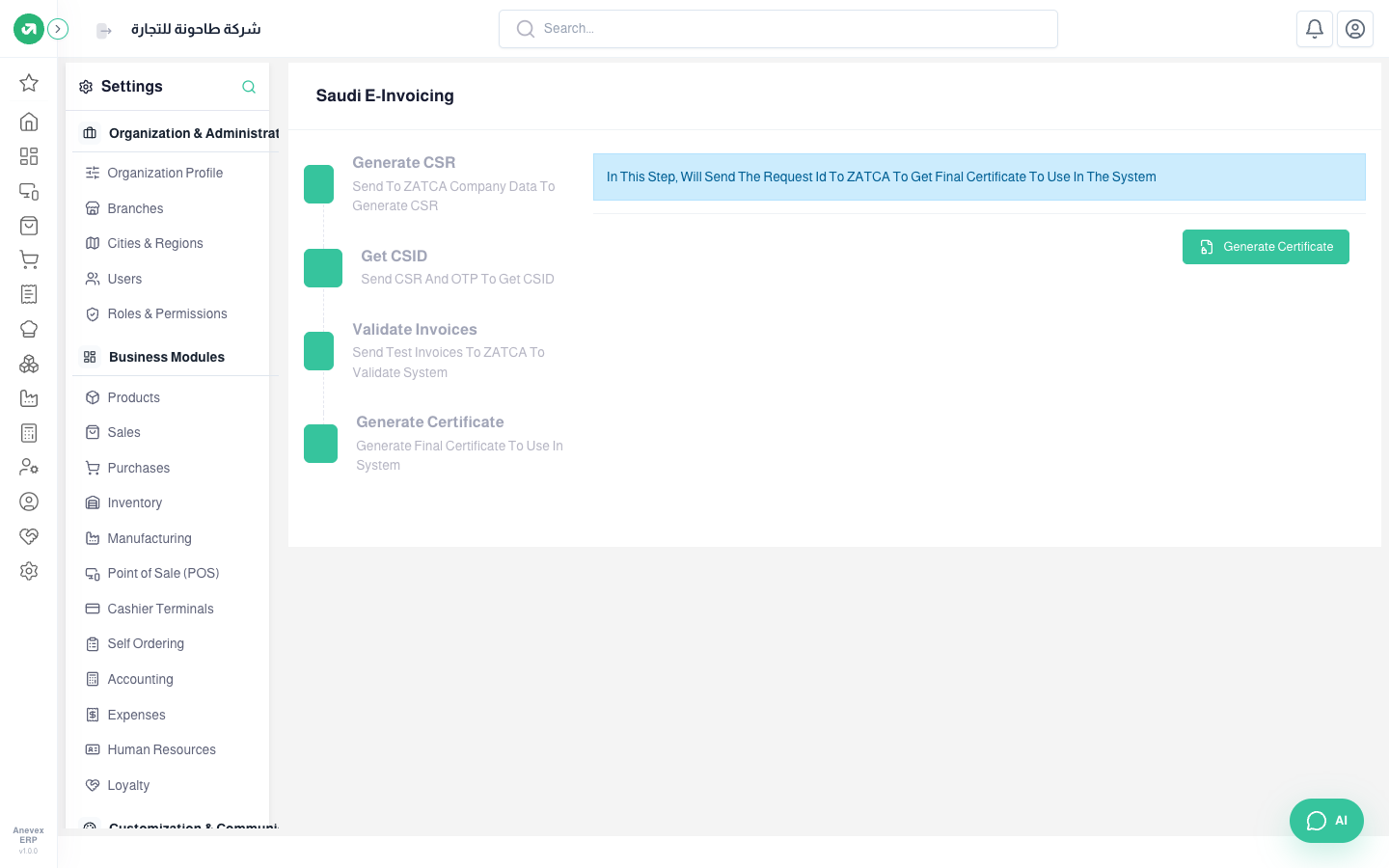
- Generate Certificate: click Generate Certificate to get the final certificate (production CSID). A success message shows, and from then on the system uses it for every invoice.
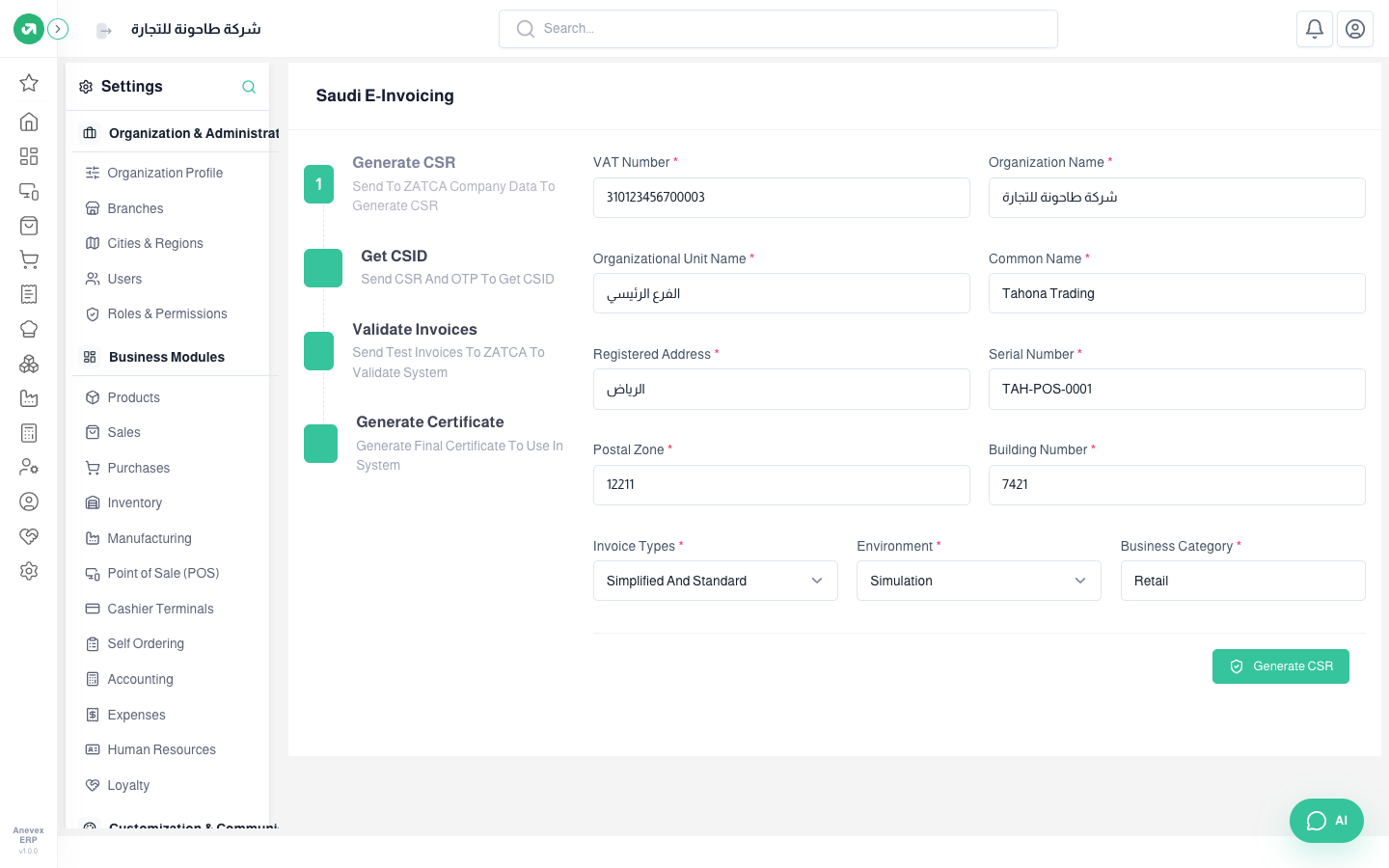
Fields
| Field | Required? | Description |
|---|---|---|
| VAT Number | Required | 15 digits starting and ending with 3, as on the VAT certificate |
| Organization Name | Required | The name registered with ZATCA |
| Organizational Unit Name | Required | The branch or unit name, for example "Main Branch". For VAT groups: the member’s VAT number |
| Common Name | Required | The trade name, or a name that identifies this device or system |
| Registered Address | Required | The city or short address |
| Serial Number | Required | A code for this issuing unit, for example TAH-POS-0001. Each device or branch linked separately needs its own |
| Postal Zone / Building Number | Required | 5 and 4 digits from the national address |
| Invoice Types | Required | Simplified (individuals), Standard (businesses), or Simplified and Standard. Choose the last if you sell to both |
| Environment | Required | Simulation for testing, or Core for real use |
| Business Category | Required | The line of business, for example retail |
After linking: turn sending on
- In Organization Settings → Additional Settings turn on Enable linking To ZATCA. Posted invoices then show Send Invoice To ZATCA, and invoices can no longer be edited.
- Turn on Send invoices automatically to ZATCA and every hour the system sends the sales and POS invoices not yet sent, from the final certificate’s date, instead of sending each one by hand.
- Follow the result in Accounting → Tax & Compliance → ZATCA Invoices: for each invoice whether it was reported or cleared, and any errors.
- With linking on, a company customer needs a valid tax number (15 digits starting and ending with 3) and a 4-digit building number, because a standard invoice is not cleared without them.
Notes
- The screen always opens on step 1. Finish the four steps in one go, or click a step number to jump to it.
- The OTP is valid for one hour; if it expires, get a new one from the portal.
- Once you have the final certificate, a success message replaces the steps; you can relink or change the environment from there.